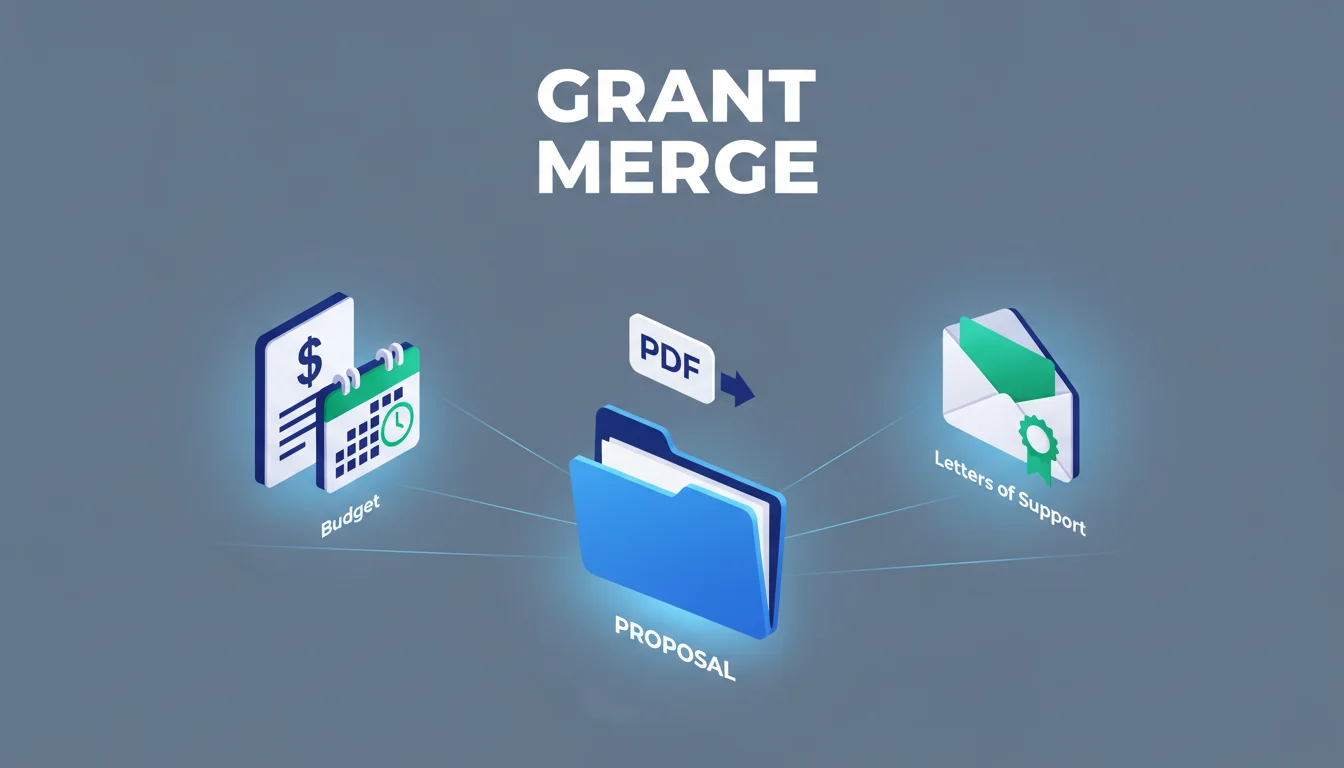
Preparing Clean Grant Proposals: How to Merge Budgets, Timelines, and Letters of Support
Submitting high-quality grant proposals requires more than just persuasive writing; it demands technical precision and flawless document organization. When you merge budgets, timelines, and letters of support into a single file, you demonstrate professionalism and respect for the reviewer's time.
Table of Contents
- The Importance of Document Cohesion in Grants
- Organizing Your Grant Components Before Merging
- How to Use the PDF Editor for Your Proposal
- Standard Grant Attachment Checklist
- Best Practices for Formatting Budgets and Timelines
- Troubleshooting Common Document Errors
- Key Takeaways
- Frequently Asked Questions
The Importance of Document Cohesion in Grants
Reviewers often evaluate dozens of applications in a single sitting. If your proposal is a fragmented collection of files with varying fonts, orientations, and resolutions, it creates cognitive friction. A "clean" proposal is one where the narrative flows directly into the budget, followed by a logical timeline and verified letters of support.
By using a PDF Editor, you can ensure that all disparate elements—Excel spreadsheets converted to PDF, Word-based narratives, and scanned image files of signatures—are unified into a professional package. This cohesion signals that your organization is detail-oriented and capable of managing the funds you are requesting.
Organizing Your Grant Components Before Merging
Before you begin the merging process, you must standardize your individual files. Granting agencies often have strict page limits and formatting requirements.
Standardizing File Formats
Most grant portals require a single PDF upload. Ensure all your source files (XLSX for budgets, DOCX for narratives, and JPG/PNG for support letters) are saved as high-quality PDFs. Avoid "Print to PDF" if it flattens text, as some reviewers use keyword search tools to navigate long proposals.
Naming Conventions
Keep your internal files organized with a clear naming convention. For example:
01_Project_Narrative_v3.pdf02_Budget_Justification.pdf03_Project_Timeline_Gantt.pdf04_Letters_of_Support_Combined.pdf
How to Use the PDF Editor for Your Proposal
The PDF Editor is an essential tool for assembling your final submission. It allows you to rearrange pages, insert late-arriving letters of support, and ensure that your budget is positioned exactly where the instructions dictate.
Step-by-Step Assembly Guide
- Upload Your Primary Narrative: Start by opening your main proposal narrative in the PDF Editor.
- Insert the Budget: Locate the page after your budget narrative. Use the "Insert" or "Merge" function to add your financial spreadsheets.
- Add Timelines and Appendices: Append your project schedule and any required visual aids.
- Organize Letters of Support: These are often scanned documents. Use the PDF Editor to rotate any pages that were scanned sideways and reorder them alphabetically or by importance.
- Add Page Numbers: If your narrative mentions "See Appendix A on page 24," ensure the final merged document reflects those page numbers accurately using the header/footer tools.
- Final Review and Export: Scroll through the entire document to check for formatting consistency before saving the final version.
Example Scenario:
- Input: A 10-page Word doc, a 2-page Excel budget, and 5 scanned JPEG letters.
- Process: Convert all to PDF, upload to the tool, reorder so letters follow the budget, and rotate the horizontal Gantt chart timeline to fit the vertical orientation.
- Output: A single, searchable 17-page PDF ready for submission.
Standard Grant Attachment Checklist
Use this checklist to ensure you haven't missed critical components before finalizing your document:
- Cover Letter: Signed by the Executive Director or Board President.
- Table of Contents: With clickable links or accurate page numbers.
- Executive Summary: A one-page snapshot of the request.
- Project Narrative: The core "who, what, where, why."
- Detailed Budget: Including both income and expenses.
- Budget Justification: Explaining why specific costs are necessary.
- Project Timeline: A Gantt chart or month-by-month breakdown.
- Letters of Support: On official letterhead from partners or stakeholders.
- IRS Determination Letter: Proof of your 501(c)(3) or equivalent status.
Best Practices for Formatting Budgets and Timelines
Budgets and timelines are the most common areas where grant proposals lose points due to poor formatting.
Handling Landscape Orientations
Timelines are often designed in landscape (horizontal) mode to show a full year of activity. When merging a landscape timeline into a portrait (vertical) narrative, use the PDF Editor to ensure the page is rotated correctly. This prevents the reviewer from having to tilt their head or rotate their screen.
Ensuring Legibility
When converting large spreadsheets to PDF, font sizes can shrink to unreadable levels.
- Break large budgets into categories (Personnel, Equipment, Travel).
- Use a minimum of 10-point font for PDF tables.
- If a table is too wide, span it across two pages rather than shrinking it to fit one.
Troubleshooting Common Document Errors
| Symptom | Potential Cause | Fix |
|---|---|---|
| File size too large for portal | High-resolution images or scans | Use the "Compress" feature in the editor to reduce size without losing text clarity. |
| Text is "blurry" in letters | Low DPI scan | Re-scan the letter at 300 DPI or ask the sender for a digital PDF version. |
| Pages are out of order | Incorrect merge sequence | Use the thumbnail view in the PDF Editor to drag and drop pages into the correct order. |
| Links don't work | Flattened PDF | Re-export the narrative from Word as a "Standard" PDF rather than "Minimum size" to preserve hyperlinks. |
Key Takeaways
- A unified PDF is the industry standard for professional grant submissions.
- Always convert spreadsheets and images to PDF before attempting to merge.
- Use a PDF Editor to manage page orientation, especially for horizontal timelines.
- Maintain a consistent naming convention for all draft files to avoid including the wrong version.
- Ensure all letters of support are legible and correctly oriented.
- Check the final file size against the grant portal's maximum limit (usually 5MB to 20MB).
- Page numbering should be applied after all documents are merged into one.
- Review the final document on a different device to ensure formatting holds up.
Frequently Asked Questions
Should I merge my IRS letter into the main proposal?
It depends on the funder's instructions. Some portals have a specific slot for "Tax Status," while others ask for a single PDF. If they ask for one file, the IRS letter usually goes at the very end of the appendices.
How do I handle signatures on letters of support?
Digital signatures are increasingly accepted. However, if you have a hand-signed letter, scan it at a high resolution (300 DPI) and use the PDF Editor to insert it into your document. Ensure the scan is cropped to the page edges for a clean look.
Can I edit the text of a PDF budget after merging?
Yes, if you use a PDF Editor, you can make minor text corrections or fix typos without going back to the original Excel file. However, for major calculation changes, it is safer to update the spreadsheet and re-merge.
Why is my merged document so large?
This usually happens because of high-resolution images or scanned letters of support. Most editors have a "Optimize" or "Compress" function that can significantly reduce the file size while keeping the text sharp enough for reviewers to read.
Ready to assemble your winning proposal? Use our PDF Editor to merge, organize, and polish your grant documents today.