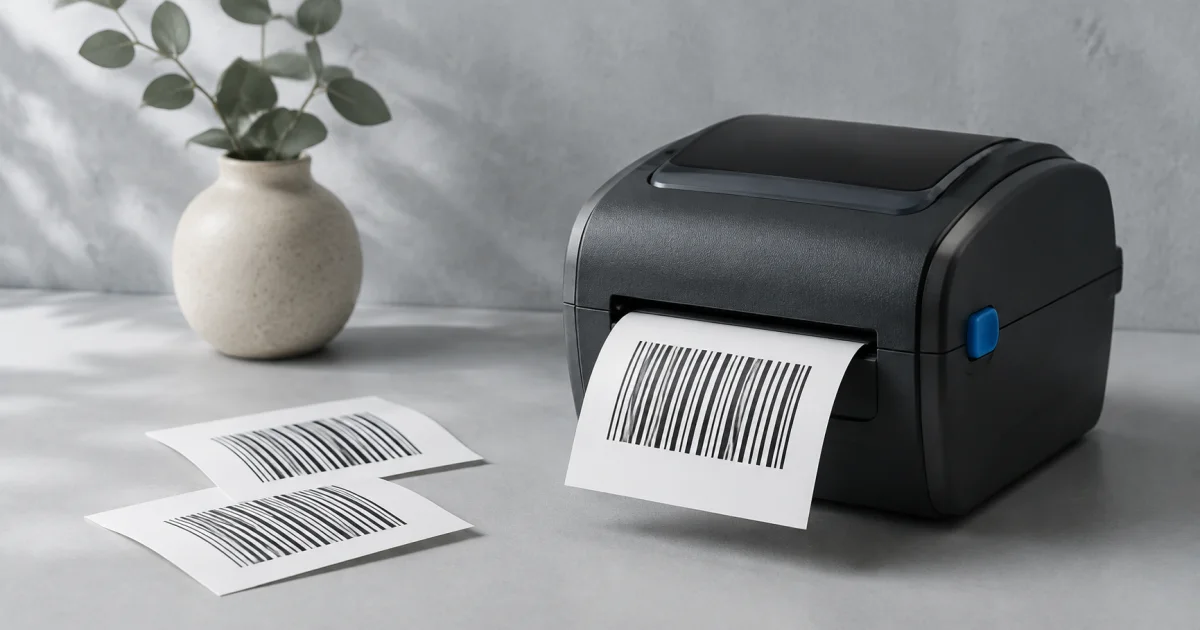
Use the Barcode Generator to turn a supported value into a PNG or SVG image. Choose Code 128, Code 39, EAN-13, EAN-8, or UPC-A. The browser creates the barcode as you change the input.
A barcode image does not assign a product number. For retail labels, start with the correct assigned identifier. Confirm the required format with the receiving organization. GS1 explains number assignment before barcode creation.
This guide covers one label at a time. It includes sample values, export choices, and checks for the printed result.
Choose the format before you enter the value
A barcode format, or symbology, defines how bars and spaces represent data. The required format depends on the system that reads the label.
| Format | Supported input in FindUtils | Example input | Printed value |
|---|---|---|---|
| Code 128 | Printable ASCII, including uppercase and lowercase letters | SHELF-A17 | SHELF-A17 |
| Code 39 | Letters, digits, spaces, and - . $ / + %; letters become uppercase | shelf-a17 | SHELF-A17 |
| EAN-13 | 12 data digits, or 13 digits with a correct check digit | 590123412345 | 5901234123457 |
| EAN-8 | 7 data digits, or 8 digits with a correct check digit | 9638507 | 96385074 |
| UPC-A | 11 data digits, or 12 digits with a correct check digit | 03600029145 | 036000291452 |
The numeric values in this guide are demonstration values. Do not assign them to your products.
Code 128 can suit an internal identifier when your scanner and software accept it. Use Code 39 when the receiving system requires it. Do not replace a requested retail format with either format because the image looks similar.
For a web address that people open with a phone, use the separate QR Code Generator.
Create a label
1. Enter the identifier
Open the Barcode Generator. Replace the sample text with your value. Select the required barcode type.
For an EAN-13 example, select EAN-13 and enter:
590123412345
The tool appends the check digit. The text under the bars becomes 5901234123457.
You can also enter the complete 13-digit value. The tool checks the last digit instead of appending another digit. An incorrect last digit produces an error.
Keep leading zeroes. For example, the UPC-A input 03600029145 contains 11 digits. A spreadsheet that converts this value to a number can remove its first zero.
2. Set the image controls
The browser page provides these controls:
| Control | Available setting | What changes |
|---|---|---|
| Bar width | 1–5 pixels | Width of the smallest bar or space unit |
| Height | 50–200 pixels | Height of the bars |
| Show text | On or off | Readable value below the bars |
| Bar color | Color selection | Color of the bars and readable text |
| Background color | Color selection | Color behind the barcode |
Start with black bars on a white background. Keep the readable text visible while you check the value. Avoid using color alone to distinguish labels. GS1 explains the role of color, size, and printing in its barcode implementation guide.
The controls use pixels. They do not specify a final label size in millimeters. Your print layout and printer settings determine the physical size.
3. Export the image
Choose Download PNG for a raster image. Choose Download SVG for a vector image that a compatible layout application can scale.
SVG keeps the bars as geometric shapes. PNG stores pixels, so enlarging a small PNG can blur the edges. Neither format confirms that a printed label meets a retailer's requirements.
The copy control attempts to place a PNG image on the clipboard. When that operation fails, it copies a PNG data URL instead. Use a download when your destination does not accept the clipboard result.
4. Check the encoded result
Use the following sequence before you print a batch:
- Compare the visible value with the intended identifier.
- Open the downloaded file in your label application.
- Print one sample at the final size.
- Scan the sample with the intended scanner.
- Compare the scanner output with the complete identifier.
- Confirm that the receiving software selects the intended record.
A scanner can read a symbol correctly while the receiving software selects the wrong item. Check both results.
Understand the input limits
Keep unsupported characters out of Code 128 and Code 39
The current Code 128 encoder uses subset B for printable ASCII characters. Do not enter emoji, accented letters, tabs, or line breaks.
Code 39 uses the smaller character set in the table. Do not add asterisks around the value. The encoder adds its own start and stop characters.
The current encoders can omit unsupported characters from the bars. The readable text can still contain them. A visible preview therefore does not prove that the encoded value matches the input. Use supported characters and compare the scanner output.
Do not confuse Code 128 with GS1-128
The Code 128 option creates ordinary Code 128. It does not create a GS1-128 label.
GS1-128 requires an FNC1 character after the start character. It also uses GS1 application identifiers. Typing parentheses and digits into ordinary Code 128 does not add that structure. See the GS1-128 format explanation.
Treat retail output as artwork that still needs verification
The generator adds a fixed 20-pixel margin on each side. This margin does not increase with bar width. It is not an automatic check of the required quiet zone, the clear space beside the bars.
For example, EAN-13 needs at least 11 module widths on the left and 7 on the right. At a 2-pixel module width, the left requirement is 22 pixels. The default 20-pixel margin alone is too small. Add sufficient clear space in the final layout. GS1 Sweden lists the size and quiet-zone requirements.
Do not treat the preview as certified retail artwork. Confirm the quiet zones, bar height, text placement, print size, and print quality for the intended application. Ask the receiving organization which verification process it requires.
Check a result with the demonstration values
| Test | Expected result |
|---|---|
EAN-13 with 590123412345 | The tool appends 7 |
EAN-13 with 5901234123457 | The tool accepts the complete value |
EAN-13 with 5901234123458 | The tool reports that the check digit should be 7 |
EAN-8 with 9638507 | The tool produces 96385074 |
UPC-A with 03600029145 | The tool preserves the zero and produces 036000291452 |
Code 39 with shelf-a17 | The readable and encoded value becomes SHELF-A17 |
These checks confirm how the tool handles the examples. They do not check product registration or printed-label quality.
Common questions
Does the tool register a retail barcode number?
No. It creates an image from the supplied value. Obtain the correct number through your product identification process before you make a retail label.
Does a correct check digit prove that the product exists?
No. A check digit checks a calculation. Read what a barcode check digit can and cannot prove for a worked example.
Does the browser upload my barcode input?
The generator encodes the value and creates the image in the browser. Page analytics and advertisements can still make network requests. This browser behavior does not describe the separate REST or MCP interfaces.
Can I create barcodes through an API?
Yes. The REST reference documents barcode-generator. The MCP reference documents barcode_generator. Their size limits differ from the browser sliders, so check the reference for that interface.
Next step
Create one sample with the Barcode Generator. Use the barcode formats cheatsheet when you need the accepted inputs, check-digit examples, or export limits.