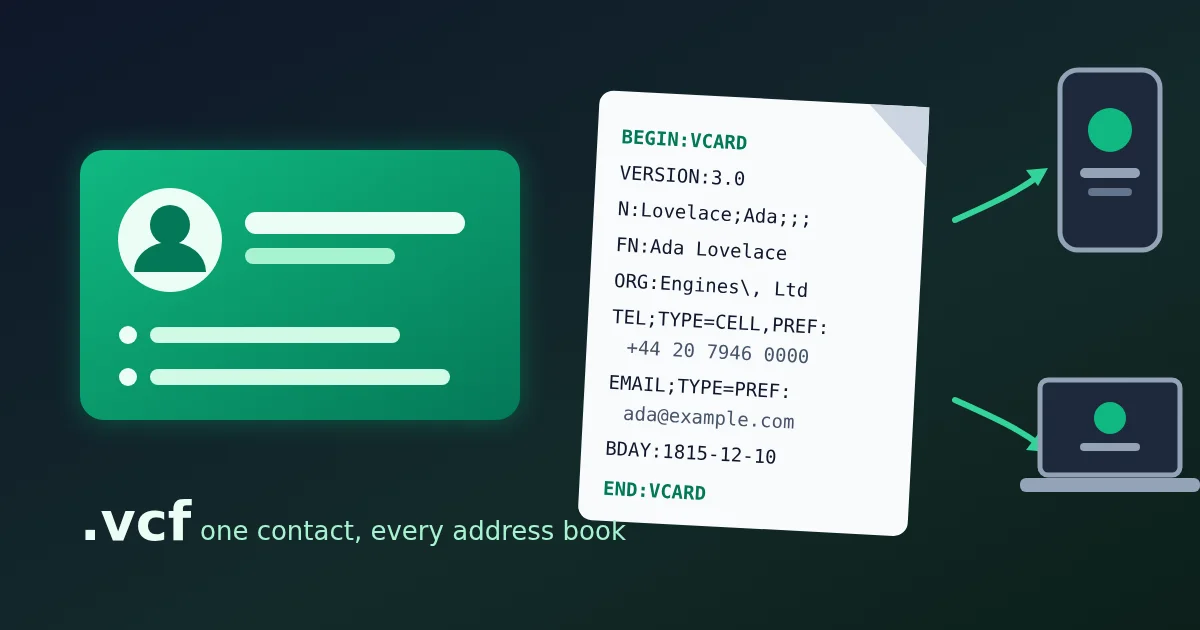
A vCard is a plain-text contact file with the extension .vcf. Open one on a phone, and the phone offers to add the contact; attach one to an email, and the recipient saves you in one click. The FindUtils vCard Generator builds that file from a short form: enter a name, add whatever else you want on the card, choose vCard 3.0 or 4.0, and download the .vcf. The card is built in your browser, with no sign-up.
This guide covers which fields to fill, how to choose the version, what each generated line means, and how to get the card onto an iPhone, an Android phone, Google Contacts or a Mac.
What a vCard Is
A vCard is a list of NAME:value lines between BEGIN:VCARD and END:VCARD. The format is an IETF standard: version 3.0 is RFC 2426 (1998) and version 4.0 is RFC 6350 (2011), which also registered the media type text/vcard. Because it is just text, the same file works on phones, in mail clients, in CRMs and behind a QR code.
Here is the card the generator writes for a sample contact in version 3.0:
BEGIN:VCARD
VERSION:3.0
N:Lovelace;Ada;;;
FN:Ada Lovelace
ORG:Analytical Engines\, Ltd
TITLE:Mathematician
EMAIL;TYPE=INTERNET;TYPE=PREF:[email protected]
TEL;TYPE=CELL,PREF:+44 20 7946 0000
TEL;TYPE=CELL:+44 20 7946 0001
ADR;TYPE=HOME:;;;London;;;United Kingdom
URL:https://example.com
NOTE:Met at the 1843 lecture\; ask about her notes on the Analytical Engine
  and Bernoulli numbers.
BDAY:1815-12-10
END:VCARD
How to Create a vCard, Step by Step
- Open the vCard Generator. Click Load sample if you want to see a filled-in card first, and Clear to start over.
- Enter the full name. It is the only required field. The output stays empty, with the hint "Enter a full name to build the card", until you type one.
- Add the first and last name separately. They go into the
Nline, which phones use to sort contacts by surname. The full name goes intoFN, which is what the phone displays. - Fill in the rest you need: organisation, job title, emails, phones, street, city, state or region, postal code, country, website, birthday and a note. Every field except the full name is optional, and an empty field adds no line.
- Separate several emails or phones with commas. The first one in each list is marked as preferred.
- Choose the version. Leave 3.0 for phones and mail clients; choose 4.0 only when a tool asks for it (see below).
- Check the text and download. The
.vcftext updates as you type. Click Download .vcf to save the file, named after the contact (for exampleAda-Lovelace.vcf), or Copy to paste the text elsewhere.
Which Fields Become Which Lines
| Form field | vCard line | Notes |
|---|---|---|
| Full name | FN | Required. The display name |
| First name, last name | N | Written as family;given;;; |
| Organisation | ORG | |
| Job title | TITLE | |
| Emails | EMAIL | One line per address; the first carries the preferred mark |
| Phones | TEL | One line per number; the first carries the preferred mark |
| Street, city, region, postal code, country | ADR | One address line, only if any part is filled |
| Website | URL | |
| Note | NOTE | Line breaks are kept as the \n escape |
| Birthday | BDAY | Pick a date; written as 1815-12-10 in 3.0 and 18151210 in 4.0 |
The address is written with the HOME type, emails in version 3.0 as INTERNET and in 4.0 as work, and phones as CELL (mobile). Most address books let you change a label after import if you want a work address or a landline.
vCard 3.0 or 4.0?
Both versions hold the same information in this tool. The differences are in how a few lines are written:
| vCard 3.0 | vCard 4.0 | |
|---|---|---|
| Standard | RFC 2426 | RFC 6350 |
| Required lines | VERSION, N and FN | VERSION and FN (N is optional) |
| Preferred email | EMAIL;TYPE=INTERNET;TYPE=PREF: | EMAIL;TYPE=work;PREF=1: |
| Phone | TEL;TYPE=CELL,PREF:+44 20 7946 0000 | TEL;TYPE=cell;PREF=1;VALUE=uri:tel:+442079460000 |
| Birthday | BDAY:1815-12-10 | BDAY:18151210 |
In 4.0 a phone number is written as a tel: link with the spaces removed, which RFC 6350 recommends, and preference is a number from 1 to 100, where 1 is the most preferred.
Choose 3.0 unless something asks for 4.0. It is the version phones and mail clients have read the longest, and the tool uses it by default for that reason. The vCard Generator always writes both N and FN, so a 4.0 card still sorts by surname.
What the Generator Takes Care Of
Three details trip up hand-written vCards, and the tool handles each one:
- Escaping. A comma, semicolon or backslash inside a value has a special meaning in vCard, so it is written with a backslash:
Analytical Engines, LtdbecomesAnalytical Engines\, Ltd. Without the escape, a company name with a comma can be split into two parts on import. - Line breaks in the note. A new line inside the note becomes
\n, so the note stays one property. - Line folding. RFC 6350 says lines should be no longer than 75 octets. Longer lines are split, and each continuation starts with a space, as in the
NOTEline above. Readers join the parts back together. The tool counts bytes, not characters, so names in Turkish, Greek or Chinese are folded correctly.
The generator also writes the Windows-style line endings (CRLF) the standard asks for and ends the file with one.
How to Import the .vcf
- iPhone: send the file to yourself by email, AirDrop or Messages, or save it to the Files app, then tap it. iOS shows a contact preview; tap to add it.
- Android: open the Contacts app, tap Organize (or Fix & manage on some versions), then Import from file, pick the account and select the
.vcf. Tapping the file in a downloads list also works on most phones. - Google Contacts on a computer: go to contacts.google.com, click Import, then Select file, and choose the
.vcf. - iCloud.com: open Contacts, choose Import Contact from the menu, and select the vCard.
- Mac: double-click the file or drag it onto Contacts, then click Add.
- Outlook: open the
.vcfattachment or file and save the contact.
To check how a reader sees your card before you share it, open it in VCF to CSV, which shows one row per contact with every field in a column.
Ideas for Using a vCard
- Digital business card. Attach the
.vcfto an email signature or link it from a page. Pair it with the Email Signature Generator for the HTML signature itself. - A QR code on a printed card. The QR Code Generator has a vCard type that encodes a name, company, title, phone, email and website in the code. Keep it short: every extra field makes the code denser and harder to scan.
- Many contacts at once. For a list in a spreadsheet, use CSV to VCF instead, and Merge VCF to combine several
.vcffiles into one before an import.
Tips
- Use international phone numbers, such as
+44 20 7946 0000. They dial correctly from any country, and in 4.0 they become validtel:links. Avoid extras like(0)in the number. - Fill in the first and last name, even though only the full name is required, so the contact sorts correctly.
- Keep the note short; some phones show only its first lines.
- The card has no photo. Add one on the phone after the import if you want it.
- The generator writes one contact per file. Run it again for each person, or use CSV to VCF for a whole list.
FAQ
What is a VCF file?
A .vcf file is a vCard: a plain-text contact card that phones, mail clients and address books can import. One file can hold one contact or many.
How do I make a vCard for free?
Open the vCard Generator, type at least a full name, add the other details, and click Download .vcf. It is free and needs no account.
Should I use vCard 3.0 or 4.0?
Use 3.0 unless an app asks for 4.0. Version 3.0 is the tool's default because phones and mail clients have supported it the longest. Version 4.0 (RFC 6350) is newer and writes phone numbers as tel: links.
Why does my contact show up with the wrong name order?
The phone sorts by the N line, not the display name. If you only fill in the full name, N is empty. Enter the first and last name separately.
Can one vCard have several phone numbers and emails?
Yes. Separate them with commas in the Emails and Phones fields. Each becomes its own line, and the first one is marked preferred.
Is my contact information uploaded?
No. On this page the card is built in your browser and the file is created on your device.