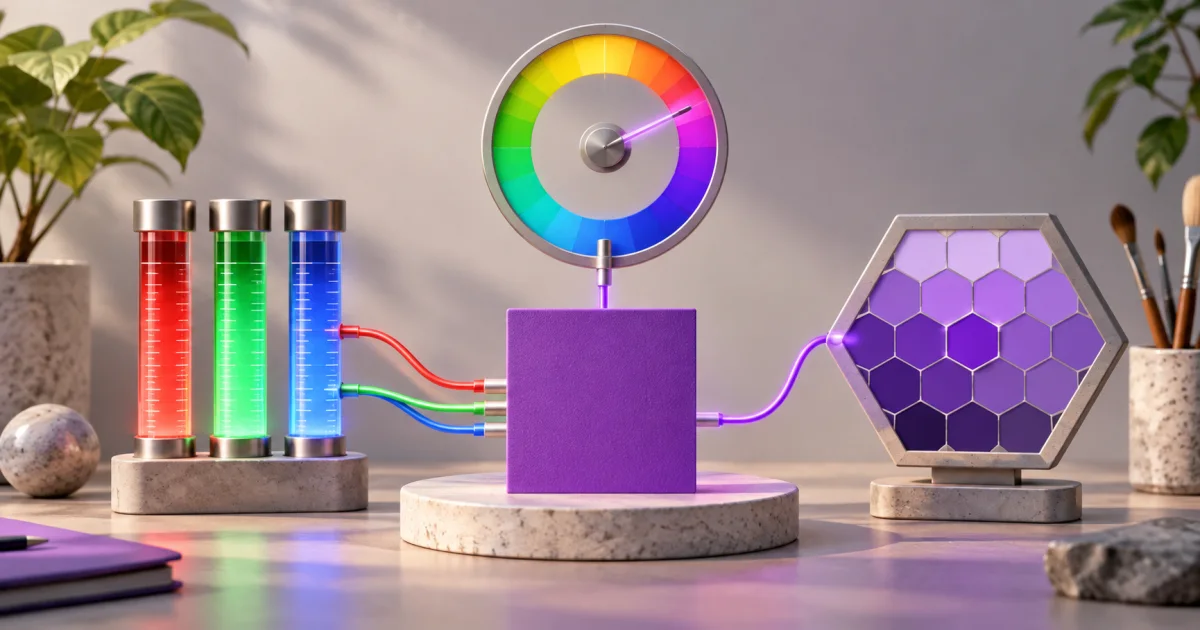
A color converter is a tool that translates a color between formats — HEX, RGB, HSL, and others — so the same color works in any context. To convert, enter a color in one format and read it in every other. The FindUtils Color Converter does this instantly in your browser — free, with no signup.
This guide explains the main color models, how to convert between them step by step, when to use each format, and the conversion mistakes that cause colors to look wrong.
What Is a Color Converter and Why Use One?
A color converter changes how a color is written without changing the color itself. HEX, RGB, and HSL are different notations for the same thing — a color converter moves a value between them accurately.
Different tools and contexts expect different formats. A design tool gives you a HEX code; a JavaScript animation needs RGB; adjusting lightness is easiest in HSL. Converting by hand is error-prone, and a small mistake produces a visibly wrong color.
Use a color converter when:
- You copied a HEX code but your code or tool needs RGB or HSL.
- You want to adjust a color — HSL makes lightness and saturation tweaks intuitive.
- You need transparency — RGBA and HSLA add an alpha channel that plain HEX lacks.
- You are matching a brand color given in one format to a design built in another.
- You are debugging a color that looks different than expected.
How to Convert a Color Online
Converting a color takes one step: enter it and read every format. The FindUtils Color Converter runs entirely in your browser.
Step 1: Open the Color Converter
Go to the FindUtils Color Converter. It accepts input in HEX, RGB, HSL, and other common formats.
Step 2: Enter Your Color
Type or paste the color in whatever format you have — for example, #3B82F6, rgb(59, 130, 246), or hsl(217, 91%, 60%) (rounded). All three describe the same blue.
Step 3: Read Every Format
The converter instantly shows the color in all supported formats. Copy whichever one your tool or code needs.
Step 4: Adjust if Needed
To tweak the color, edit the HSL value — raising or lowering lightness and saturation is far more predictable in HSL than in HEX or RGB.
Color Formats Explained
Each color model writes the same color differently and suits a different task.
| Format | Looks like | Best for |
|---|---|---|
| HEX | #3B82F6 | CSS, design tools — the most common web format |
| RGB | rgb(59, 130, 246) | JavaScript, canvas, when you think in red/green/blue |
| RGBA | rgba(59, 130, 246, 0.5) | RGB with transparency (alpha) |
| HSL | hsl(217, 91%, 60%) (rounded) | Adjusting hue, saturation, lightness intuitively |
| HSLA | hsla(217, 91%, 60%, 0.5) | HSL with transparency |
The key insight: HEX and RGB are the same information in different notation — each describes red, green, and blue amounts. HSL is a different model: it describes hue (which color), saturation (how vivid), and lightness (how light or dark). HSL is not better or worse — it is just far easier to adjust a color in, which is why designers reach for it when tweaking shades.
Color Converter: Online Tool vs Other Methods
Use a converter for a specific color notation change. Use the design application when color profiles or print output matter. Numeric RGB or HSL conversion alone does not establish print color accuracy.
Common Color Conversion Mistakes and How to Fix Them
Mistake 1: Dropping the Alpha Channel
Converting RGBA to plain HEX loses the transparency. Fix it by converting to a format that keeps alpha — RGBA, HSLA, or 8-digit HEX.
Mistake 2: Confusing HSL with HSB/HSV
HSL (hue, saturation, lightness) and HSB/HSV (hue, saturation, brightness) look similar but are different models. Fix it by confirming which one your tool uses before converting.
Mistake 3: Rounding Errors on Round-Trips
Converting HEX → HSL → HEX repeatedly can drift the color slightly due to rounding. Fix it by keeping one format as the source of truth and converting from it each time.
Mistake 4: Mistyping the HEX Code
A wrong digit in a HEX code produces a completely different color with no error. Fix it by pasting HEX codes rather than retyping them, and verifying the preview.
Mistake 5: Assuming 3-Digit and 6-Digit HEX Are Interchangeable
#3BF expands to #33BBFF, not #3BF000. Fix it by understanding that 3-digit HEX doubles each digit, and using 6-digit HEX when you need an exact color.
Tools Used in This Guide
- Color Converter — Convert colors between HEX, RGB, HSL, and more
- Contrast Checker — Check color contrast for accessibility
- Color Palette Generator — Build harmonious color palettes
- Gradient Generator — Create CSS gradients visually
FAQ
Q1: Is the color converter free to use? A: Yes. The FindUtils Color Converter is available without signup and no usage limits. It runs in your browser — nothing is uploaded to a server.
Q2: How do I convert HEX to RGB?
A: Enter the HEX code in the color converter and read the RGB value it produces. A HEX code like #3B82F6 converts to rgb(59, 130, 246) — the same color in a different notation.
Q3: What is the difference between RGB and HSL? A: RGB describes a color by its red, green, and blue amounts. HSL describes it by hue, saturation, and lightness. They represent the same colors; HSL is just much easier to adjust when you want to change a shade.
Q4: How do I add transparency to a color? A: Use a format with an alpha channel — RGBA or HSLA — and set the alpha between 0 (fully transparent) and 1 (fully opaque). Plain HEX and RGB have no transparency.
Q5: Is it safe to convert colors online? A: This color conversion operation uses browser calculations. Local processing does not certify the complete device or every website request.
Q6: Why does my converted color look slightly different? A: Small differences usually come from rounding during conversion, or from confusing HSL with HSB/HSV. Keep one format as your source of truth and confirm which model your other tool uses.
Next Steps
- Check accessibility with the Contrast Checker
- Build a palette with the Color Palette Generator
- Create CSS gradients with the Gradient Generator
- Read the complete guide to online image tools for more free utilities