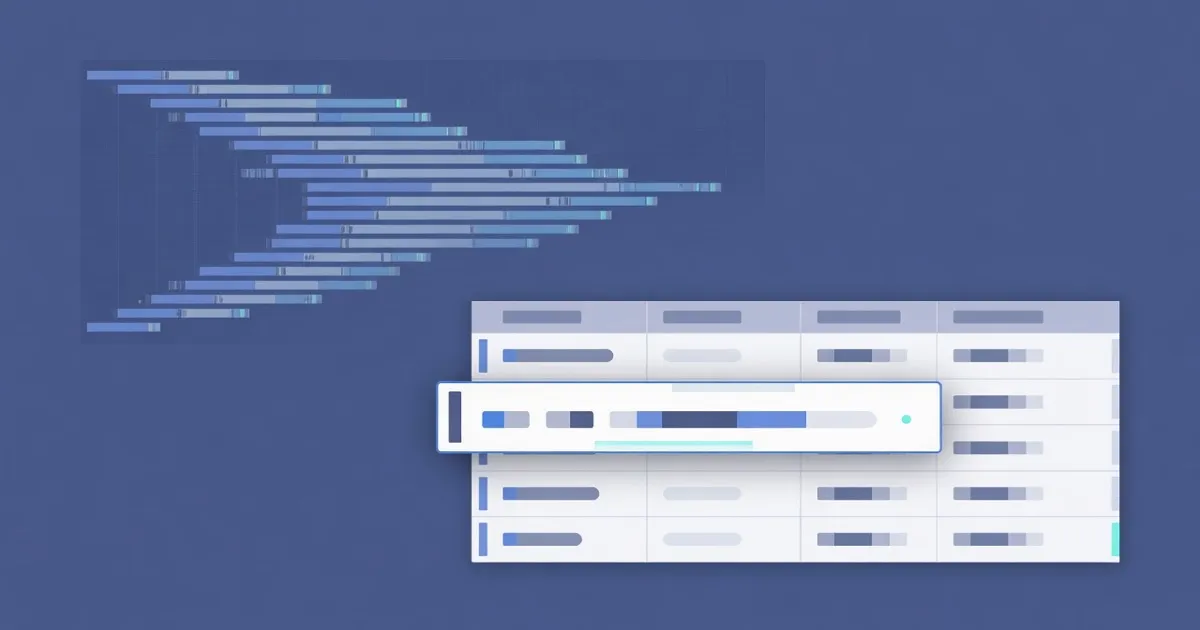
A HAR viewer reads an HTTP Archive JSON file and lists each network entry. Paste or drop the file into the FindUtils HAR Viewer to see method, URL, status, size, time, and MIME type, then copy one row as cURL. Parse runs in your browser. FindUtils does not receive the file.
A HAR file is the JSON export from a browser network panel. It holds the requests that ran during a session. The viewer is for inspection. It does not replay traffic from a FindUtils server.
Why Inspect a HAR File
HAR inspection shows what the browser actually sent and received. That is useful when a page fails, an API returns the wrong status, or a request is slower than you expect.
Use a HAR viewer when:
- A page fails after load. The table shows which request returned 4xx or 5xx.
- You need a portable command. Copy one entry as cURL and run it in a terminal.
- You want a shareable log. A HAR file is easier to attach than a screenshot of DevTools.
- You must keep the log local. A client-side parser never uploads the JSON.
The honest limit: a HAR file can include cookies, authorization headers, and request bodies. Treat the export as sensitive data. Remove secrets before you share the file or the cURL command.
How to Inspect a HAR File Online
The FindUtils HAR Viewer parses HAR 1.x JSON with log.entries. The page accepts up to 20 MB of text.
Step 1: Export a HAR from DevTools
Open the browser network panel. Reproduce the failing request. Save the log as HAR. Chrome, Edge, and Firefox all export this JSON format.
Step 2: Open the viewer
Open the FindUtils HAR Viewer. Drop the .har file or paste the JSON. Click Parse HAR.
Step 3: Read the entry table
Each row shows method, URL, status, size, and time. Use this table to find the slow or failing request. The page does not render HAR content as HTML.
Step 4: Copy one entry as cURL
Select the row you need. Copy the cURL command. The viewer builds that command in the browser. It does not send the request for you.
HAR Viewer vs HAR to cURL vs a Desktop Client
A viewer shows the whole log first. A converter is for bulk cURL export. A desktop client replays traffic. Choose the surface that matches the job.
| Feature | FindUtils HAR Viewer | FindUtils HAR to cURL | Desktop API client |
|---|---|---|---|
| Price | Free, no signup | Free, no signup | Free tier or paid |
| Shows the full log | Yes, as a table | Focus is conversion | Yes, after import |
| Copy one cURL | Yes | Yes, often many at once | Yes |
| File stays in the browser | Yes | Yes | Depends on the app |
| Replays the request | No | No | Often yes |
| Size limit on this page | 20 MB of text | See the converter page | Usually higher |
Best for: Use the HAR Viewer when you need to read the log and copy one request. Use HAR to cURL when you want commands for many entries. Use a desktop client when you must replay authenticated traffic against a private host.
Practical Examples
Example 1: Find the 500 in a checkout flow
Export a HAR while you submit a form. Parse it in the viewer. Sort with your eyes across status codes. Copy the failing POST as cURL. That command is the starting point for a bug report.
Example 2: Turn a slow image request into a terminal test
A product image takes 4 seconds. The table shows time and size. Copy that GET as cURL and test it outside the page. Then convert the command with cURL to Code if you need a script.
Example 3: Share a log without a screenshot
A teammate cannot open your DevTools. Send the HAR and the row index. They paste the same file into the viewer and see the same method, URL, and status.
Common Mistakes
Mistake 1: Sharing a HAR that still holds cookies
A HAR export often includes Cookie headers and authorization tokens. Strip those values before you attach the file to a public issue.
Mistake 2: Expecting the viewer to replay the request
The viewer copies cURL. It does not call the origin. For a public http or https host, the HTTP Request Builder can send a request with a 15 second timeout. Localhost and private ranges are rejected.
Mistake 3: Pasting HTML instead of HAR JSON
The parser expects HAR 1.x JSON with log.entries. Page HTML, a curl transcript, or a Postman collection will fail. Use Postman to cURL for Postman JSON.
Mistake 4: Ignoring the 20 MB page limit
Very large sessions can exceed 20 MB of text. Export a filtered HAR that covers only the failing request, or split the session.
Tools Used in This Guide
- HAR Viewer — Parse HAR JSON and copy one entry as cURL in the browser
- HAR to cURL — Convert HAR entries into cURL commands
- cURL to Code — Turn a cURL command into code
- HTTP Request Builder — Send a public http or https request and read the response
FAQ
Q1: Is the FindUtils HAR viewer free? A: Yes. The FindUtils HAR Viewer is free, with no signup and no usage cap on the page itself. Parse runs in your browser.
Q2: Is it safe to paste a HAR file into an online viewer? A: On findutils.com, parse stays in the browser. FindUtils does not receive the file. A HAR can still contain cookies and tokens, so treat the export as secret data. The page may still load analytics or ads.
Q3: Does this replay the captured request? A: No. The viewer copies cURL. It does not replay from a FindUtils server.
Q4: What is a HAR file? A: HTTP Archive JSON from a browser network panel. It stores request URLs, headers, and related timing for a session.
Q5: Does this replace HAR to cURL? A: No. The viewer shows the log first and copies one row. HAR to cURL is the conversion-focused tool.
Q6: Do I need an account? A: No. Open the page, paste or drop the HAR, and parse.
Next Steps
- Convert many entries with the HAR to cURL tool
- Turn a copied command into code with cURL to Code
- Read the Postman to cURL guide if your source is a collection export
- Browse more utilities in the complete guide to online developer tools