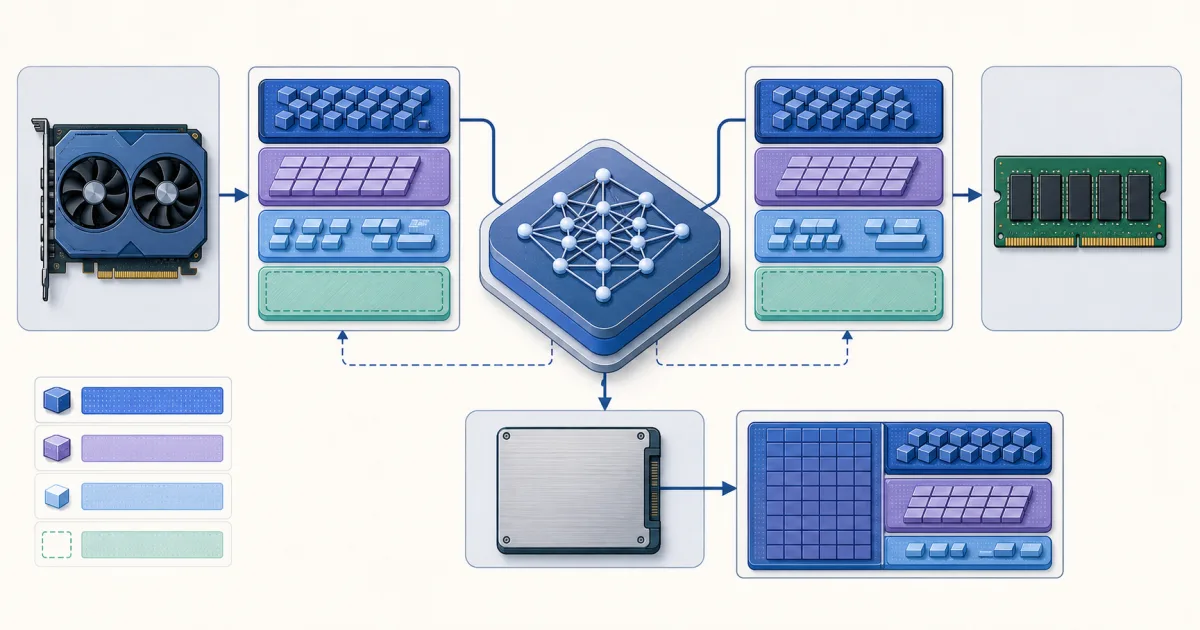
Local LLM memory is more than the model download size. A useful plan includes resident model weights, KV cache, runtime buffers, operating-system headroom, and any CPU or GPU offload strategy.
The FindUtils LLM Requirements Calculator combines those planning values for common models and quantization formats. Use the result to narrow your options before a large download. Treat it as an estimate, then confirm the published file size and your runtime settings.
The Four Memory Numbers
1. Model Weight Size
The first estimate starts with parameter count:
weight size ≈ total parameters × bytes per parameter
FP16 uses about two bytes for each parameter. Quantized formats use fewer bits for most tensors, plus scales and other metadata. That is why a practical Q4 file uses more than exactly half a byte per parameter.
2. KV Cache
The KV cache stores attention keys and values for tokens in the active context. It grows with:
- Context length.
- Concurrent sequences or batch size.
- Layer count.
- Attention dimensions.
- Cache precision.
The calculator uses a conservative FP16 approximation. Modern grouped-query attention can use less cache than a full hidden-size formula. Some runtimes also support quantized KV cache. Always check the runtime documentation for a final value.
3. Runtime Overhead
Inference needs memory beyond weights and cache. Buffers, temporary tensors, graph data, kernels, and the runtime itself all consume space. A model that fits with only a few megabytes left is not a practical fit.
4. Disk Space
The published model file includes quantized tensors and metadata. Split repositories can also include several alternative quantizations. Confirm the size of the exact file you plan to download.
How to Use the Calculator
1. Select the Exact Model
Model family names are not enough. An 8B and a 70B checkpoint have very different needs. Select the exact model variant and open its linked model card when you need to confirm architecture or license details.
2. Select a Quantization
Start with the quantization you can actually download for that model. Q4_K_M is a common planning choice for GGUF inference, but the best choice depends on quality needs, model size, and available memory.
Use a larger format when quality matters and memory allows it. Use a smaller format only after you understand the quality tradeoff.
3. Set a Realistic Context Length
Do not enter the model's maximum context only because the model supports it. Use the context your task needs.
- Short chat and code tasks often use a modest context.
- Repository analysis and document review need more.
- Multiple concurrent requests multiply cache use.
Reducing context is often the cleanest way to reduce cache memory without changing the model weights.
4. Enter the Real System Memory
Browser memory APIs can report a rounded or capped value. Enter the known RAM amount when the automatic value is not useful.
On unified-memory systems, the operating system and other applications share the same pool. Do not treat the full advertised memory amount as model capacity.
5. Read the Headroom, Not Only the Fit Label
A fit result with little remaining memory is fragile. Keep room for the operating system, the runtime, context growth, parallel work, and model-specific behavior.
Quantization Planning Table
| Format | Approximate storage behavior | Typical use |
|---|---|---|
| FP32 | Largest | Reference or specialized work |
| FP16/BF16 | About 2 bytes per parameter | High-quality GPU inference |
| Q8_0 | Near one byte plus metadata | High quality with moderate savings |
| Q6_K / Q5_K_M | Middle range | More quality headroom than Q4 |
| Q4_K_M | About 0.58 bytes per parameter in this calculator | Common local GGUF planning choice |
| Q3 / Q2 | Smaller | Severe memory limits, with larger quality risk |
These ratios are approximations. Mixed tensor types and format metadata change the actual file size.
The MoE Trap: Active Parameters Are Not Resident Memory
Mixture-of-Experts models route each token through only some experts. This reduces compute per token relative to using every expert.
It does not make the inactive expert weights disappear. A normal in-memory load still needs all expert weights somewhere. GPU-only inference needs enough VRAM for the resident weights. Offload can move some weights to system RAM or storage, but speed and memory behavior then depend on the runtime.
Use total parameter count for a conservative resident-memory plan. Use active parameter count to understand compute, not as an automatic VRAM shortcut.
GPU, CPU, and Unified Memory
GPU-Only
The model and cache stay in VRAM. This usually gives the best throughput, but VRAM is the hard limit.
Partial GPU Offload
Some layers stay in system RAM. This lets a larger model run, but data movement can reduce speed. The practical result depends on the bus, memory bandwidth, runtime, and offload split.
CPU-Only
System RAM holds the model. It can run models that exceed GPU memory, but token generation is usually slower.
Unified Memory
Apple Silicon and other unified-memory designs let the GPU access the shared memory pool. The operating system still needs part of that pool. Memory bandwidth and model support also affect performance.
Common Planning Mistakes
Comparing VRAM with Download Size Only
The runtime also needs KV cache and overhead. Add headroom beyond the file size.
Using Maximum Context by Default
Large context reserves more cache. Plan for the actual workload.
Treating MoE Active Parameters as Total Memory
Active experts reduce compute. Total weights still need resident or offloaded storage.
Ignoring Concurrent Requests
Batching and parallel sequences increase cache and temporary memory.
Treating an Estimate as a Guarantee
Different runtimes use different cache layouts, precisions, buffers, and offload methods. Verify on the intended runtime before a production decision.
FAQ
Why is the estimate larger than the GGUF file?
The estimate adds KV cache and runtime overhead to the model weights.
Why can another calculator show a different value?
It may assume a different cache precision, attention layout, batch size, overhead, or offload strategy.
Does more context improve every answer?
No. Context capacity only sets how much input the runtime can retain. Task quality still depends on the model, prompt, retrieval method, and relevant information.
Can I run a model that does not fit entirely in VRAM?
Often yes, with CPU or storage offload. The result can be much slower, and the exact method depends on the runtime.
Sources and Further Reading
- Hugging Face Transformers: GGUF
- Hugging Face Transformers: GPU memory usage
- llama.cpp project
- FindUtils LLM Requirements Calculator
Next Step
Open the LLM Requirements Calculator. Compare several quantizations and context lengths before you select a model file.