Extract PDF Text Online Without Uploading the File
Use the FindUtils PDF Text Extractor to extract native text and structured page data from a PDF. The parser runs in the browser. Image-only scans need OCR, and complex layouts can produce an unexpected reading order. Compare the extracted text with the original pages.
What the Tool Does in One Sentence
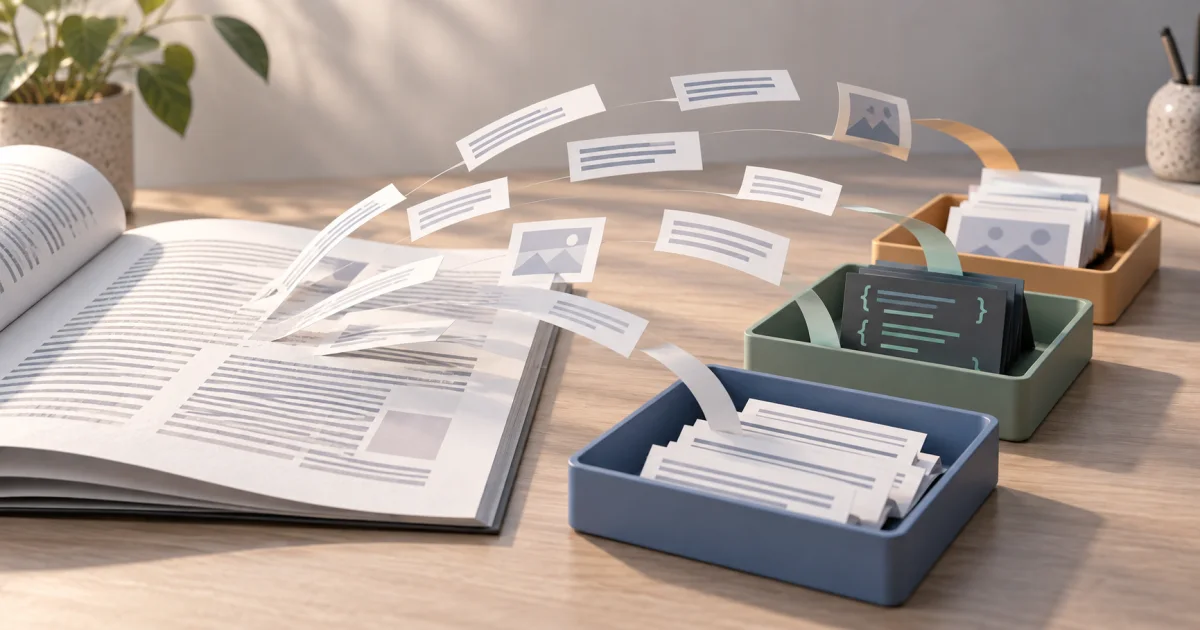
It reads a PDF file you choose in your browser, parses it with the liteparse WASM engine, and shows you three outputs from a single parse: layout-preserved plain text, structured JSON with every text span carrying a bounding box and page number, and rendered PNG previews of every page. Copy any output to your clipboard, or download as a .txt / .json / .png file. That's the whole tool.
Why Browser-Based PDF Parsing Matters
Every server-backed online PDF parser — smallpdf.com, ilovepdf.com, pdftotext.com, the dozen-or-so alternatives that show up in the same search results — works the same way: you upload your file, their server converts it, you download the result. That's three things you don't see:
- Your file is now on someone else's hard drive. Even when the privacy policy says "deleted after one hour," you have no way to verify it. Once uploaded, the file is out of your control.
- The conversion logs your IP, user agent, and timestamp. Standard web server hygiene. For a contract or a payslip, that's metadata you didn't consent to leak.
- Network operators between you and the server can see the upload. TLS protects the bytes in transit, but the connection metadata (size, destination, timing) is still observable.
For most public PDFs this doesn't matter. For anything containing personal data, contract terms, salary information, medical records, internal memos, financial details, or unreleased work — it absolutely does. The FindUtils extractor solves this by never doing the upload in the first place. The WASM module is fetched once from the page's own static assets, then runs locally on every parse for the rest of the session.
How to Use the PDF Text Extractor
Step 1Drop a PDF onto the upload zone
Open the PDF Text Extractor. Drag a .pdf file from your desktop into the upload zone, or click anywhere in the zone to open the native file picker. Files up to 50 MB are accepted. Larger files are rejected before parsing to keep browser memory bounded.
Step 2Wait for the WASM engine to load and parse
The first parse loads the required WebAssembly module. Later parses can reuse the loaded engine. Processing time depends on the document and device; this guide gives no measured timing or download-size claim.
Step 3Switch between Text, JSON, and Pages tabs
Three tabs sit above the output area:
- Text — layout-preserved plain text. Reading order depends on the PDF structure; columns and paragraphs can need manual correction. If you copy from this tab and paste into a document, the structure stays readable. This is the fastest path to "I just want the text out of this PDF."
- JSON — structured output. Every text span on every page has its own object with
text,bbox(the bounding-box coordinates in PDF units), and apageindex. This is what you want if you're building a downstream pipeline — search indexing, RAG context, table extraction, citation rendering. - Pages — per-page rendered PNG previews, when liteparse emits them. Each tile has its own download button. Useful for archive thumbnails or for verifying that the right pages parsed.
Step 4Copy or download the output
Each tab has a Copy button (writes the active output to your clipboard) and a Download button (saves it as a .txt / .json / .png). The text and JSON files inherit the original PDF's filename with the extension swapped. PNG downloads are named <original>-page-N.png.
Step 5Parse another PDF
Hit the Parse another button or just drop a new file. The WASM engine stays loaded so subsequent parses start instantly.
Check the local-file workflow
The parser reads the selected PDF in the browser. Loading the page and its parser resources still makes network requests. The exact request count depends on caching and other page features.
If you inspect network activity, use a sample PDF. A network trace checks that session only. It does not establish a guarantee about every browser extension, device, or later use of exported text.
When You Should Use the JSON Output Instead of Text
The Text tab is the right answer when a human is going to read the result. The JSON tab wins in three situations:
- You're building an LLM pipeline. Embedding a PDF for retrieval-augmented generation means breaking the document into chunks. The JSON's per-span bounding boxes let you reconstruct visual position, page references, and citation links — far richer than a flat text blob.
- You're extracting structured data. Invoices, forms, statements — the layout matters. JSON output preserves the position of every text span, so you can map labelled fields ("Invoice number:" followed by a value) to your schema even when columns shift between vendors.
- You need fuzzy table reconstruction. Tables in PDFs aren't a first-class concept — they're just text spans laid out in a grid. The JSON gives you the X and Y coordinates, so you can group spans into rows and columns yourself.
When the Extractor Won't Work (and What to Do Instead)
- Scanned PDFs (image-only). If the PDF was created by scanning paper, there's no embedded text — just an image of each page. Liteparse extracts native text only; an image-only page returns nothing. Use an OCR tool first (Tesseract, an OCR cloud service, or macOS Preview's built-in OCR) to add a text layer, then run the result through this extractor.
- Password-protected PDFs. The UI doesn't yet expose a password field, so encrypted PDFs fail with a clear error. Remove the password first using a desktop tool — qpdf, Preview on Mac, Adobe Reader's print-then-save trick, or the standalone
gswin64con Windows — then drop the unprotected file. - Very large PDFs (>50 MB). The 50 MB cap is a deliberate memory ceiling. For larger files, split with a PDF tool first (most readers can export a page range) and parse each piece separately.
- Form data hidden inside the PDF's structure (AcroForm fields). Liteparse extracts the rendered text. If a value lives only inside an interactive form field that's never filled in or rendered, it won't appear. Open the PDF in a reader, flatten the form, then re-parse.
Privacy Comparison Table
| Capability | FindUtils |
|---|---|
| File uploaded | No — never |
| Bytes visible to ISP | No — only the WASM fetch |
| Tracker pixels on page | No |
| Account or sign-up | Never |
| File size limits | 50 MB, free, no tiering |
| Works offline | Yes after first WASM load |
| Source of parser | Apache 2.0 (liteparse) |
| Output formats | Text + JSON + PNG |
What the Bounding Box Coordinates Mean
The JSON output's bbox field is an array of four numbers in PDF user-space units. The PDF coordinate system places the origin at the bottom-left of the page (Y grows upward, not downward like screen pixels). One unit equals 1/72 of an inch, so a Letter-sized page is 612 × 792 units wide and tall.
A bounding box of [72, 720, 540, 750] represents a text span sitting one inch in from the left edge (72 units), 72 units tall (720 to 750), and stretching to one inch from the right edge of a Letter page. To convert to render pixels at a given DPI, multiply by DPI / 72. At 150 DPI, that box becomes 150 × 1500 — 1000 × 60 pixels.
Common Workflows
Quick text grep
Drop, click the Text tab, click Copy. Paste into the destination. Done. This is the lowest-friction use case and the one most users hit first.
Feed a PDF into an LLM for summarisation
Drop, switch to the Text tab, copy. Paste into ChatGPT / Claude / Gemini with a prompt like "Summarise this document in five bullet points." Because the parser is local, your sensitive document never went to a third-party PDF service — only to the LLM you chose to share it with.
Build a RAG index from local PDFs
Drop each PDF, switch to JSON, download. Feed the per-page items into your embedding pipeline. The bounding boxes let you render citation pop-ups that highlight the exact source span.
Verify a printed contract digitally
Drop, switch to Text, search-and-find a clause you remember. If the text is missing, the PDF is scan-only and you need OCR. If it's there, copy the surrounding paragraph for your records.
Extract values from a structured invoice
Drop, switch to JSON, programmatically scan for label spans ("Invoice #", "Date:", "Total"). Pull the nearest text span to the right or below — exact algorithm depends on the layout, but the coordinates make it tractable.
Frequently Asked Questions
Q1: Is the FindUtils PDF text extractor really 100% client-side? A: Yes. The Network tab in your browser's developer tools is the audit trail — open it before you parse, and you'll see exactly one WebAssembly fetch (on first parse only) and no outgoing PDF data ever.
Q2: How big is the WebAssembly download? A: The browser loads the required module before parsing. Its size can change with the bundled version. Later parses can reuse the loaded engine.
Q3: Will this work on my phone? A: The parser needs WebAssembly and enough memory for the document. Try a small sample on the target browser. This guide does not establish support for every mobile browser version.
Q4: Why not use pdf.js instead of liteparse? A: Different focus. pdf.js is a great renderer aimed at displaying PDFs in browsers. Liteparse is purpose-built for structured text + bounding-box extraction, which is what most data pipelines actually need. The two are complementary, not competing.
Q5: Is liteparse open source? A: Yes — Apache 2.0, by the team behind LlamaIndex. Source at github.com/run-llama/liteparse.
Q6: Can I use the output commercially? A: The parser license is Apache 2.0, which is permissive for commercial use. The output of parsing your own PDF belongs to you. The FindUtils tool itself is free to use.
Related Tools
- JSON Formatterpretty-print and validate the JSON output before piping it into your downstream system.
- Base64 Encoder & Decoderuseful when you need to embed extracted page images as data URIs.
- Image to Base64same flow for non-PDF images that come back from the Pages tab.
- Markdown Editorpaste the extracted text and clean it up for republishing.
Open the PDF Text Extractor now, drop a PDF on it, and review the extracted text against the original document.