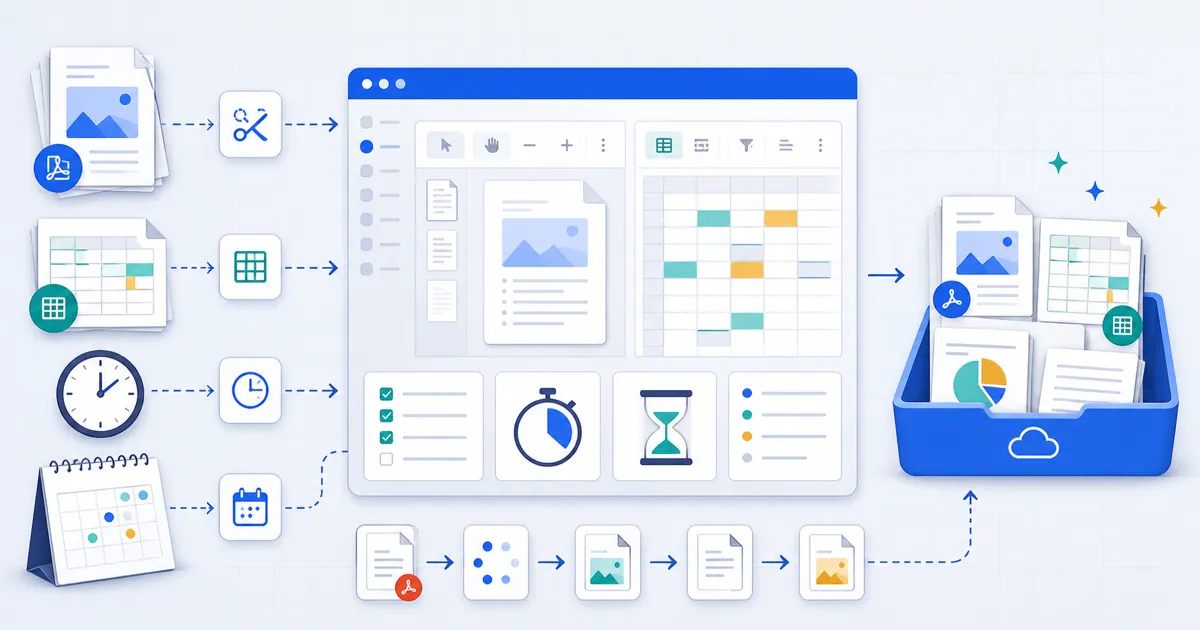
Use a productivity tool for the document or calculation you need to produce. FindUtils groups PDF operations, spreadsheet utilities, text tools, and timers in one site. This guide explains when each operation fits and what to inspect before using its output.
PDF Tools: Edit, Merge, Split, Compress, and More
Select a PDF operation by whether you need to add content, change page order, extract pages, or reduce size. Preserve the original document for comparison.
PDF Editor — Full Editing Without Adobe
The PDF Editor can add text, images, and annotations. Added content is not the same as rewriting every original text object. Inspect the exported file and preserve an original copy.
Merge, Split, and Organize Pages
- PDF Merger — Combine multiple PDFs into a single document. Drag to reorder before merging.
- PDF Split — Extract specific pages or split a large PDF into smaller files by page range.
- PDF Delete Pages — Remove unwanted pages from any PDF without re-uploading the entire file.
- PDF Organize — Reorder, rotate, and rearrange pages visually with drag-and-drop.
- PDF Rotate — Fix page orientation (90°, 180°, 270°) for scanned documents or misaligned pages.
Compress PDFs for Email and Upload
The PDF Compress tool attempts to reduce a PDF’s size using its supported transformations. Inspect output bytes and readability; a source that is already compressed may not shrink.
Convert Documents to PDF
- Word to PDF — Convert .docx files to PDF instantly. No Microsoft Office required.
- PPTX to PDF — Turn PowerPoint presentations into PDF format with layout preserved.
- PDF Converter — General-purpose PDF conversion covering multiple input and output formats.
Spreadsheet and CSV Tools
Google Sheets requires a Google account. Microsoft Excel Online requires a Microsoft account. For quick data viewing, editing, and transformation, FindUtils provides tools that work the moment you open them.
View and Edit Data
- Spreadsheet Editor — A full spreadsheet editor in your browser. Open Excel (.xlsx) and CSV files, edit cells, add formulas, and download the result. No account, no cloud storage dependency.
- CSV Viewer — Open and explore CSV files with sortable columns, search, and filtering. Handles large files that would choke a text editor.
- PPTX Viewer — Preview PowerPoint files directly in your browser without installing Office.
Transform and Convert CSV Data
- CSV Merger — Combine multiple CSV files into one, matching columns automatically.
- CSV Column Extractor — Pull specific columns from a CSV — useful for cleaning up exported data before importing elsewhere.
- CSV to Excel — Convert CSV files to .xlsx format with proper formatting.
- Excel to CSV — Extract data from Excel spreadsheets into clean CSV format.
- CSV to JSON — Convert CSV data to JSON for APIs and web applications.
- JSON to CSV — Turn JSON data into CSV for spreadsheet analysis.
Time Management and Focus Tools
Choose a timer by the interval and alert behavior you need. Check the sound and device sleep settings before relying on it during a task.
Pomodoro Timer
The Pomodoro Timer follows the classic 25-minute focus / 5-minute break cycle. Customize work and break durations, track completed sessions, and stay focused without installing an app. No login, no data collection — just a timer that works.
Countdown Timer and Stopwatch
- Countdown Timer — Set a custom countdown for meetings, cooking, presentations, or any timed activity. Visual display with audio notification.
- Stopwatch — Precision timing with lap tracking. Clean interface, instant start.
Typing Speed Test
The Typing Speed Test measures your words-per-minute with accuracy tracking. Useful for self-improvement, job applications that require typing proficiency, or simply satisfying your curiosity. Results appear instantly — no signup to see your score.
Document and Presentation Tools
Slide Deck Builder
The Slide Deck Builder lets you create presentations directly in your browser. Add slides, format text, insert images, and export to PDF or PPTX. No PowerPoint license needed, no cloud dependency.
Screenshot Tool and Voice Recorder
- Screenshot Tool — Capture, annotate, and download screenshots without installing a browser extension.
- Voice Recorder — Record audio directly in your browser. Useful for meeting notes, voice memos, and quick dictation. All recording happens locally — nothing is streamed to a server.
Utility Converters
Unit Converter and Timezone Converter
- Unit Converter — Convert between length, weight, temperature, volume, speed, and more. Covers metric, imperial, and scientific units.
- Timezone Converter — Convert times across time zones instantly. Essential for remote teams, international meetings, and travel planning.
Reading Time Estimator
The Reading Time Estimator estimates duration from text length and pace. Rehearse spoken material because pauses and demonstrations change the result.
Text Processing Tools
Need to clean up text, count words, or analyze readability? These tools handle common text tasks without leaving your browser.
- Word Counter — Count words, characters, sentences, and paragraphs. Tracks reading and speaking time.
- Character Counter — Character-level counting with and without spaces. Essential for social media post limits and form field validation.
- Text Summarizer — Condense long text into key points and summaries.
- Diff Checker — Compare two text blocks side by side and highlight differences. Useful for contract revisions, code reviews, and document versioning.
Check the operation before choosing the tool
| Task | Tool role | Review before use |
|---|---|---|
| Add PDF content | PDF editor | Overlays do not rewrite every original text object |
| Reorder pages | Merge, split, or delete tool | Page order, bookmarks, forms, and signatures |
| Inspect CSV | Viewer or converter | Delimiter, text encoding, leading zeros, and long numbers |
| Prepare slides | Slide builder | Fonts, layout, and destination import |
| Time a task | Timer | Device sleep, notification permissions, and background behavior |
Common Productivity Tool Mistakes
Mistake 1: Uploading Sensitive Documents to Cloud-Based PDF Tools
Before using a document tool, check its processing location and storage rules. Use approved handling for confidential records. Local processing does not by itself establish complete privacy.
Mistake 2: Paying for PDF Merge When You Do It Once a Month
Adobe Acrobat's monthly subscription makes sense if you edit PDFs 8 hours a day. For occasional merge-and-split tasks, a free browser tool does the job in seconds without a recurring charge.
Mistake 3: Using Excel to View CSV Files
Opening a CSV in Excel often corrupts data — leading zeros disappear, dates reformat unpredictably, and large numbers convert to scientific notation. A dedicated CSV Viewer preserves your data exactly as-is.
Mistake 4: Installing Desktop Apps for One-Off Conversions
The Word to PDF converter provides a browser conversion workflow. Review the output’s fonts, page breaks, and tables before sharing it.
Mistake 5: Using Your Phone as a Stopwatch During Presentations
Phone timers are distracting — notifications pop up, the screen locks, and you lose your place. A browser-based Countdown Timer stays visible on your laptop screen without interruption.
Tools Used in This Guide
- PDF Editor — Add text, images, and annotations to PDFs
- PDF Merger — Combine multiple PDFs into one document
- PDF Split — Extract pages or split PDFs by range
- PDF Compress — Reduce PDF file size for email and uploads
- PDF Rotate — Fix page orientation in scanned PDFs
- PDF Delete Pages — Remove unwanted pages
- PDF Organize — Reorder and rearrange PDF pages
- PDF Converter — Convert files to and from PDF
- Word to PDF — Convert .docx to PDF
- PPTX to PDF — Convert presentations to PDF
- Spreadsheet Editor — Edit Excel and CSV files in-browser
- CSV Viewer — View and explore CSV data with filtering
- CSV Merger — Combine multiple CSV files
- CSV Column Extractor — Extract specific columns from CSV
- CSV to Excel — Convert CSV to .xlsx format
- Excel to CSV — Convert Excel to CSV format
- CSV to JSON — Convert CSV to JSON
- JSON to CSV — Convert JSON to CSV
- PPTX Viewer — Preview PowerPoint files
- Slide Deck Builder — Create presentations in-browser
- Pomodoro Timer — Focus timer with break cycles
- Countdown Timer — Custom countdown with alerts
- Stopwatch — Precision timing with laps
- Typing Speed Test — Measure WPM and accuracy
- Screenshot Tool — Capture and annotate screenshots
- Voice Recorder — Record audio in-browser
- Unit Converter — Convert between measurement units
- Timezone Converter — Convert times across zones
- Reading Time Estimator — Calculate reading duration
- Word Counter — Count words, characters, sentences
- Character Counter — Character-level counting
- Text Summarizer — Condense text into key points
- Diff Checker — Compare text side by side
FAQ
Q1: Can a PDF editor rewrite every existing text block? A: Do not assume it can. Adding an overlay differs from editing the underlying text or removing sensitive content.
Q2: Does PDF compression guarantee a smaller result? A: No. Results depend on the source and supported transformations. Inspect readability and file size.
Q3: Does CSV conversion preserve all types? A: CSV has no standard type declarations. Check number inference, leading zeros, blank cells, and long identifiers.
Q4: Does a reading-time estimate predict my presentation length? A: No. Rehearse the presentation. Speaking pace, pauses, demonstrations, and questions change the duration.
Q5: Which operation extracts pages from a PDF? A: Use a split or extraction operation. Use page deletion when you want the remaining pages.
Q6: Can a timer replace a critical alarm? A: Use a dedicated alarm when missing the alert could matter. Browser background behavior and device sleep can affect alerts.
What to Read Next
- Free Developer Tools That Replace Paid Software — JSON, SQL, regex, and API tools for developers
- Online Design Tools for Color, Image Editing, and CSS — Color palettes, image compression, CSS generators
- Free Teacher Tools for Lesson Plans, Rubrics, and Classroom Management — Quiz makers, seating charts, grade calculators
- Free Content Creator Tools for Social Media, Video, and Audio — Hashtag generators, video converters, mockup builders