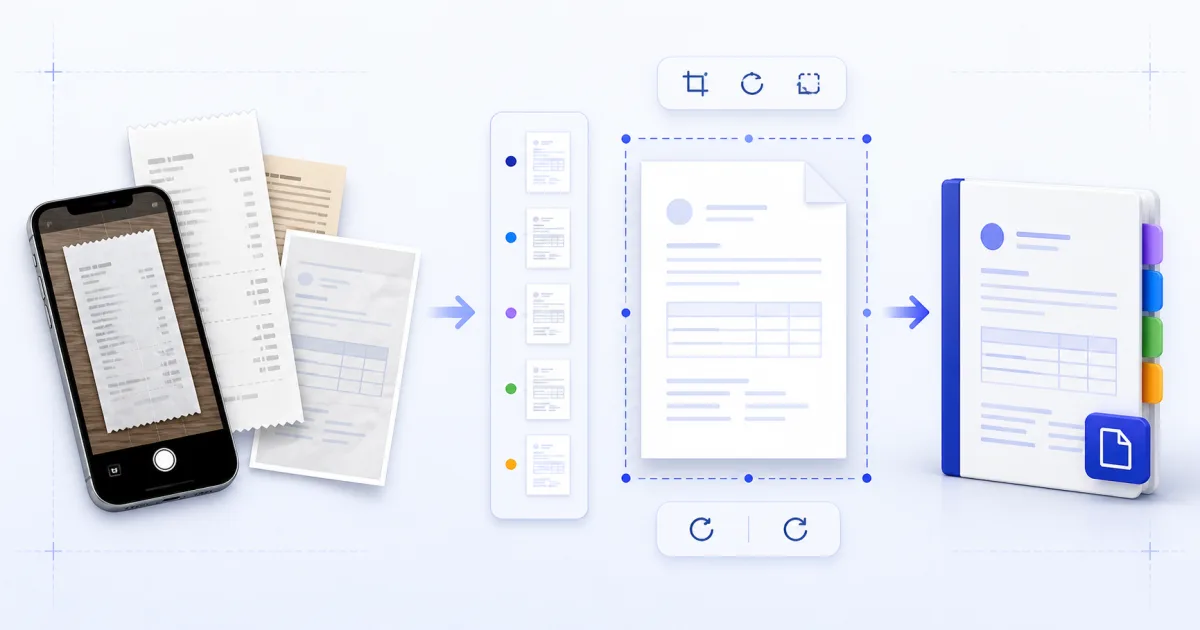
A phone can scan a document quickly. It can also produce a folder of large images with mixed rotation and uncertain order.
Putting those files into one PDF makes the set easier to read, print and send. The quality of the result depends on a few choices before conversion.
Start With the Source Images
Open every image before you combine the files. Check these items:
- The page is in the correct reading direction.
- All text is sharp enough to read.
- The image includes every edge of the document.
- No finger, shadow or desk item covers the content.
- The brightness is consistent across pages.
A PDF container cannot repair missing detail. It can only keep the pixels that the image already has.
Take another photograph when a name, date or amount is not clear. This is faster than correcting a bad final document.
Crop Before You Build the PDF
A phone photograph often includes the table around the document. That extra area makes the real page smaller during printing.
Crop unwanted borders before conversion. Keep a small margin around the paper edge so the crop does not remove content.
Use the same crop style for the whole set. A document looks more consistent when every page has a similar border.
Put the Files in Reading Order
The image list becomes the PDF page order. File systems can sort names in unexpected ways.
For example, page-10.jpg can appear before page-2.jpg. Names such as page-01.jpg and page-02.jpg keep the correct order.
The Images to PDF tool also lets you move each file before conversion. Check the first and last image before you build.
Choose Fit, A4 or Letter
The page-size setting controls the PDF canvas around each image.
Use Fit for screen viewing
Fit makes each PDF page match its image dimensions. It does not add a sheet or margin.
This choice is useful for screenshots and images that will stay on a screen. Different image sizes create different PDF page sizes.
Use A4 for most international printing
A4 gives every image the same 210 by 297 millimetre sheet. The image scales down to fit inside the selected margin.
This is the usual choice outside the United States and Canada.
Use Letter for US printing
Letter uses an 8.5 by 11 inch sheet. It is the normal office page in the United States.
Choose the sheet that matches the final printer. This prevents an extra scaling step at print time.
Contain the Image, Do Not Crop It
A document conversion should keep every source edge. The safe scaling rule is contain.
Contain makes the image as large as possible while keeping the whole image inside the page. Empty space can remain at two sides.
A cover rule would fill the page but cut part of the image. That rule is useful for decorative photographs, not document scans.
Understand Image Quality
JPG and PNG images can be embedded directly into a PDF. The converter does not need to render and compress them again.
Direct embedding keeps the existing image quality. It also keeps most of the source file size.
Twenty 4 MB photographs can produce a PDF near 80 MB. PDF structure adds some data, but the images remain the main part.
If size matters, reduce the image dimensions before conversion. You can also run the result through PDF Compress.
Keep an original copy before compression. Strong compression can make small text difficult to read.
Handle iPhone HEIC Files First
Many iPhones save photographs as HEIC. A PDF image tool can accept JPG and PNG without needing a HEIC decoder.
Convert HEIC files with HEIC to JPG first. Then add the new JPG files in the correct order.
Do not change only the file extension. A .jpg name does not turn HEIC data into JPEG data.
Finish the Document After Conversion
Add page numbers after you have the final page order. Numbering separate parts creates several sequences that start at 1.
Use PDF Page Numbers after the image conversion. Skip the first page if it is a cover.
Add a watermark after all merges are complete. This gives the mark a consistent position across the final document.
Check the Final File
Open the completed PDF and review it from start to finish.
Check the page order, direction and margins. Zoom into the smallest text. Review the final file size before email or upload.
The Images to PDF guide gives the exact format, margin and quality rules.
Related Tools
- Images to PDF combines JPG and PNG files.
- HEIC to JPG prepares iPhone photographs.
- PDF Page Numbers adds a final sequence.
- PDF Compress reduces a large result.