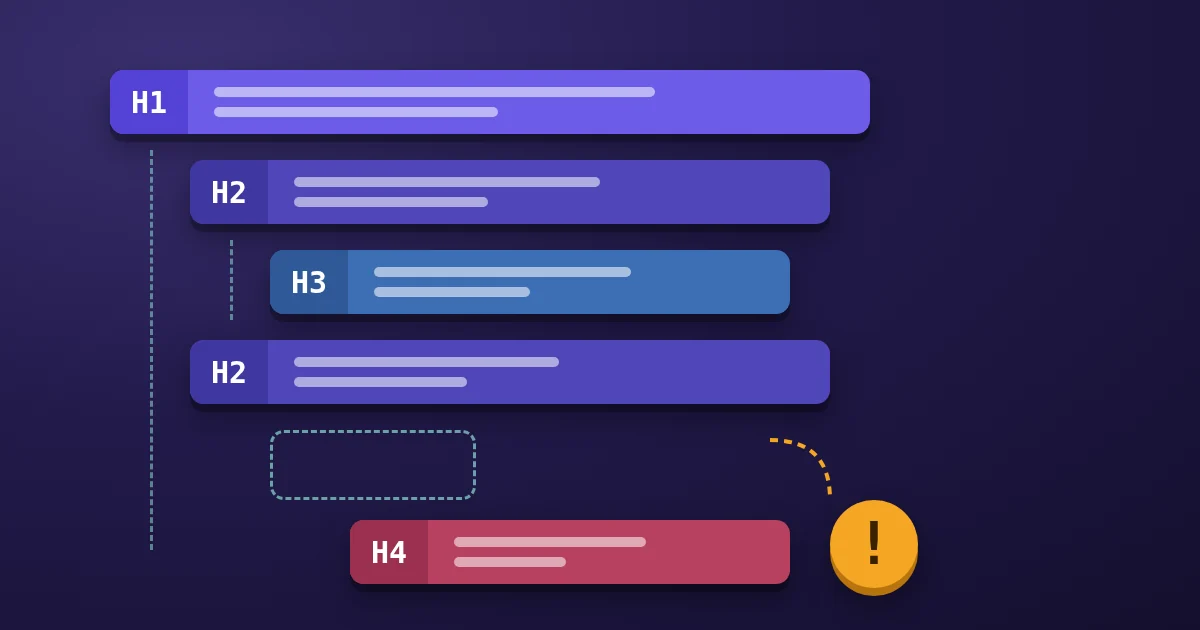
An H1 checker reads a page's HTML and lists every heading from <h1> to <h6> in order, so you can see whether the page has one clear main heading and a logical outline below it. Paste the HTML into the FindUtils Heading Structure Analyzer, click Analyze Headings, and you get an indented heading tree, a count per level, and warnings for a missing or repeated H1, skipped levels, empty headings, and very long headings. It is free, needs no signup, and on the tool page the HTML is parsed in your browser.
This guide explains what a good heading outline looks like, how to audit a page step by step, how to read each warning, and where heading structure matters most: for people who navigate by headings.
What Does a Good Heading Structure Look Like?
A good heading structure reads like a table of contents. The page has one <h1> that names its topic, <h2> headings for the main sections, and <h3> to <h6> only for subsections inside them. Each heading describes the content that follows it, and a deeper level never appears without the level above it.
The W3C's headings tutorial puts the rule this way: headings with an equal or higher rank start a new section, headings with a lower rank start subsections, and skipping ranks "can be confusing and should be avoided where possible". It also notes one exception: skipping ranks is fine when closing subsections, so an <h2> may follow an <h4>.
<class="text-rose-400">h1>Beetles</class="text-rose-400">h1>
  <class="text-rose-400">h2>Etymology</class="text-rose-400">h2>
  <class="text-rose-400">h2>External morphology</class="text-rose-400">h2>
    <class="text-rose-400">h3>Head</class="text-rose-400">h3>
      <class="text-rose-400">h4>Mouthparts</class="text-rose-400">h4>
    <class="text-rose-400">h3>Thorax</class="text-rose-400">h3>
  <class="text-rose-400">h2>Evolution</class="text-rose-400">h2>
The indentation above is only for reading; HTML does not need it. The levels alone carry the structure.
Why Heading Structure Matters
Headings are the main way many people move through a long page, and they double as the page's outline for every tool that reads it.
- Screen reader navigation: in WebAIM's Screen Reader User Survey #10 (2024), 71.6% of respondents said that navigating through the headings is the first thing they do to find information on a lengthy page, and 88.8% found heading levels very or somewhat useful.
- Accessibility requirements: WCAG lists heading structure under Success Criterion 1.3.1 Info and Relationships (Level A) and asks for descriptive headings in 2.4.6 Headings and Labels (Level AA).
- Automatic tables of contents: user agents can build a table of contents for a document from its heading elements, as MDN's heading elements reference notes, and most screen readers can list every heading on a page.
- Scanning: readers skim headings to decide whether a page answers their question. A heading that says what the section contains is useful to every visitor.
What Google says about heading order
Google is explicit that heading order is not a ranking lever. Its SEO Starter Guide says that headings in semantic order are "fantastic for screen readers, but from Google Search perspective, it doesn't matter if you're using them out of order", and that there is "no magical, ideal amount of headings" for a page. Fix heading structure for people and for clarity, not in the hope of a ranking jump.
How to Check Your Headings Online
Checking a page takes four actions: get the HTML, paste it, analyze, and fix. The analyzer works on any HTML you can copy, including staging pages and CMS previews that are not public.
Step 1Copy the Page's HTML
Open the page in your browser and view its source (right-click, then View Page Source), or copy the HTML from your CMS or code editor. If the page builds its content with JavaScript, the source may not contain the headings yet. In that case open the browser's developer tools, right-click the <html> element in the Elements panel, and copy its outer HTML, which includes what the scripts rendered.
Step 2Paste It into the Analyzer
Open the Heading Structure Analyzer and paste the HTML into the Paste HTML box. A full document and a fragment both work. Minified HTML is fine too, though the HTML Formatter makes it easier to find a heading in your own code later.
Step 3Add a Target Keyword (Optional)
Type a phrase into Target Keyword to see which headings contain it. The match ignores letter case and looks for the phrase anywhere in the heading text, and each matching heading gets a Contains keyword badge.
Step 4Analyze and Read the Results
Click Analyze Headings. The Summary shows the total number of headings and a count per level. The Warnings panel lists errors and warnings. The Heading Tree indents each heading by its level and shows its character count. Click Export as JSON to save the list, with each heading's tag, text, character count, and keyword match, as heading-structure.json.
How to Read Each Warning
The analyzer reports two errors and three kinds of warnings. Each one points to a specific, fixable pattern in the markup.
| Message | Severity | What triggers it | Typical fix |
|---|---|---|---|
| No H1 tag found | Error | The HTML has no <h1> at all | Mark up the page title as the <h1> |
| Multiple H1 tags found | Error | Two or more <h1> elements | Keep one <h1>; demote logos, sidebars, and repeated titles |
| Skipped heading level | Warning | A heading is more than one level deeper than the heading before it, such as H2 followed by H4 | Use the next level down, or restyle with CSS |
| Empty heading | Warning | A heading with no text content | Add text, or remove the heading element |
| Heading is too long | Warning | More than 70 characters of heading text | Shorten it and move detail into the paragraph |
Two details help when reading the list:
- Going back up is not flagged. An
<h4>followed by an<h2>closes a subsection, which the W3C tutorial allows, so the analyzer only warns when a heading goes deeper by more than one level. - The 70-character limit is a readability heuristic. It is not a search engine rule; a slightly longer heading that reads well can stay.
Why "multiple H1" is still worth fixing
HTML allows more than one <h1> as long as they are not nested, but MDN calls that not a best practice and recommends a single <h1> that describes the page. MDN also notes that nesting several <h1> elements inside sectioning elements, allowed in older versions of the HTML standard, is now non-conforming. The analyzer flags a second <h1> as an error for that reason, even though Google says there is no ideal number of headings for Search.
Worked Examples
These examples show patterns that produce each warning and how the fixed markup looks.
Example 1: The logo is the H1
A theme wraps the site logo in <h1> on every page, and the article title is a second <h1>. The analyzer reports Multiple H1 tags found. Change the logo wrapper to a <div> or <p> and keep the article title as the only <h1>.
Example 2: Headings chosen for their size
A writer picks <h4> under an <h2> because the default H3 looked too big. The analyzer reports Skipped heading level: H2 to H4. Use <h3> and set the size in CSS. MDN's rule is direct: do not use heading elements to resize text.
Example 3: An image-only heading
A heading contains only an image, such as <h2><img src="sale.png" alt="Autumn sale"></h2>. The analyzer reads the heading's text content, which does not include image alt text, so it reports an empty H2. Add visible text to the heading, or move the image out of it.
Example 4: A heading written as a sentence
An H2 reads "Here is everything you need to know about choosing the right running shoes for trail and road" at 92 characters. Shorten it to "How to Choose Trail and Road Running Shoes" and let the first paragraph carry the rest.
Common Mistakes to Avoid
Most heading problems come from styling, templates, or copying content between systems. These checks catch the frequent ones.
Mistake 1: Auditing the wrong HTML
View Source shows what the server sent, not what scripts added later. For a page rendered in the browser, copy the outer HTML from the developer tools instead, or the analyzer may report No H1 tag found on a page that does have one.
Mistake 2: Forgetting the template's headings
Navigation menus, sidebars, cookie banners, and footers often contain headings too. They appear in the heading tree in document order, so a footer <h4> right after an article <h2> triggers a skipped-level warning. The W3C tutorial recommends keeping the ranks of fixed page sections consistent across pages.
Mistake 3: Using bold text instead of a heading
A line of bold text looks like a heading but is not one, so it does not appear in the tree and screen reader users cannot jump to it. If a line introduces a section, mark it up as a heading of the right level.
Mistake 4: Treating hidden headings as absent
The analyzer reads markup, not the rendered page, so it does not know which headings your CSS hides. A visually hidden heading still counts. Check hidden headings by hand to make sure they belong in the outline.
Mistake 5: Repeating the keyword in every heading
Highlighting the target keyword is useful for checking the H1 and key H2s, but a keyword in every heading reads badly. Use the Keyword Density Checker to see whether the body text already repeats a phrase too often.
Heading Analyzer vs Crawlers vs Browser Extensions
A browser-based analyzer suits checking one page or one draft. Crawlers suit whole-site audits, and extensions suit live pages you are already viewing.
| Aspect | FindUtils Heading Structure Analyzer | Desktop SEO crawlers | Browser extensions |
|---|---|---|---|
| Input | Pasted HTML, including drafts and staging | Live URLs, many pages | The live page in your tab |
| Setup | None; open the page | Install, often a paid licence for large sites | Install an extension |
| Scope | One page at a time | Whole sites | One page at a time |
| Warnings | H1 count, skipped levels, empty and long headings | Varies by product | Varies by extension |
| Cost | Free, no signup | Free tiers or paid | Usually free |
| Data handling | Parsed in your browser | Runs on your computer | Runs in your browser |
Tools Used in This Guide
- Heading Structure AnalyzerList every H1 to H6 heading and flag outline problems
- HTML FormatterBeautify minified HTML so headings are easy to find
- Keyword Density CheckerCheck how often a phrase appears in the text
- Meta Tag GeneratorWrite the title tag, meta description, and social tags for the page head
- SERP PreviewSee how the title and description may look in Google results
- Markdown TOC GeneratorBuild a linked table of contents from Markdown headings
FAQ
How many H1 tags should a page have?
One is the recommended practice. HTML allows more than one non-nested <h1>, but MDN advises a single <h1> that describes the page, and a single main heading is clearer for screen reader users. Google says there is no ideal number of headings for Search.
Does heading order affect SEO rankings?
Not directly, according to Google. Its SEO Starter Guide says it does not matter for Google Search if headings are out of order. Heading order still matters for accessibility and readability, which is why it is worth fixing.
Is it OK to go from H4 back to H2?
Yes. Moving back up to a higher level closes the previous subsections and starts a new section, which the W3C headings tutorial allows. The analyzer only warns when a heading goes more than one level deeper, such as H2 to H4.
Can I check a live URL instead of pasting HTML?
The analyzer works on pasted HTML. Open the page, view its source or copy the outer HTML from the developer tools, and paste it in. This also lets you check drafts and pages that are not public.
Does the Heading Structure Analyzer upload my HTML?
No. On the tool page, the HTML is parsed in your browser with its built-in HTML parser, and the pasted code is not sent to a server or saved.
Is the H1 checker free?
Yes. FindUtils' Heading Structure Analyzer is free to use, has no usage limits, and needs no account.
Why does the analyzer say my heading is empty when it has an image?
It reads the heading's text content, and image alt text is not part of an element's text content. A heading that contains only an image is reported as empty. Add visible text to the heading.
Next Steps
- Write the title tag and description with the Meta Tag Generator, then check them in the SERP Preview.
- Work through the rest of on-page and technical SEO with the technical SEO checklist.
- Audit how AI search tools see your site in the AI search visibility guide.
- Keep pages readable for everyone with the color contrast explainer.
Sources
- W3C WAI: Headings (Page Structure Tutorial)
- MDN: The h1–h6 HTML section heading elements
- Google Search Central: SEO Starter Guide
- WebAIM: Screen Reader User Survey #10 Results
- W3C: Understanding Success Criterion 1.3.1 Info and Relationships
- W3C: Understanding Success Criterion 2.4.6 Headings and Labels