Cropping is the most common edit anyone makes to a picture, and it is frequently done on images that should not leave the machine. FindUtils Image Cropper reads the file from your device, draws the crop box over it, and cuts the export from the original pixels — without a request carrying the image anywhere.
This guide covers how a local crop works, which aspect ratios are worth using, and what cropping can and cannot do.
Why Crop in the Browser Rather Than Upload?
Because the arithmetic is trivial and the transfer is not.
A crop is: choose a rectangle, keep the pixels inside it. A browser can do that in a canvas without help. Most free online croppers still upload the file to a server, crop it there, and send it back. For a holiday photo that is merely unnecessary. For a screenshot holding a customer record, an ID photo, or an unreleased product shot, it is a data transfer nobody asked for and nobody audits.
The file here is read with an object URL, drawn into a canvas that exists only in the tab, and handed back as a download. The page itself loads advertising and analytics scripts like the rest of the site, but your image is not part of that traffic.
How Do You Crop?
Four steps, and the third is the one people miss.
- Choose a file from your device. PNG, JPEG, WebP, GIF and AVIF are accepted, up to 30 MB.
- Position the box. Drag inside it to move, drag the corner handle to resize.
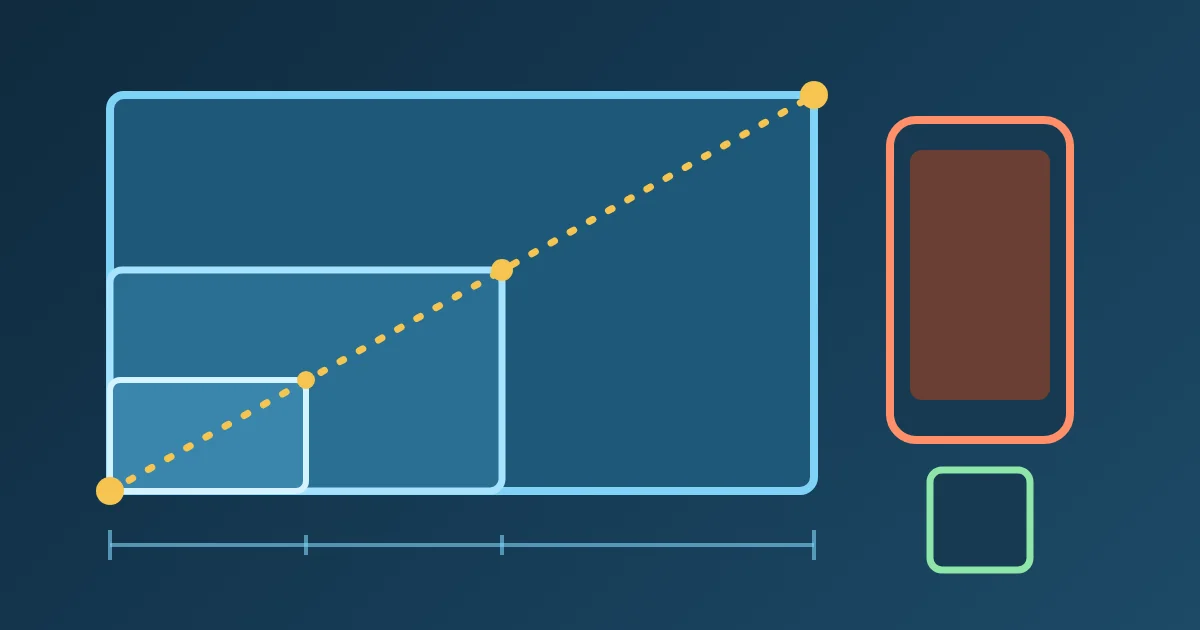
- Lock an aspect ratio if the output has a target shape. Free, 1:1, 4:3, 3:2 and 16:9 are available, and a preset holds the shape while you resize.
- Pick a format and download. The pixel dimensions shown under the controls are the real output size.
| Ratio | Where it fits |
|---|---|
| 1:1 | Avatars, profile pictures, product thumbnails |
| 4:3 | Classic camera and presentation shape |
| 3:2 | 35mm photography, most prints |
| 16:9 | Banners, video thumbnails, wide previews |
| Free | Anything with its own dimensions |
Does Cropping Lose Quality?
Not by itself, and the distinction is worth getting right.
The crop is cut from the original pixels rather than from the scaled preview on screen. A crop from a 4000px photo is still a large image, not a copy of what fitted in the browser window. That is the difference between a cropper that respects your source and one that silently downsamples.
What the export format does matters more:
- PNG is lossless and keeps transparency. It is the right choice for screenshots, sharp text and anything with an alpha channel.
- JPEG re-encodes and loses a little detail, which is what the quality slider controls. It flattens transparency onto white, because JPEG has no alpha channel. For photographs, 85–92 is indistinguishable from 100 at a fraction of the size.
What cropping cannot do is add detail. A small crop from a small image will look soft however it is exported — there are simply fewer pixels. Start from the largest original you have.
What Cropping Does Not Remove
Cropping removes pixels from the picture. It does not reliably remove metadata.
Re-encoding through a canvas drops most EXIF data, including in most cases the GPS coordinates a phone wrote into the original. But this page is a cropper, not a privacy scrubber, and you should not rely on a side effect for that job. When stripping metadata is the actual goal, use a dedicated EXIF remover and verify the result.
It also will not remove something within the frame. To take an object out of a scene rather than cut the frame down, the Image Eraser inpaints over it.
Common Mistakes
Mistake 1: Cropping Before Checking the Target Size
Read the live pixel dimensions under the controls. A crop that looks right on screen can be well under the size a platform wants.
Mistake 2: Exporting a Transparent Image as JPEG
Transparency is flattened onto white. Use PNG when the alpha channel matters.
Mistake 3: Expecting a Crop to Sharpen a Small Image
Cropping only removes pixels. The result cannot be more detailed than the source.
Mistake 4: Using a Free Crop When the Platform Wants a Square
Lock 1:1 rather than eyeballing it, or the platform will crop it again — and it will choose the centre, not you.
Mistake 5: Treating It as Metadata Removal
Use a dedicated EXIF tool when that is the requirement.
Tools Used in This Guide
- Image CropperCrop to any ratio, export PNG or JPEG
- Photo EditorText, filters, frames and layers after the crop
- Image EraserRemove an object inside the frame
- Favicon GeneratorTurn a square crop into an icon set
- Image Color ExtractorPull a palette from the result
FAQ
Q1: Is my image uploaded? A: No. The file is read from your device with an object URL and cropped in a canvas inside the tab. No request carries the picture. The page loads ads and analytics like the rest of the site; your image is not part of that.
Q2: Does cropping reduce image quality? A: Not with PNG, which is lossless, and the crop is taken from the original pixels rather than the preview. Exporting as JPEG re-encodes and loses a little, which the quality slider controls.
Q3: What is the largest image I can crop? A: 30 MB. Beyond that the browser has to hold a very large decoded bitmap in memory, and a desktop application that can stream the file is the better tool.
Q4: Can I crop to an exact pixel size? A: Not by typing numbers. The live dimensions are shown as you drag so you can reach a target, but there is no numeric entry yet.
Q5: Does it remove GPS data from my photo? A: Re-encoding drops most metadata, but do not rely on it. Use a dedicated EXIF remover when that is the goal.
Q6: Is it free? A: Yes. No signup, no watermark, no usage limit and no upload.
Next Steps
- Editing further? The Photo Editor adds text, filters and layers.
- Making an icon? Take a 1:1 crop into the Favicon Generator.
- Removing something inside the frame? Use the Image Eraser.