To check your screen resolution, open the FindUtils Screen Resolution Detector. It reads the values your browser reports as soon as the page loads, with no buttons and nothing to install: screen resolution, viewport size (the visible part of the browser window), device pixel ratio, color depth, orientation and touch support. It also multiplies the screen size by the pixel ratio to show the effective physical resolution, the real number of pixels on the panel.
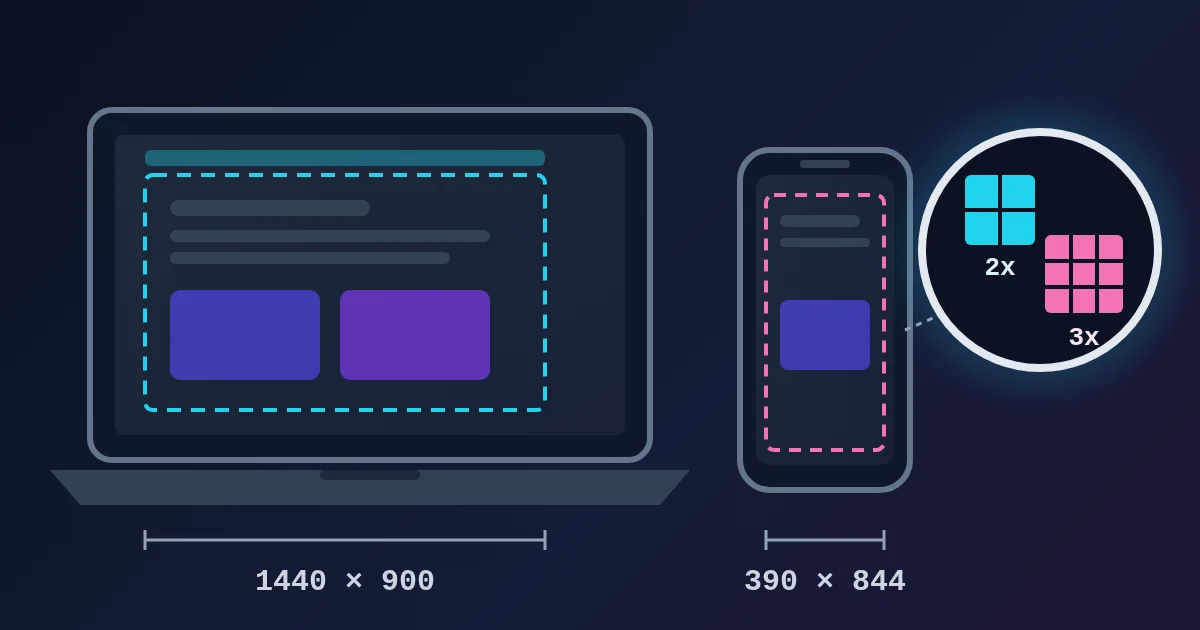
The numbers often look lower than the specs: a 2880 × 1800 laptop shows 1440 × 900, and a 1170 × 2532 phone shows 390 × 844. That is expected. Browsers measure in CSS pixels, not hardware pixels, and the pixel ratio connects the two. This guide explains each value, works through four real devices, and lists what to check when a number seems wrong.
How to Check Your Screen Resolution, Step by Step
- Open Screen Resolution Detector on the device and display you want to check. The results appear right away.
- Read the top card. Screen Resolution is the size of the whole display in CSS pixels, with its simplified aspect ratio and megapixel count underneath (for example "8:5 • 1.30 MP").
- Read the viewport. Viewport Size is the inside of the current browser window. It is the width your CSS media queries respond to.
- Check the small cards. Pixel Ratio (such as 1x, 1.25x, 2x or 3x), Color Depth (usually 24-bit), Orientation (Landscape or Portrait) and Touch Screen or No Touch.
- Read Effective Physical Resolution. This is the screen resolution multiplied by the pixel ratio, the number to compare with the specs of your monitor or phone.
- Change something and press Refresh Detection. After you resize the window, move it to another monitor, or rotate a tablet, press Refresh Detection to read the values again.
What Each Number Means
| Readout | What it measures | Browser value behind it | Changes when you |
|---|---|---|---|
| Screen Resolution | Whole display, in CSS pixels | screen.width × screen.height | Change OS display scaling or move to another monitor |
| Viewport Size | Inside of the browser window, scrollbar included | window.innerWidth × window.innerHeight | Resize the window, zoom, open dev tools |
| Pixel Ratio | Physical pixels per CSS pixel | window.devicePixelRatio | Zoom the page, change OS scaling, move to another monitor |
| Color Depth | Bits per pixel | screen.colorDepth | Rarely; almost always 24 |
| Orientation | Landscape or portrait | Screen orientation | Rotate the device |
| Touch | Whether the browser reports touch input | Touch support the browser reports | Open the page on a touch screen or tablet |
| Effective Physical Resolution | Real pixels on the panel | Screen Resolution × Pixel Ratio | Any of the above |
A CSS pixel is not a hardware pixel. The CSS specification defines it as 1/96 of an inch at a normal viewing distance, and devices with dense screens use several hardware pixels to draw each one. The pixel ratio says how many: at 2x, one CSS pixel is drawn with a 2 × 2 block of four hardware pixels; at 3x, with a 3 × 3 block of nine. The blog post Device pixel ratio explained covers the same idea in iOS points, Android dp and Flutter logical pixels.
Four Real Readings, Explained
We opened the detector with four common setups. These are the values it showed:
| Setup | Screen Resolution | Pixel Ratio | Effective Physical | What it tells you |
|---|---|---|---|---|
| 13-inch laptop with a Retina-class screen | 1440 × 900 (8:5, 1.30 MP) | 2x | 2880 × 1800 | Layouts get a 1440-pixel-wide screen; images need twice the pixels to look sharp |
| Windows laptop, 1080p panel at 125% scaling | 1536 × 864 (16:9, 1.33 MP) | 1.25x | 1920 × 1080 | Windows scaling makes a Full HD screen behave like a 1536-pixel one |
| iPhone-sized phone | 390 × 844 (195:422, 0.33 MP) | 3x | 1170 × 2532 | The page is laid out at 390 pixels wide; each CSS pixel is 9 hardware pixels |
| Android phone at 2.625x | 412 × 915 (412:915, 0.38 MP) | 2.625x | 1082 × 2402 | Close to the 1080 × 2400 panel; see the rounding note below |
Three things are worth knowing when you read these:
- The megapixel count is logical. "1.30 MP" on the first row is 1440 × 900 CSS pixels. The panel itself has 2880 × 1800, about 5.18 MP. Use the effective physical resolution when you compare with a camera or a spec sheet.
- Odd ratios are exact, not wrong. 1170 × 2532 really reduces to 195:422, and 412 × 915 cannot be reduced at all. Divide the long side by the short side for a rounder figure: 2532 / 1170 ≈ 2.16, which is about 19.5:9. The Aspect Ratio Calculator does that conversion for any size.
- Fractional ratios round. A 1080-pixel-wide panel at 2.625x is 411.4 CSS pixels wide, but the browser reports a whole number, 412. Multiplying 412 back by 2.625 gives 1081.5, shown as 1082. When the pixel ratio is not a whole number, treat the effective resolution as accurate to within a pixel or two.
Using the Common Resolutions List
Below the results the tool lists common screens: HD 1280 × 720, Full HD 1920 × 1080, 2K (QHD) 2560 × 1440, 4K (UHD) 3840 × 2160, and devices such as MacBook Air 13" 2560 × 1600, MacBook Pro 14" 3024 × 1964, iPhone 14 Pro 1179 × 2556 and iPad Pro 12.9" 2048 × 2732.
These are physical pixel counts. Compare them with Effective Physical Resolution, not with Screen Resolution. An iPhone 14 Pro shows a screen of 393 × 852 at 3x in the browser, and 393 × 3 = 1179, 852 × 3 = 2556: the same phone.
When the Numbers Look Wrong
The viewport is smaller than the screen. That is normal. Tabs, the address bar, the dock or taskbar and an open sidebar all take space. Maximize the window for the largest viewport. On a phone, the viewport height also changes as the address bar shows and hides.
The pixel ratio changed after zooming. Page zoom changes the size of a CSS pixel, so at 200% zoom a 1x screen reports 2x and the viewport width halves. Pinch-zoom on a phone does not change it. Reset zoom to 100% (Ctrl+0 or Cmd+0) before you note the values.
A 1920 × 1080 monitor shows 1280 × 720 or 1536 × 864. The operating system is scaling the display, 150% or 125% here. The effective physical resolution still shows 1920 × 1080.
The values did not update after moving the window. Press Refresh Detection once the window is on the other monitor, so the readings come from the display the window is on now.
A phone page renders at about 980 pixels wide. That is a page problem, not a detector problem. Without <meta name="viewport" content="width=device-width, initial-scale=1">, mobile browsers lay pages out on a wide virtual viewport and shrink them. The Meta Tag Generator includes the viewport tag.
Tips
- Put the numbers in bug reports. Viewport size and pixel ratio are what a developer needs to reproduce a layout bug. "1280 × 650 at 1.5x" is far more useful than "my laptop".
- Export images at the pixel ratio. A 300 × 200 slot on a 2x screen needs a 600 × 400 image to stay sharp. Make each size with the Image Resizer and the Image Compressor; the guide How to resize images online walks through it.
- Mock up at the real size. The Placeholder Image Generator makes test images at an exact width and height, and the Device Frame Mockup puts a screenshot inside a phone, tablet or browser frame.
- Check icon sizes too. Favicons and app icons are drawn at several densities; the Favicon Generator produces the common sizes in one go.
FAQ
What is my screen resolution?
Open the Screen Resolution Detector. Screen Resolution shows the size in CSS pixels, and Effective Physical Resolution shows the real pixel count of the panel, which is the figure in your device's specs.
Why does my phone show 390 × 844 instead of its real resolution?
Phones report CSS pixels. A phone with a 3x pixel ratio draws each CSS pixel with 3 × 3 hardware pixels, so 390 × 844 is 1170 × 2532 on the panel. The detector shows both.
What is the difference between screen resolution and viewport size?
Screen resolution is the whole display. Viewport size is the inside of the browser window, which is smaller because of toolbars and window size. CSS media queries respond to the viewport width.
Why is my pixel ratio 1.25 or 1.5 on Windows?
Windows display scaling of 125% or 150% sets the browser's pixel ratio to 1.25 or 1.5. Browser zoom adds to it, so check at 100% zoom.
Does the effective physical resolution match my monitor exactly?
With a whole-number ratio such as 1x, 2x or 3x, yes. With a fractional ratio such as 2.625x, it can be off by a pixel or two, because the browser rounds the CSS size to a whole number first.
Is anything sent to a server?
No. The page reads the values your own browser reports and does not send them anywhere.