A Lottie file is not a video. It is JSON describing vector shapes and how they move over time, which is why you can recolour one after export without going back to the original project. FindUtils Lottie Editor opens a Lottie file, previews it with GPU-accelerated Skia rendering, and lets you change colours, text and opacity before exporting the modified JSON.
This guide covers what Lottie actually is, what remains editable after export, and where the format stops being the right choice.
Why Is Lottie JSON Rather Than a Video?
Because it stores the instructions for the motion rather than the rendered frames.
That single difference produces all of Lottie's advantages:
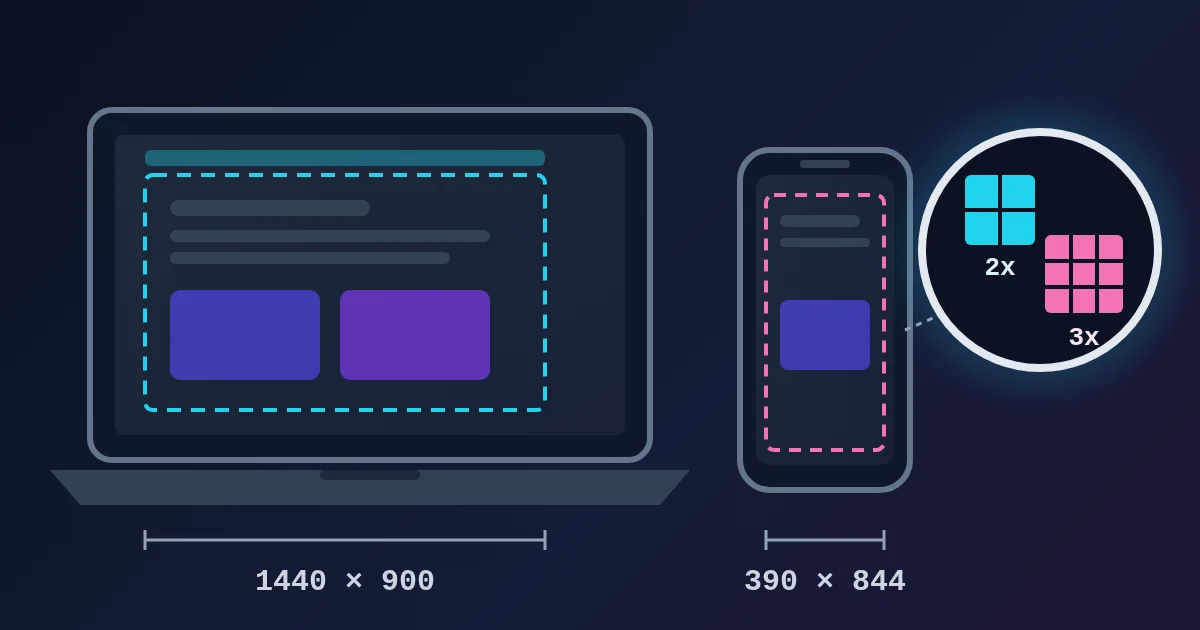
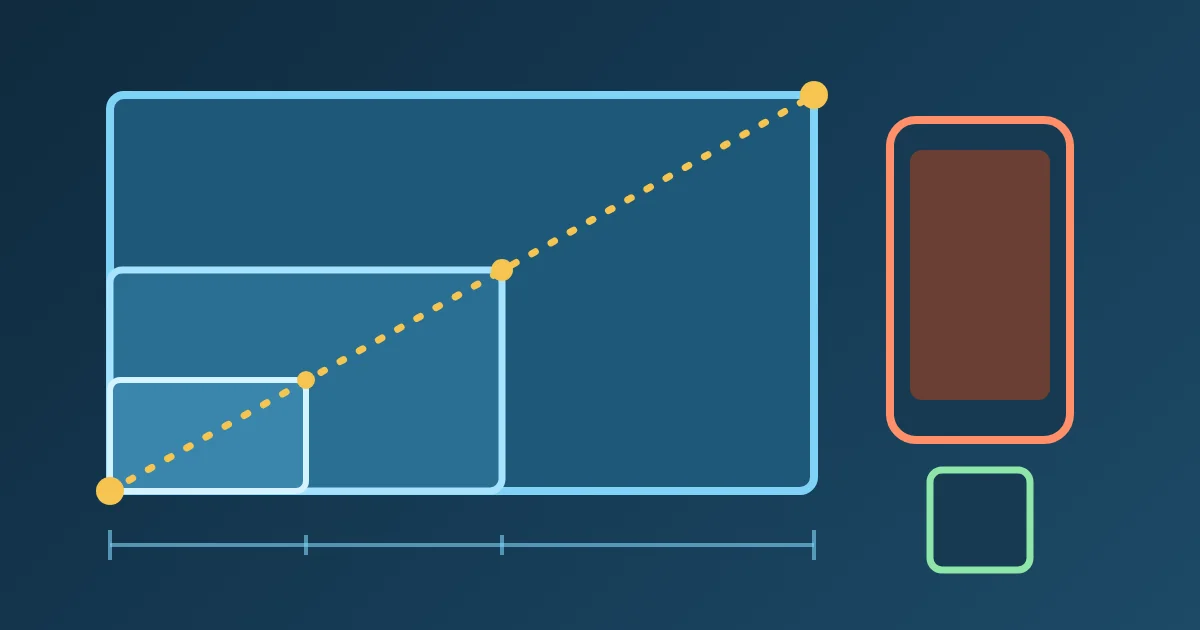
- It scales. Vector shapes are resolution independent, so the same file is sharp on a phone and on a 5K display.
- It is small. A few kilobytes of JSON against megabytes of video for the same seconds of motion.
- It supports transparency properly, which video formats handle badly or not at all.
- It stays editable. Colours, text and opacity are values in a document, not pixels in a frame.
The last point is what this editor exists for. A designer exports an animation from After Effects via Bodymovin, and three weeks later the brand colour changes. Without the source project that is a re-export; with the JSON it is an edit.
What Can You Change After Export?
Three things, and the boundary is worth understanding.
- Colours. Every shape's fill and stroke is a value in the JSON. Recolouring to a new brand palette is the most common edit by far.
- Text. String content in text layers can be replaced, which is how one animation becomes several localised versions.
- Opacity. Per-layer, useful for muting a background element or fading something that was too prominent.
What you cannot change here is the motion itself. Keyframe timing, easing curves, paths and the structure of the layers are baked into the export. Changing those means going back to the source project. This editor is for the values, not the choreography.
Why Does the Preview Use Skia?
Because Lottie playback involves a lot of vector rasterisation per frame, and the browser's own 2D canvas is not the fastest way to do it.
Skia — the same rendering engine behind Chrome and Flutter — handles the path filling, masking and blending on the GPU, which keeps a complex animation smooth while you scrub it. The trade is a larger initial download for the rendering engine, which is why the editor takes a moment to become ready on first load and is instant afterwards.
When Is Lottie the Wrong Choice?
When the source is not vector, or the motion is trivial.
- Photographic content does not belong in Lottie. It is a vector format; a video or an animated WebP is the right answer.
- A simple fade, slide or spin should be CSS. Loading a JSON animation and a player for something the CSS Animation Generator writes in six lines is a lot of weight for no benefit.
- Very complex illustrations can produce large files and heavy per-frame work. Check the file size and the frame rate on a mid-range phone rather than assuming vector means cheap.
The sweet spot is a designed, illustrative motion — an empty state, a success tick, an onboarding sequence — that is too expressive for CSS and too vector for video.
Is My Animation Uploaded?
No. The file is read from your device, rendered in the tab, and exported locally. No request carries the animation data. The page itself loads advertising and analytics scripts like the rest of the site.
Common Mistakes
Mistake 1: Expecting to Retime the Animation
Keyframes and easing are baked in. This editor changes values, not choreography.
Mistake 2: Using Lottie for Photographic Content
It is a vector format. Photos belong in video or animated WebP.
Mistake 3: Reaching for Lottie Instead of CSS
A fade or a slide does not justify a JSON file and a player.
Mistake 4: Not Testing File Size
A complex illustration can produce a surprisingly large JSON. Check it before shipping.
Mistake 5: Assuming Vector Means Free
Many shapes with masks and blend modes still cost per-frame work on a phone.
Tools Used in This Guide
- Lottie EditorPreview and edit colours, text and opacity
- SVG Animation GeneratorBuild vector motion from scratch
- CSS Animation GeneratorWhen the motion is simple enough for CSS
- Cubic Bezier GeneratorEasing curves for CSS motion
- Image Color ExtractorPull brand colours to recolour an animation
FAQ
Q1: Is the Lottie editor free? A: Yes. No signup, no limits, and the file is edited in your browser.
Q2: What is a Lottie animation? A: A JSON file describing vector shapes and their motion over time, usually exported from After Effects via Bodymovin. It is rendered live rather than played back as frames.
Q3: Can I change the timing of the animation? A: No. Keyframes and easing are baked into the export. Colours, text and opacity are editable; the choreography is not.
Q4: Is my animation data sent to a server? A: No. It is read from your device and rendered in the tab. Nothing is transmitted.
Q5: Why does the editor take a moment to load? A: It downloads the Skia rendering engine once, which is what keeps complex animations smooth while scrubbing. Subsequent loads are fast.
Q6: Should I use Lottie or CSS? A: CSS for fades, slides and spins. Lottie for designed illustrative motion that CSS cannot express.
Next Steps
- Building vector motion from scratch? Use the SVG Animation Generator.
- Motion simple enough for CSS? The CSS Animation Generator is lighter.
- Recolouring to a brand palette? Pull the colours with the Image Color Extractor.