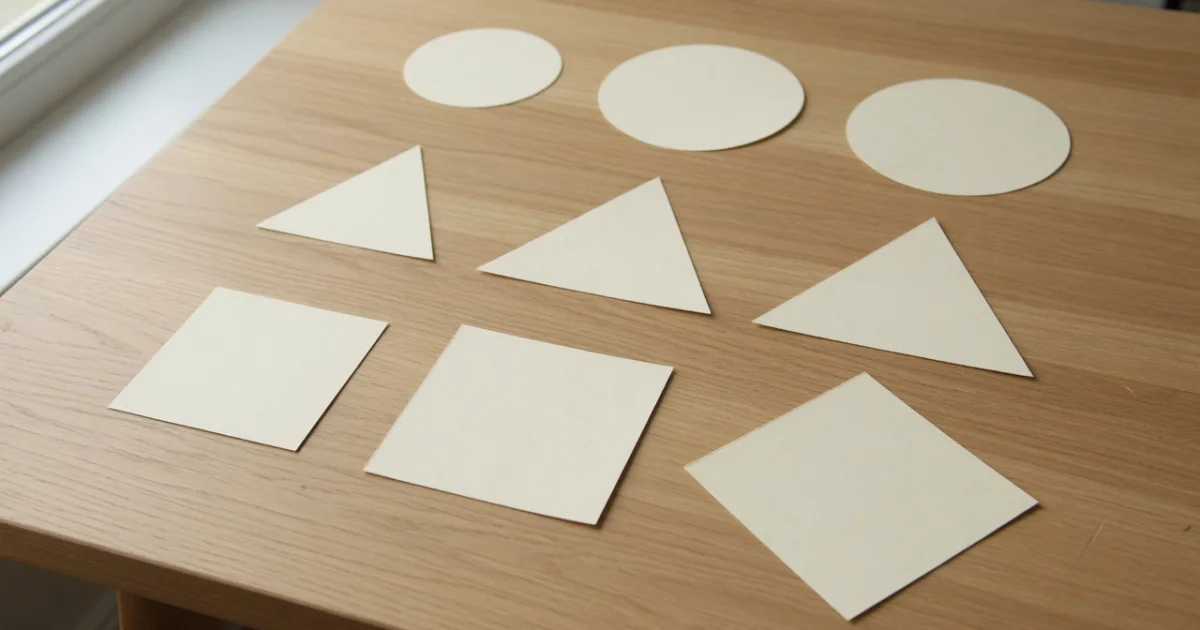
A sticker is three things: a subject cut away from its background, a thick border that separates it from whatever it lands on, and a transparent PNG. FindUtils Sticker Maker does all three in the browser — the photo is never uploaded.
This guide covers how the cut-out works, what each messaging app expects, and why the export format is not negotiable.
How Does the Cut-Out Work?
The background is removed in the browser by a segmentation model that runs locally, which is why the photo does not need to be sent anywhere.
What that means in practice is that results depend on the picture more than on the settings:
- A clear subject against a contrasting background cuts almost perfectly.
- Hair, fur and fine detail are where any segmentation model struggles; expect a slightly soft edge.
- A subject the same tone as its background is the hardest case — the model has little to separate.
- Motion blur blurs the boundary the model is looking for.
If a photo cuts badly, the fix is usually a different photo rather than different settings. Cropping tighter with the Image Cropper first also helps, because it removes background the model would otherwise have to reason about.
Why the Thick Border?
Because a sticker lands on backgrounds you do not control — a dark chat bubble, a photo, a pale wallpaper — and without a border the subject's edge disappears into whichever one it hits.
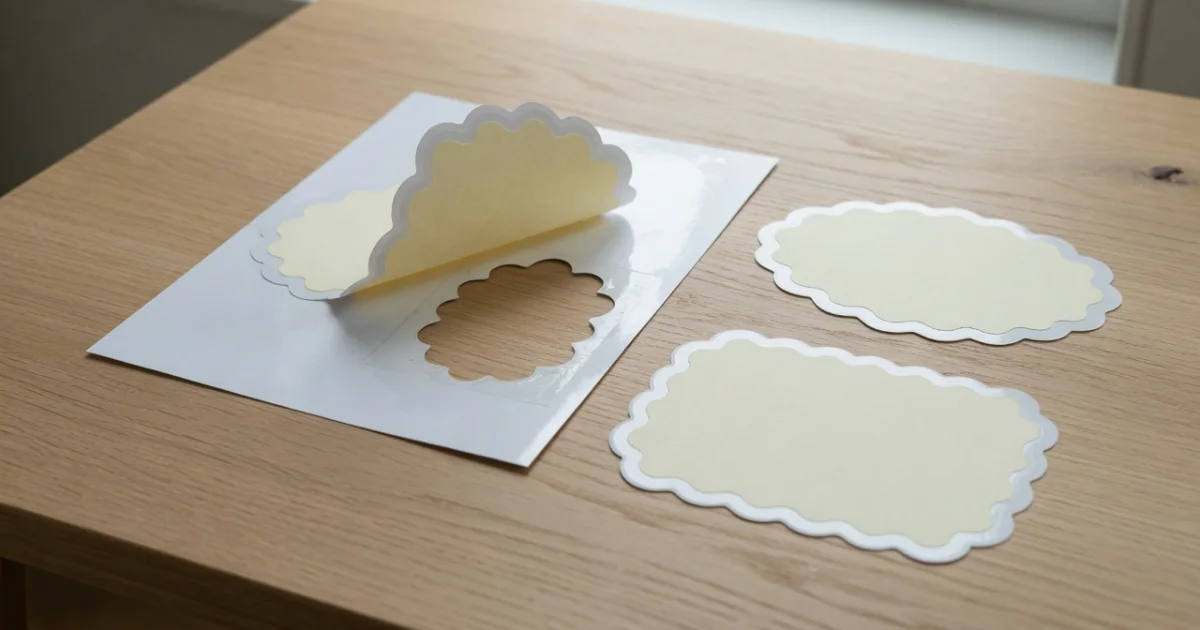
The tool offers a plain outline, decorative borders, a stamp edge with the perforated look of a postage stamp, and shape cuts. The white outline is the convention for a reason: it reads against both light and dark, which no coloured border does.
Keep the border thick. A 2px outline that looks generous while you are zoomed in is invisible at sticker size in a conversation.
What Does Each App Expect?
The formats differ enough to matter.
| App | Format | Notes |
|---|---|---|
| PNG, 512x512, transparent | Added through a sticker-pack app, not the chat directly | |
| Telegram | PNG, 512px on the longest side | Uploaded through the Stickers bot |
| iMessage | PNG, transparent | Via a sticker pack, or dragged onto a message |
| Print / general | PNG | Transparency preserved for any layout tool |
The common thread is PNG with an alpha channel. Do not export a sticker as JPEG. JPEG has no transparency, so the cut-out you just made gets flattened onto a white rectangle — which is the single most common way a sticker export goes wrong.
Is the Photo Uploaded?
No. The image is read from your device, the background removal runs in the browser, and the PNG is written back out locally. No request carries the picture.
The page itself loads advertising and analytics scripts like the rest of the site, but your photo is not part of that traffic. That matters for stickers specifically, because the source is almost always a photograph of a person — frequently someone who did not choose to have their picture sent to a service.
Common Mistakes
Mistake 1: Exporting as JPEG
The transparency is flattened onto white and the cut-out is wasted. Always PNG.
Mistake 2: A Thin Border
It vanishes at sticker size. Make it thicker than looks right while editing.
Mistake 3: Starting From a Busy Photo
Segmentation needs a separable subject. Crop tighter first, or pick a cleaner shot.
Mistake 4: Ignoring the Size Requirement
WhatsApp and Telegram both expect 512px. An oversized sticker gets rescaled by the app, usually worse than you would have done.
Mistake 5: Expecting a Perfect Hair Edge
No browser-side model gets fine hair exactly right. Choose photos where the subject's outline is simple.
Tools Used in This Guide
- Sticker MakerCut out, border, transparent PNG
- Image CropperCrop tight before cutting out
- Photo EditorAdd text or effects to the sticker
- Image EraserRemove a leftover object inside the cut-out
- Favicon GeneratorTurn a cut-out into an icon set
FAQ
Q1: Is the sticker maker free? A: Yes. No signup, no watermark and no limits. Everything runs in your browser.
Q2: Is my photo uploaded? A: No. The background removal runs locally in the browser and the file is never transmitted.
Q3: What size should a WhatsApp sticker be? A: 512x512 PNG with a transparent background, added through a sticker-pack app rather than sent directly in a chat.
Q4: Why does my sticker have a white box around it? A: It was exported as JPEG, which has no alpha channel. Export PNG instead.
Q5: The cut-out missed part of my subject — what now? A: Try a photo with more contrast between subject and background, or crop closer first so there is less background to interpret.
Q6: Can I use these stickers commercially? A: That depends on the rights to the source photo, not on this tool. The tool adds no watermark and no restriction of its own.
Next Steps
- Crop tighter first with the Image Cropper.
- Add text or effects in the Photo Editor.
- Removing an object rather than a background? Use the Image Eraser.