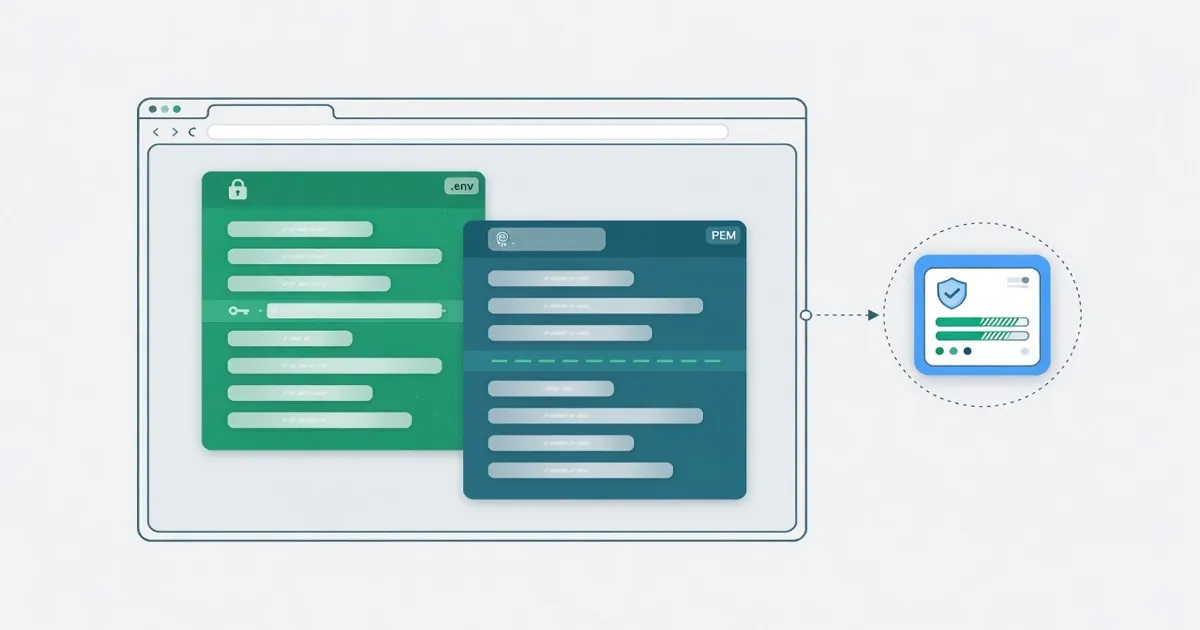
You can inspect a .env file and a PEM certificate without sending either one to a server. FindUtils Env Linter flags duplicate keys, unquoted spaces, and example drift in the browser. FindUtils PEM Decoder reads type, subject, SAN, and dates from pasted PEM. Private key bytes are not printed.
This post is about those two local jobs. A live TLS check of a hostname is a third job. Keep it on the SSL Certificate Checker.
Why Keep These Files on the Device
.env files can contain credentials. PEM can contain certificates, requests, or private keys. A tool that uploads them creates a copy you cannot see. A browser lint or decode never needs that copy.
Keep the work local when:
- The file holds tokens. The env linter masks secret-looking values in the table.
- The PEM might be a private key. The decoder shows type and length, not key bytes.
- You only need identity fields. SAN values help inspect the intended host names. This does not verify trust, validity, or a live connection.
- You are not ready to open a live connection. Decode does not contact a CA.
The page may still load analytics or ads. The pasted text is still processed in the browser.
Two Local Checks, One Live Check
Lint the dotenv file
Paste .env into the Env Linter. Optionally paste .env.example. Read duplicates, unquoted spaces, export prefixes, and missing or extra keys. The linter does not execute the file and does not rewrite it.
Decode the PEM
Paste the BEGIN / END block into the PEM Decoder. Read type and DER length. On a certificate, read subject and SAN when the parser can walk the structure. This is not chain verification.
Check a live host only when you mean to
If you need what a hostname presents now, use the SSL Certificate Checker. Do not paste a private key into that flow. A live check and a local decode answer different questions.
For tokens that look like JWTs inside .env, use the JWT Decoder and read is it safe to decode a JWT online.
Local Inspect vs Live Scan
| Job | Tool | Network | Secret display |
|---|---|---|---|
Lint .env | Env Linter | None for the file | Secret-looking values masked |
| Read a PEM file | PEM Decoder | None for the PEM | Private key bytes hidden |
| See a host’s certificate | SSL Certificate Checker | Connects to the URL | Not a key paste box |
| Read a JWT | JWT Decoder | None for the token | Payload is visible; treat it as data |
Best for: Use the first two rows when the bytes are already on your machine. Use the SSL checker when the question is about a live host.
Common Mistakes
Mistake 1: Pasting production .env into a group chat after linting
The linter masks values on the page. A screenshot of key names can still map your architecture. Share findings as key names you already expect, not a dump.
Mistake 2: Using PEM decode as proof of trust
Readable SAN is not a verified chain.
Mistake 3: Feeding a private key to a live SSL form
Keep keys in a secret store. The PEM decoder is for inspection of a block you already have, with key bytes hidden.
Tools Used in This Guide
- Env Linter — Lint dotenv files locally
- PEM Decoder — Inspect PEM certificates, CSRs, and keys
- SSL Certificate Checker — Check a live host certificate
- JWT Decoder — Inspect a JWT locally
FAQ
Q1: Are these inspect tools free? A: Yes. FindUtils Env Linter and PEM Decoder are free, with no signup.
Q2: Do they upload the file? A: No. Lint and decode run in the browser. The page may still load analytics or ads.
Q3: Does the PEM decoder print private keys? A: No. It shows type, length, and algorithm when found.
Q4: Does linting execute .env?
A: No. It reports issues only.
Q5: When should I use the SSL checker instead? A: When you need the certificate a hostname presents on a live connection.
Q6: Can I compare .env to .env.example?
A: Yes. Paste both into the Env Linter.
Next Steps
- Read the env linter guide
- Read the PEM decoder guide
- Read the SSL certificate checker guide
- Read is it safe to decode a JWT online