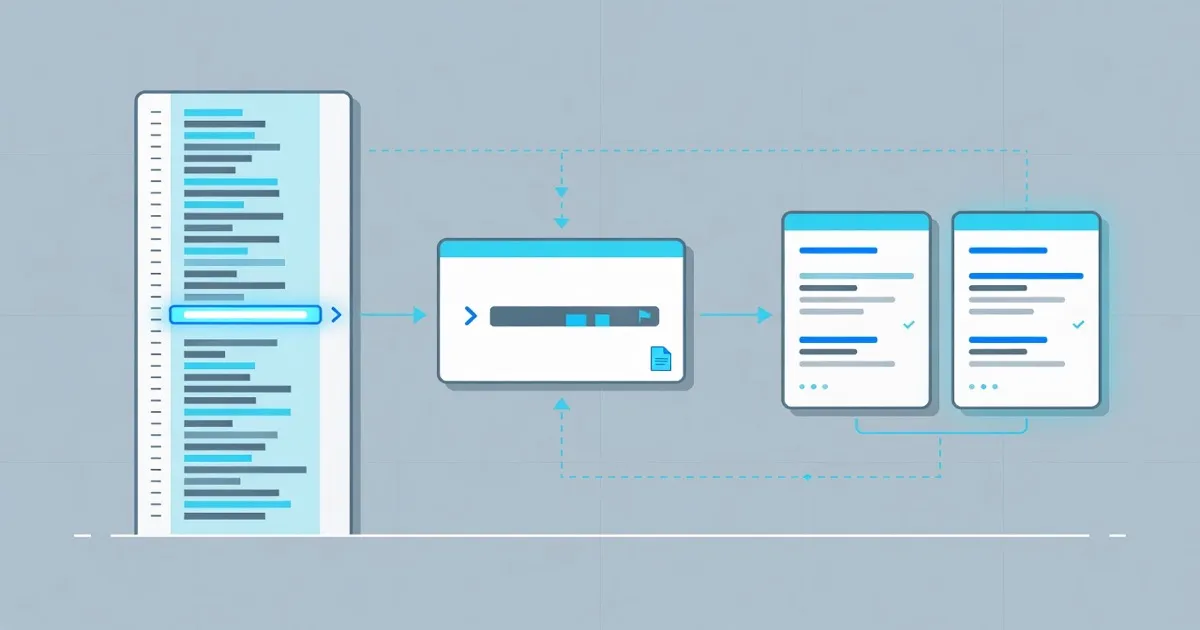
A HAR file records HTTP requests and responses for inspection. Export the relevant browser network log, locate the failed request, then review a redacted cURL command. FindUtils HAR Viewer parses the capture in your browser.
This post walks that path end to end. It also states when you should stop: localhost, private hosts, and secret headers do not belong in a public builder.
Why Start From a HAR File
A screenshot of DevTools loses headers and timing. A HAR file keeps the session as JSON. Anyone with the file can open the same table.
Start from HAR when:
- The failure only happens in the browser. The log shows redirects, CORS preflights, and the real URL.
- You need a command, not a story. One row becomes cURL.
- You must keep the capture local. Client-side parse does not send the file to FindUtils.
Treat the export as sensitive. HAR files often include cookies and authorization headers.
A Four-Step Debug Path
Step 1: Capture only the failing flow
Open the network panel. Clear it. Reproduce the bug. Save HAR. A smaller file is easier to read and stays under the viewer’s 20 MB text limit.
Step 2: Inspect the table
Open the FindUtils HAR Viewer. Drop the file. Find the 4xx or 5xx row, or the slow one. The viewer does not render HAR as HTML.
Step 3: Copy cURL, then strip secrets
Copy the row. Replace live tokens with placeholders before you paste the command into a ticket. If you need many commands, use HAR to cURL.
Step 4: Replay only public hosts
If the URL is a public http or https host, rebuild it in the HTTP Request Builder. Private, local, and metadata addresses are rejected. Timeout is 15 seconds. Body limit is 64 KB. For a local API, run cURL on your machine instead.
Convert a clean command into code with cURL to Code when the fix belongs in a script.
HAR Workflow vs Guessing in the UI
| Approach | What you see | Secret risk | Replay |
|---|---|---|---|
| Screenshot of DevTools | One moment, incomplete | Low, but URLs leak | None |
| HAR in FindUtils viewer | Method, URL, status, size, time | File stays in the browser | Copy cURL only |
| Public HTTP Request Builder | Live status, headers, body | Only if you paste secrets | Public hosts only |
| Desktop client or local cURL | Full control | Your machine | Localhost allowed |
Best for: Use the viewer to understand the capture. Use the builder for a short public replay. Use local cURL when the host is private.
Common Mistakes
Mistake 1: Sharing the raw HAR
Strip cookies and tokens first. Share the row index and a redacted command.
Mistake 2: Replaying localhost through the builder
The builder rejects loopback and private ranges on purpose.
Mistake 3: Converting the whole session when you need one row
The viewer copies one entry. That is usually enough for a bug report.
Tools Used in This Guide
- HAR Viewer — Parse HAR JSON and copy one cURL
- HAR to cURL — Convert many HAR entries
- HTTP Request Builder — Send a public HTTP request
- cURL to Code — Turn cURL into code
FAQ
Q1: Is this HAR workflow free? A: Yes. FindUtils HAR Viewer, HAR to cURL, HTTP Request Builder, and cURL to Code are free, with no signup.
Q2: Does FindUtils upload my HAR? A: No. Parse runs in the browser. The page may still load analytics or ads.
Q3: Can I replay any captured URL?
A: The HTTP Request Builder allows public http and https hosts only. Localhost and private ranges are rejected.
Q4: What is the HAR size limit on the viewer page? A: 20 MB of text.
Q5: Does the viewer execute JavaScript from the HAR? A: No. It does not render HAR as HTML.
Q6: Should I put authorization headers in a public builder? A: Prefer placeholders. If you must replay auth, do it on your own machine.
Next Steps
- Follow the HAR viewer guide
- Follow the HTTP request builder guide
- Convert collections with the Postman to cURL guide
- Browse the complete guide to online developer tools