Convert DOCX to Markdown by reading the document body, mapping Word's styles to Markdown structure, and dropping the formatting Markdown cannot hold. FindUtils DOCX to Markdown does this in your browser. The tool does not upload or store your document.
This guide explains what a .docx contains, what survives the conversion, how images and tables are handled, and how to prepare a document for a clean result. The tool converts structure only. It does not clone a print layout.
Why Convert DOCX to Markdown?
Use Markdown when the text must live in a README, a wiki, a docs site, or version control. Use Word when people write and review with tracked changes. The trip from one to the other is a structure change, not a style change.
- Headings: Word's Heading 1 to Heading 6 styles become
#to######. - Lists: real bulleted and numbered lists become Markdown lists.
- Links: hyperlinks become
[text](url). - Tables: simple tables become pipe tables with a header row.
- Emphasis: bold and italic become
**bold**and*italic*. - Dropped: fonts, colours, sizes, alignment, columns, page breaks, headers, footers, footnotes, comments, and tracked changes.
FindUtils reads the package with a library that maps Word styles to semantic HTML, then writes the Markdown with the same converter its Site to Markdown page uses. That path gives tables a Markdown form.
How to Convert DOCX to Markdown Online
Drop one file, read the notes, decide about images, and copy or download. The conversion takes a moment.
Step 1Open the Converter
Open FindUtils DOCX to Markdown. Drop a .docx file, or click to select one.
Step 2Check the File Type
The tool reads the first bytes before it does anything else. A current Word document is a zip archive and converts. A legacy .doc and a password-protected .docx are both refused with the same instruction: save as an unprotected .docx first.
Step 3Read the Conversion Notes
If Word used a feature the converter had no Markdown for, a note names it. The text of that part is still in the output as a plain paragraph. The notes tell you where to look.
Step 4Decide About Images
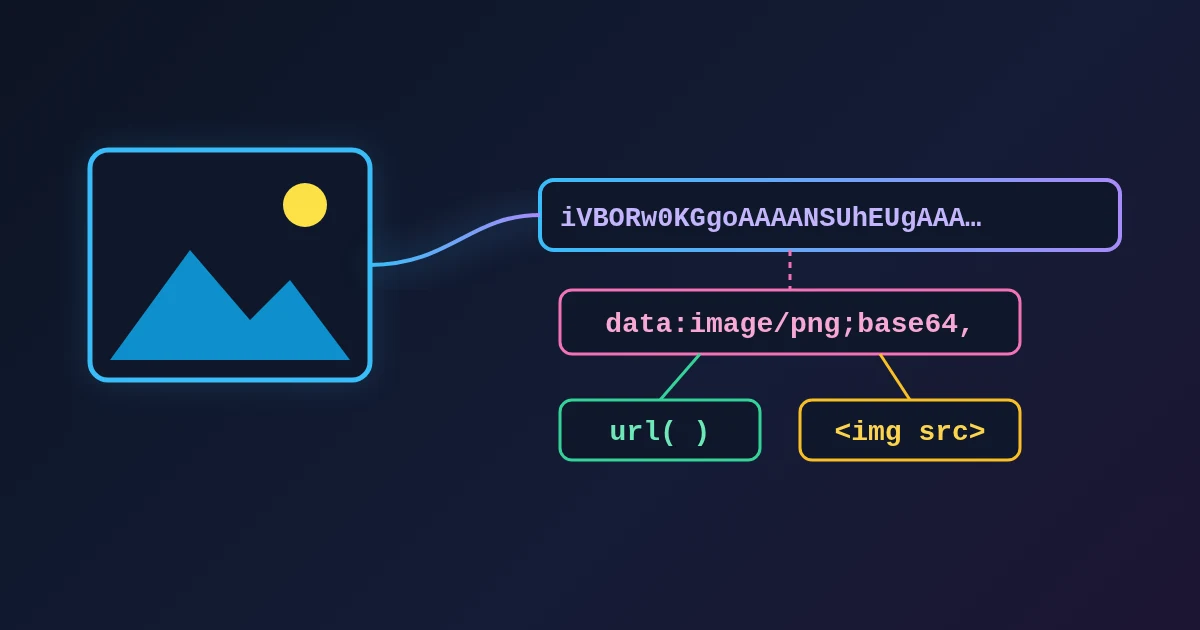
Images are left out by default and counted. Turn on Include images as data URLs to embed them inside the Markdown. The file becomes self-contained and large. Most projects keep images in a folder and link them instead.
Step 5Edit, Copy, or Download
The Markdown on the right is editable. Fix a heading or a table cell in place, then copy the text or download the .md, which keeps the document's basename.
What Survives and What Does Not
| Word content | Markdown result |
|---|---|
| Heading styles | # headings by level |
| Paragraphs | Paragraphs |
| Bold, italic | **bold**, *italic* |
| Hyperlinks | [text](url) |
| Bulleted and numbered lists | - and 1. lists |
| Tables | Pipe tables, one line per cell |
| Images | Left out and counted, or embedded on request |
| Fonts, colours, sizes | Dropped |
| Alignment, columns, page breaks | Dropped |
| Headers, footers, footnotes | Dropped |
| Comments, tracked changes | Dropped |
| Text boxes, custom styles | Text kept as paragraphs; a note is shown |
The dropped items are a property of Markdown, not a limit of the converter. Markdown has no place to store a font name.
Prepare the Document for a Clean Result
The converter reads Word's styles, not the appearance of the text. A document that uses the styles converts well. A document that fakes them converts as paragraphs.
- Use Heading styles. A bold 18-point line is a paragraph to the converter. Apply Heading 1, Heading 2, and so on.
- Use real lists. A line that starts with a typed hyphen is plain text. Use Word's list buttons.
- Keep table cells simple. A cell with several paragraphs or a nested list flattens to one line, because a pipe table cannot hold more.
- Remove protection. A password-protected file cannot be unpacked. Remove the password in Word and save.
- Export from Google Docs as .docx. File, Download, Microsoft Word gives a document with real Heading styles and lists.
Practical Examples
Example 1: A Brief Becomes a README
A product brief written in Word needs to live in the repository. Convert it, review the headings, and paste the Markdown into README.md. Leave the images out and add them to an images folder.
Example 2: A Handbook Moves to a Wiki
A policy handbook with many headings and lists converts in one drop. Check the tables, which are the part most likely to flatten, then paste each section into the wiki.
Example 3: The Reverse Trip
A Markdown file must go back to Word for review with tracked changes. Use Markdown to Word, which builds a .docx from Markdown. The two pages make the round trip.
Example 4: The Source Is a Web Page
The text is on a web page, not in a document. Use HTML to Markdown for a pasted fragment. The DOCX page is for Word files only.
Common Mistakes
Mistake 1: Expecting a Print Layout
Markdown has no pages, columns, or fonts. The converter keeps the structure and drops the layout. That is the correct result.
Mistake 2: Dropping a .doc File
A .doc is a binary format from before 2007. Open it in Word or LibreOffice, save as .docx, and drop that.
Mistake 3: Faking Headings with Bold Text
The converter reads the style name. Apply Heading styles in Word, or add the # characters in the editor after conversion.
Mistake 4: Skipping the Table Check
Merged cells and multi-paragraph cells flatten. Read every table before you publish.
Mistake 5: Embedding Every Image
A single photo as a data URL can be larger than the rest of the file. Leave images out, save them once, and link them.
Tools Used in This Guide
- DOCX to MarkdownConvert a Word document to Markdown in the browser.
- Markdown to WordBuild a
.docxfrom Markdown, the reverse trip. - HTML to MarkdownConvert a pasted HTML fragment to Markdown.
- Markdown PreviewerCheck how the Markdown renders before you publish it.
FAQ
Q1: Is FindUtils DOCX to Markdown free to use? A: Yes. The converter is free and needs no account. It converts one document at a time in the browser.
Q2: Can it read an old .doc file?
A: No. Save the file as .docx in Word, LibreOffice, or Google Docs, then drop it. The tool recognises a .doc by its first bytes and says so.
Q3: Why is a password-protected file refused? A: The file is encrypted, and the page does not ask for passwords. Remove the protection in Word, save, and drop the unprotected file.
Q4: Do tables convert? A: Yes, to pipe tables with a header row. Merged cells and cells with several paragraphs flatten to one line each.
Q5: What are the conversion notes? A: A list of Word features the converter met and had no Markdown for, such as a custom paragraph style or a text box. The text is kept; the styling is dropped.
Q6: Is my document uploaded? A: No. FindUtils unpacks and converts the document in the browser and does not upload or store it.
Q7: Can I go from Markdown back to Word?
A: Yes. The Markdown to Word page builds a .docx from Markdown with headings, lists, tables, and code blocks.
Next Steps
Convert one document and read its notes before you convert a folder. Apply Heading styles in Word first when the result looks flat.
- Convert a document with DOCX to Markdown.
- Need HTML instead? DOCX to HTML writes clean semantic HTML from the same file.
- Have a LibreOffice file? ODT to Markdown is the twin of this page for
.odt. - Build a Word file from Markdown with Markdown to Word.
- Convert a web fragment with HTML to Markdown.
- Preview the result with the Markdown Previewer.