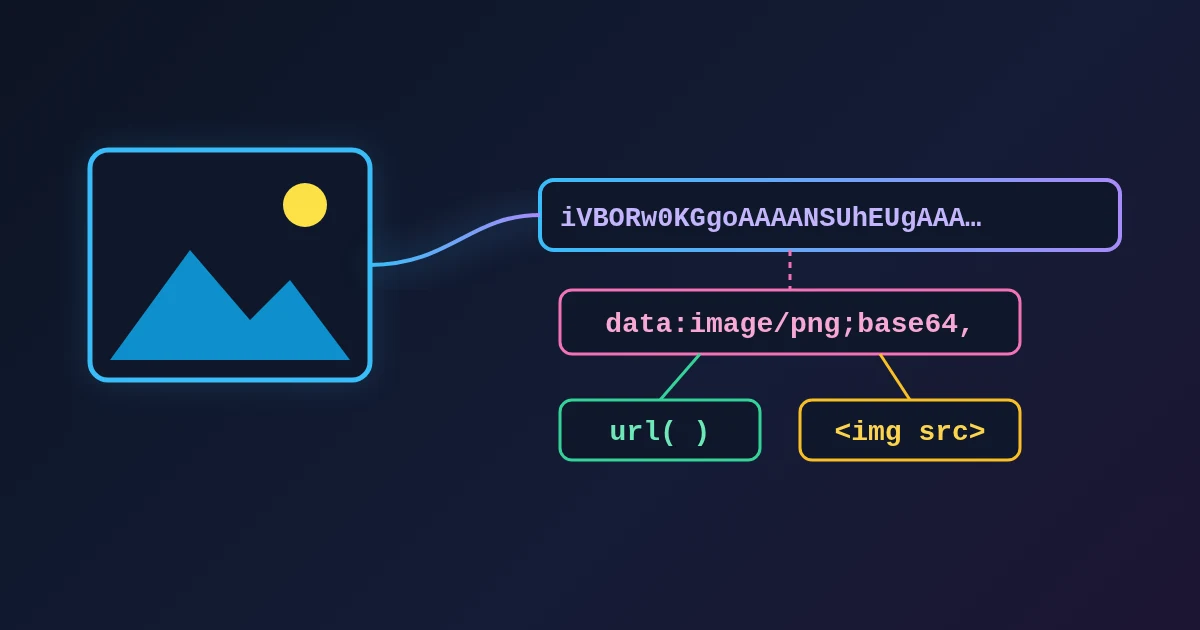
To turn an image into Base64, drop it into the FindUtils Image to Base64 converter. The tool reads the file in your browser and shows its bytes as a Base64 string, along with three ready-to-paste versions: a full data URI (data:image/png;base64,...), a CSS background-image line and an HTML <img> tag. The image is not uploaded and there is no sign-up.
A data URI lets a page carry a small image inside its own HTML or CSS instead of loading it as a separate file. That is handy for a tiny icon, a self-contained HTML report or a test fixture, but the text is about a third larger than the file, and it is not cached on its own. This guide shows how to use the tool, what each output is for, and when a normal image file is the better choice. For the reasons behind the trade-offs, read Base64 images in CSS and HTML: when a data URI helps and when it hurts.
How to Use Image to Base64, Step by Step
- Open Image to Base64.
- Drop one image on the upload area, or click it to pick a file. The tool takes one image at a time.
- Check the details panel. It lists the File name, Type (the MIME type that goes into the data URI), Dimensions, Original size and Base64 size, next to a preview.
- Copy the format you need with one of the four buttons: Base64, Data URI, CSS or HTML. The button briefly shows Copied!.
- Paste it into your code. The Base64 String and Data URI boxes below the buttons show the full text if you prefer to select it by hand.
To start over with another image, use the small close button on the preview.
What Each Copy Button Gives You
| Button | What is copied | Use it for |
|---|---|---|
| Base64 | Only the encoded bytes, e.g. iVBORw0KGgo... | JSON fields, APIs or tools that add their own prefix |
| Data URI | data:image/png;base64, + the bytes | An src, href or url() value you write yourself |
| CSS | background-image: url(data:image/png;base64,...); | Pasting straight into a rule |
| HTML | <img src="data:image/png;base64,..." alt="file-name.png" /> | Dropping an image into a page or HTML email |
The data URI follows the form defined in RFC 2397: data:[<mediatype>][;base64],<data>. The bytes are the file exactly as it is on disk. Nothing is re-encoded, resized or compressed on the way, so decoding the string gives back an identical file.
Change the alt text. The HTML snippet uses the file name as alt, which is rarely a good description. Replace it with what the image shows, or with alt="" if the image is purely decorative. If the file name contains a double quote, the copied tag is broken until you fix the attribute.
How Big the Result Gets
Base64 writes every 3 bytes as 4 characters, so the text is about 33% larger than the file. MDN explains that each Base64 digit carries 6 bits, and the last group is padded with =. The exact length is 4 × ceil(bytes ÷ 3). These are the sizes the tool showed in our test:
| File | Original size | Base64 size | Ratio |
|---|---|---|---|
| 16 × 16 PNG | 82 B | 112 B | 1.37 |
| 300 × 200 flat-colour PNG | 742 B | 992 B | 1.34 |
| 256 × 256 PNG logo | 37.15 KB (38,037 bytes) | 49.53 KB (50,716 characters) | 1.33 |
Base64 size counts only the encoded bytes. The data URI adds its prefix on top, 22 characters for data:image/png;base64,. Sizes use 1 KB = 1,024 bytes.
To keep the string short, shrink the file first: scale it to the size it is shown at with the Image Resizer, then run it through the Image Compressor. A smaller file always gives a shorter string, since Base64 does not compress anything.
Which Files Work
The tool reads anything your browser reports as an image and can display. PNG, JPEG, GIF, WebP and SVG work in every current browser. Two things to know from our tests in Chrome:
- The file must be decodable by your browser. A TIFF file did nothing at all in Chrome: no preview, no output and no error. Convert it first with TIFF to JPG, or use HEIC to JPG for iPhone photos.
- The Type comes from the file extension. A PNG renamed to
.jpgwas labelledimage/jpeg, and the data URI saiddata:image/jpeg. A file with no extension was ignored. Browsers usually still show such an image, but the wrong label can confuse other tools, so keep extensions honest. The MIME Type Finder lists the correct type for each extension.
If you drop a file and nothing appears, it is one of these two cases.
SVG Files Need a Different Approach
The tool Base64-encodes SVG like any other image, and the result works. But SVG is already text, so Base64 is usually not the smallest form. A data URI can carry the SVG markup directly, with only a few characters percent-encoded. In our test, a 563-byte icon was 778 characters as a Base64 data URI, and 594 characters as a URL-encoded one (data:image/svg+xml,%3Csvg ...), which also compressed better. CSS-Tricks came to the same conclusion.
For a URL-encoded SVG, encode at least <, >, #, % and any double quotes (or switch the SVG to single quotes inside a double-quoted url("...")). The URL Encoder/Decoder can do the encoding.
One more SVG detail: if the file has a viewBox but no width and height, the Dimensions row shows the browser's default size (150 × 150 in our test), not the size of the drawing. Add width and height to the SVG if you need the real numbers.
Data URIs in Email
The tool page lists email templates as a use case, but support is patchy. Can I email reports that Gmail does not show Base64 images, on the web or in its apps (retested on desktop in May 2024), and neither does Outlook for Windows 2007 to 2016. Apple Mail, Outlook.com, Yahoo Mail and Thunderbird do show them.
For a newsletter, host the image and link it with a normal https:// URL, or attach it as a CID inline image in your mail software. Use a data URI only when you know the recipients' mail apps.
When a Normal Image File Is Better
A data URI is part of the HTML or CSS file it sits in. The browser cannot cache it separately, its bytes arrive with the page even if the image is never scrolled into view, and every page that repeats it downloads it again. Google's web.dev LCP guide puts it this way: inlining a small resource as a data URL removes a request, but it "cannot be cached and in some cases can lead to longer render delays because of the additional decode cost."
| Situation | Better choice |
|---|---|
| A tiny icon used on one page (a few hundred bytes) | Data URI is fine |
| A self-contained HTML file or test fixture | Data URI |
| A photo, hero image or anything over a few KB | Normal image file |
| The same image on many pages | Normal image file (cached once) |
| A site with a strict Content Security Policy | Add data: to img-src, or use a file |
| An email newsletter | Hosted image or CID attachment |
On the last point: a policy of img-src 'self' blocks data URI images. In our Chrome test the image did not load until data: was added to the list, as in img-src 'self' data:. See MDN on img-src.
Decode a Base64 String Back to an Image
Base64 is reversible: decoding the string gives back the original file byte for byte. To check a string, paste the Base64 part into the Base64 Encoder and decode it, or drop the full data URI into an <img src> in a scratch HTML file and open it. Note that MDN says modern browsers block top-level navigation to data: URLs, so links that point at one may not open. For how the encoding itself works, see the complete guide to Base64 encoding.
FAQ
How do I convert an image to Base64?
Open Image to Base64, drop the image, and press one of the copy buttons. Base64 gives only the encoded bytes; Data URI adds the data:image/...;base64, prefix; CSS and HTML give ready-made snippets.
Is my image uploaded?
No. The file is read in your browser on this page and turned into text there. The tool has no API version.
How much bigger is a Base64 image?
About 33%. Base64 writes every 3 bytes as 4 characters, plus up to two = padding characters. A 38,037-byte PNG became 50,716 characters in our test.
Can I use a Base64 image in CSS?
Yes. Press the CSS button to copy a background-image: url(data:...) line. Keep it to small icons: the image bytes make the stylesheet bigger, and a stylesheet blocks rendering until it has loaded.
Do Base64 images work in Gmail?
No. According to Can I email, Gmail does not display Base64 images. Use a hosted image or an inline attachment for email.
Why does nothing happen when I drop a file?
The browser either cannot decode that format (TIFF in Chrome, for example) or did not recognise the file as an image (no extension). Convert the file to PNG, JPEG or WebP first.
Related Reading
Sources
- RFC 2397: The "data" URL scheme (syntax, "only useful for short values")
- RFC 4648: The Base16, Base32, and Base64 Data Encodings (section 4, alphabet and padding)
- MDN: Base64 (size increase, padding)
- MDN: data: URLs (syntax, length limits, top-level navigation blocked)
- MDN: CSP img-src
- web.dev: Optimize Largest Contentful Paint (data URLs cannot be cached, decode cost)
- Can I email: Base 64 image format
- CSS-Tricks: Probably Don't Base64 SVG