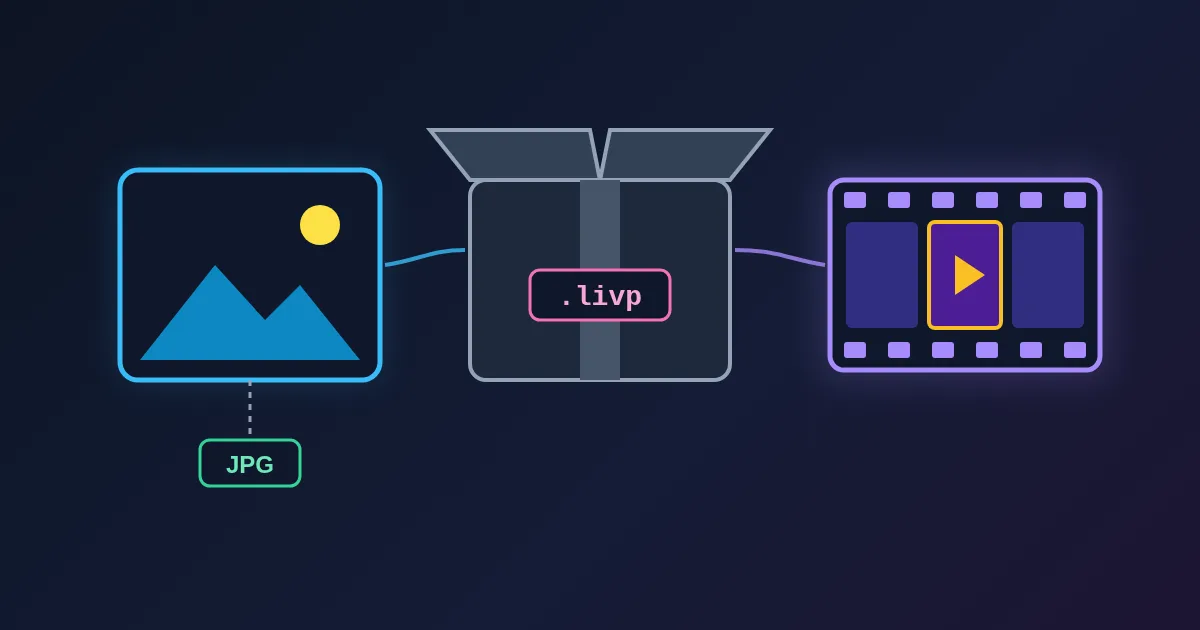
To open a .livp file, drop it into the FindUtils LIVP Extract tool. A .livp is an iPhone Live Photo packed into one ZIP archive: inside are the still photo, usually a .HEIC and sometimes a .JPG, and a short .MOV video clip. LIVP Extract opens the archive in your browser, lists both parts with their sizes, and lets you download each one as it was stored. With Also convert the still to JPG on, it also makes a JPG copy of the still, which every Windows and Android app can open. The file is not uploaded and there is no sign-up.
You usually meet a .livp when a Live Photo leaves Apple's apps, for example when it is downloaded to a Windows PC. Windows and Android have no program registered for the extension, so double-clicking it does nothing useful. This guide shows how to use the tool, what each option does, and the cases where it does not help.
What Is Inside a .livp File
A Live Photo is two files that an iPhone shows as one. Apple's support page says the iPhone "records what happens 1.5 seconds before and after you take a picture", so the clip is about three seconds long, with sound. A .livp keeps the two files together in an ordinary ZIP archive:
| Part | Typical name | What it is |
|---|---|---|
| Still photo | IMG_0001.HEIC (sometimes .JPG) | The key photo you see in the gallery |
| Video clip | IMG_0001.MOV | The short clip around the shot, with audio |
Because it is a ZIP, renaming IMG_0001.livp to IMG_0001.zip and extracting it also works. What that does not give you is a photo your PC can show: many Windows installs still cannot open HEIC without an extra codec. LIVP Extract does the unzip and the JPG copy in one step. To learn how the two parts are linked inside, read How Live Photos work.
How to Use LIVP Extract, Step by Step
- Open LIVP Extract.
- Set the two options. Also convert the still to JPG adds a
.jpgcopy of a HEIC still. Include the video clip keeps the MOV. Both are on by default. - Drop your files. One .livp, several .livp files, a .livp renamed to .zip, or one ZIP that holds several .livp files all work.
- Check each card. Every Live Photo gets a card with a thumbnail, the source file name, and one row per part: HEIC still, MOV video and, when it is ready, JPG copy, each with its size and a Download button.
- Download. Save parts one by one, or press Download all as ZIP. With several Live Photos, the ZIP has one folder per photo, named after each .livp file.
If the still is already a JPEG or PNG, no copy is needed and the card says so. If two .livp files share a name, the second folder gets a number (IMG_0001, IMG_0001-2), so nothing is overwritten.
Which Option to Use
| You want | Also convert to JPG | Include the video clip | You get |
|---|---|---|---|
| A photo you can open or send anywhere | On | Off | HEIC + JPG copy |
| The original files, exactly as stored | Off | On | HEIC + MOV |
| Everything | On | On | HEIC + MOV + JPG copy |
| Only the motion part | Off | On | Download the MOV row only |
The MOV comes out byte for byte. To turn it into an MP4 for a platform that rejects MOV, use the Video Format Converter. To make a looping animation from it, use Video to GIF. For a plain .heic photo that is not inside a .livp, use HEIC to JPG instead.
Location and Other Metadata
The HEIC and MOV are copied out unchanged, so they keep whatever the camera recorded, including GPS coordinates if location was on. The JPG copy is drawn through a browser canvas, and a canvas carries no metadata, so the JPG has no location, camera model or capture date.
That makes the JPG copy the safer file to post or send to someone you do not know. If you keep the HEIC, remember that the location is still inside it. The EXIF Remover cleans JPEG, PNG and WebP files; for background, see our guide on removing EXIF metadata from photos.
When a File Is Skipped
A file that cannot be unpacked gets a red Skipped card with the reason, and the other files carry on:
| Message | What it means | What to do |
|---|---|---|
| Not a ZIP archive | The file does not start like a ZIP, so it is not a Live Photo package | Check that it really is a .livp; a lone .heic goes to HEIC to JPG |
| No still photo / no video clip | Only one of the two parts is inside | A still-only package opens in HEIC to JPG |
| Could not be read | The archive is damaged or only partly downloaded | Download the file again |
| Password-protected | The ZIP is encrypted | Extract it with the password in an archive program first |
| Larger than 1 GB | A browser tab holds the file in memory | Split the batch into smaller ZIPs |
Finder and Explorer leftovers, such as __MACOSX folders, ._ files, .DS_Store and Thumbs.db, are ignored. To clean those out of any other ZIP before you share it, use Clean ZIP.
Limits to Know
A ZIP of loose photos is read as one package. The tool groups by .livp file, not by photo name. If you drop a ZIP that holds the loose files of several Live Photos (IMG_1.HEIC, IMG_1.MOV, IMG_2.HEIC, IMG_2.MOV), it shows one card with all four parts, and only the first still gets a JPG copy. In our test, exactly that ZIP came back as one package named after the ZIP. Those files are already separate, so extract that ZIP normally and convert the stills with HEIC to JPG.
Loose files next to .livp files are left out. When a batch ZIP contains .livp files, only those are unpacked. A HEIC and MOV pair sitting loose beside them is not listed and not reported as skipped.
Some HEIC stills cannot be decoded in a browser. This happens mostly with HDR and 10-bit HEIC files. The card then says the JPG copy failed, and the original HEIC and MOV still download as they are. Open the HEIC in Photos on an iPhone or Mac to export a JPEG instead.
It does not rebuild a Live Photo. The tool only unpacks. It does not convert the clip, and it does not put a HEIC and a MOV back together into something an iPhone plays as a Live Photo.
FAQ
What is a .livp file?
It is an iPhone Live Photo packed into one ZIP archive. Inside are the still photo, usually HEIC and sometimes JPEG, and a short MOV video with sound.
How do I open a .livp file on Windows?
Drop it into LIVP Extract and download the JPG copy, or the HEIC and MOV. Without a tool, rename the file to .zip and extract it, then open the HEIC with an app that supports it.
Can I get the video out of a Live Photo?
Yes. The MOV row in each card is the clip, about three seconds around the shot, exactly as it was stored. Turn off the JPG option if you only want the original files.
Is my Live Photo uploaded?
No. The .livp file is opened in your browser on this page, and the photo and video are not uploaded. The tool has no API version.
Does the JPG copy keep the location?
No. The JPG copy is made through a canvas, which carries no metadata. The original HEIC and MOV keep whatever the camera recorded.
Can I unpack many Live Photos at once?
Yes. Drop several .livp files, or one ZIP of .livp files, and use Download all as ZIP to get one folder per Live Photo.
Related Reading
Sources
- Apple Support: Take and edit Live Photos (1.5 seconds before and after, key photo, effects, sharing)
- Apple Support: Take Live Photos with your iPhone camera (Live Photos include audio)
- Microsoft Support: Zip and unzip files (extracting a ZIP in Windows)