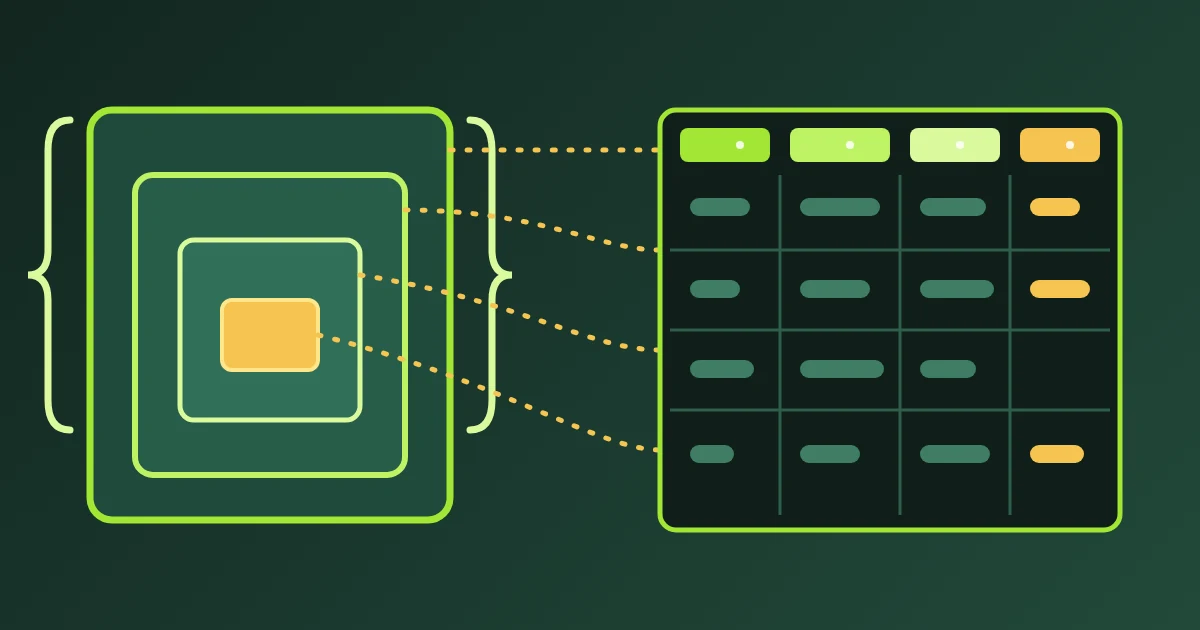
To flatten JSON to CSV, every nested value gets a column named after the path that leads to it. {"address": {"city": "London"}} becomes a column called address.city with the value London. Paste your JSON into the FindUtils JSON Flatten tool and it does this for every record: it finds the array of rows, writes one dot-path column per nested key, and gives you a CSV you can open in Excel or Google Sheets. It is free, needs no signup, and on the page the JSON is processed in your browser.
This guide shows how the tool decides what a row is, compares the three ways it can write arrays, explains the depth limit, and lists the pitfalls that can quietly change your data on the way to a spreadsheet.
What Does Flattening JSON Mean?
JSON nests: a user has an address object, an order has a customer and a list of lines. A spreadsheet has one value per cell and no nesting at all. Flattening walks down each record and writes every leaf value under its full path:
| Nested JSON | Flat column | Value |
|---|---|---|
{"id": 1} | id | 1 |
{"address": {"city": "London"}} | address.city | London |
{"customer": {"geo": {"lat": 51.5}}} | customer.geo.lat | 51.5 |
{"tags": ["admin", "beta"]} | tags (or tags[0], tags[1]) | admin|beta (or admin, beta) |
{"note": null} | note | empty cell |
Objects use a dot between keys. Array positions use square brackets, as in tags[0], so a position can never be confused with an object key that happens to be a number. The header row is the union of the keys found in all records, in the order they first appear. A record that lacks a key gets an empty cell in that column.
How to Use JSON Flatten
Step 1Paste or Drop the JSON
Open JSON Flatten and paste the JSON into the Nested JSON panel, upload a .json file, or drop it on the panel. Click the sample button to try it with three example records first. The CSV appears as soon as the JSON parses. If it does not parse, the error shows the line and column of the problem; the JSON Formatter helps you find and fix it.
Step 2Check Which Rows Were Found
The status line under the panels says what the tool used as rows, plus the row and column counts. The rules:
- A top-level array of objects gives one row per object.
- An object that wraps the array under
data,results,itemsorrecords, or one level below one of them such asdata.items, is unwrapped for you. The status line names the path, for example "3 objects at data". - Anywhere else, type the path into Array path:
response.usersorpages[0].rows. Without it,{"response": {"users": [...]}}is treated as one object and the whole user list ends up as JSON text in oneresponse.userscell. - A single object with no such array becomes one row.
- An array of plain values such as
[1, 2, 3]becomes one column namedvalue.
If you are not sure of the path, test it in the JSON Path Finder first: when $.response.users returns your list, that is the path. Array path accepts it with or without the leading $..
Step 3Choose How Arrays Are Written
This choice changes your columns the most, so it has its own section below. Join with | is the default.
Step 4Set the Depth
Depth caps how many levels a column name may have. All levels, the default, flattens everything. Choose 1 to 5 levels to stop earlier; anything below the limit stays as JSON text in its cell, and a note counts how many cells that affected.
Step 5Pick the Separator and Download
Choose Comma, Semicolon or Tab, decide whether you want a header row, and download. The file is named after your upload with -flat.csv added. For a big result the panel previews the first 200 lines once the CSV passes 2,000 lines; Copy and Download always use the whole file.
The Three Array Modes Compared
Take three user records, the same ones the tool's sample uses:
{
  "data": [
    { "id": 1, "name": "Ada Lovelace", "address": { "city": "London", "zip": "NW1 6XE" }, "tags": ["admin", "beta"] },
    { "id": 2, "name": "Grace Hopper", "address": { "city": "Arlington", "zip": "22202" }, "tags": ["editor"] },
    { "id": 3, "name": "Alan Turing", "address": { "city": "Wilmslow" }, "tags": [] }
  ],
  "page": 1
}
The tool finds the array at data and ignores page. Here is the tags part of the output in each mode:
| Mode | Columns for tags | Row 1 | Row 2 | Row 3 |
|---|---|---|---|---|
| Join with | (default) | tags | admin|beta | editor | empty |
| JSON cell | tags | ["admin","beta"] | ["editor"] | [] |
| Indexed columns | tags[0], tags[1] | admin, beta | editor, empty | empty, empty |
The rest of the columns are the same in every mode: id, name, address.city, address.zip. Alan Turing has no zip, so his address.zip cell is empty.
Which mode to use:
- Join with | when the list is short labels you want to read or filter with "contains". It is the most compact.
- JSON cell when the exact array must survive, for example to load it back into another system. It is lossless.
- Indexed columns when each position means something, such as
scores[0]for the first attempt, or when you need every value in its own cell for formulas.
Arrays of Objects: Order Lines and Similar Data
An array of objects needs more care. Take one order:
[{ "order": "A-1", "customer": { "name": "Ada", "geo": { "lat": 51.5, "lng": -0.1 } },
   "lines": [{ "sku": "K-1", "qty": 2 }, { "sku": "K-2", "qty": 1 }], "note": null }]
Under Join with |, the lines cell keeps the whole list as JSON text, [{"sku":"K-1","qty":2},{"sku":"K-2","qty":1}], and a note tells you how many cells hold an array of objects. Under Indexed columns the tool spreads it out:
| order | customer.name | customer.geo.lat | customer.geo.lng | lines[0].sku | lines[0].qty | lines[1].sku | lines[1].qty | note |
|---|---|---|---|---|---|---|---|---|
| A-1 | Ada | 51.5 | -0.1 | K-1 | 2 | K-2 | 1 |
That works for a few lines, but an order with 40 lines produces 80 columns. No mode turns array items into extra rows. If you need one row per order line, reshape the JSON first. With the jq command-line tool:
jq '[.[] | . as $o | .lines[] | {order: $o.order, customer: $o.customer, sku, qty}]' orders.jsonThat writes one object per line with the order and customer copied onto each, and JSON Flatten then gives you order, customer.name, sku and qty columns with one row per line. In Python, pandas' json_normalize does the same with record_path="lines" and meta=["order", ["customer", "name"]].
How the Depth Limit Works
Depth counts the parts of a column name. address.city has two parts, customer.geo.lat has three. With the order above:
| Depth | Customer columns you get |
|---|---|
| All levels | customer.name, customer.geo.lat, customer.geo.lng |
| 2 levels | customer.name, customer.geo holding {"lat":51.5,"lng":-0.1} |
| 1 level | customer holding the whole customer object as JSON |
Under Indexed columns, an array position counts as a level too: at 2 levels, lines[0] is a column holding {"sku":"K-1","qty":2}. Lower the depth when an API returns deep metadata you do not need as columns, and keep it at All levels when every field matters.
Opening the CSV in Excel and Google Sheets
The output follows RFC 4180: a cell that contains the separator, a double quote or a line break is wrapped in double quotes, and a quote inside it is doubled. The value x,"y" is written as "x,""y""", which every spreadsheet reads back as the original text.
- Google Sheets and Numbers read the UTF-8 file as it is.
- Excel on Windows can show accented letters as garbage in a plain UTF-8 CSV. Microsoft's support article on CSV UTF-8 files says such a file opens normally when it was saved with a byte order mark (BOM). Turn on Excel BOM before you download, or import it through Data > Get Data > From Text/CSV.
- Excel set to a comma decimal separator, common in much of Europe, expects semicolons between fields. Choose Semicolon.
To check the result before you share it, open it in the CSV Viewer, or turn it into a real workbook with CSV to Excel.
JSON Flatten vs Other Ways to Get a Table
| Method | Nested keys become columns | Finds the rows for you | One row per array item | Setup |
|---|---|---|---|---|
| FindUtils JSON Flatten | Yes, dot paths | Yes: data, results, items, records | No | None, in the browser |
| FindUtils JSON to CSV | No, nested values stay JSON text | No | No | None |
| FindUtils NDJSON to CSV | Yes, for JSON Lines files | One line is one row | No | None |
| jq on the command line | With a filter you write | With a filter you write | Yes | Install and learn the syntax |
pandas json_normalize | Yes, sep="." by default | With record_path | Yes | Python and pandas |
Use JSON Flatten for a quick, inspectable table from one JSON document. Use a script when the reshaping must be repeated on a schedule or needs one row per nested item.
Common Mistakes to Avoid
Mistake 1: Keys That Already Contain a Dot
Some APIs use keys such as "a.b". If a record has both "a.b": 2 and "a": {"b": 3}, both flatten to the same column name a.b, and only one value survives, here 3. Check the column count against what you expect, and rename such keys first if both forms appear.
Mistake 2: Joining Values That Contain a Pipe
Join with | writes ["a|b", "c"] as a|b|c, and nobody can tell afterwards that there were two values. If your values can contain |, choose JSON cell.
Mistake 3: Long Numeric IDs
JSON itself allows any number of digits, but RFC 8259 notes that only integers between −(2^53)+1 and 2^53−1 are interoperable. Above 9,007,199,254,740,991, JavaScript, and so this tool, rounds them: 12345678901234567890 comes out as 12345678901234567000. Have the API send long IDs as strings, and format those columns as text in your spreadsheet so it does not round them either.
Mistake 4: Pasting JSON Lines
A .jsonl or .ndjson file holds one JSON value per line, as described at jsonlines.org. It is not one JSON document, so it fails to parse here; the error message offers a link to NDJSON to CSV, which reads that format and uses the same dot paths.
Mistake 5: Expecting null and Missing Keys to Look Different
CSV has no null. A null value and a key that is absent both become an empty cell, and an empty object produces no column at all. If the difference matters, keep the original JSON alongside the CSV or use JSON cell for that part.
Tools Used in This Guide
- JSON FlattenTurn nested JSON into a CSV with one dot-path column per key
- JSON FormatterPretty-print JSON and find syntax errors
- JSON Path FinderTest the path to your array before you type it into Array path
- JSON to CSVConvert JSON to CSV with nested values kept as JSON text
- NDJSON to CSVConvert JSON Lines files with one object per line
- CSV ViewerCheck the flat CSV as a table
- CSV to ExcelTurn the CSV into a workbook
- JSON to Markdown TableMake a table for docs or a README instead of a spreadsheet
FAQ
How do I flatten nested JSON to CSV?
Paste the JSON into JSON Flatten. It finds the array of records, writes every nested key as a column named by its path, such as address.city, and gives you a CSV to download. Choose how arrays are written and the separator your spreadsheet expects before you download.
What is dot notation in a CSV header?
It is the path to a nested value written with dots between the keys. The value at {"customer": {"geo": {"lat": 51.5}}} gets the column name customer.geo.lat. Array positions are written in brackets, such as tags[0].
How are arrays converted when flattening JSON?
You choose. Join with | puts a list of plain values in one cell, such as admin|beta. JSON cell keeps every array as JSON text. Indexed columns gives each position its own column, such as tags[0] and tags[1], and spreads arrays of objects into columns like lines[0].sku.
Can I get one row per item in a nested array?
Not in JSON Flatten. Reshape the JSON first, for example with jq or pandas' json_normalize and its record_path option, so each nested item becomes its own object, then flatten the result.
Why is my whole API response in one cell?
The tool did not find your array. It looks under data, results, items and records and one level below them. For any other location, type the path into Array path, such as response.users.
Is my JSON uploaded?
On the tool page, no. The JSON is parsed and the CSV is built in your browser, and the page accepts up to 10 MB of JSON.
Is JSON Flatten free?
Yes. It is free, needs no account, and has no usage limits.
Next Steps
- Convert JSON Lines files with the NDJSON to CSV guide.
- Find the exact path to an array with the JSON Path Finder guide.
- Learn why types get lost on the way to a database in JSON to CSV to SQL: why data types get lost.
- See every JSON tool in the complete guide to online JSON tools.
Sources
- RFC 8259: The JavaScript Object Notation (JSON) Data Interchange Format
- RFC 4180: Common Format and MIME Type for Comma-Separated Values (CSV) Files
- MDN: Number.MAX_SAFE_INTEGER
- JSON Lines format
- jq Manual
- pandas documentation: json_normalize
- Microsoft Support: Opening CSV UTF-8 files correctly in Excel