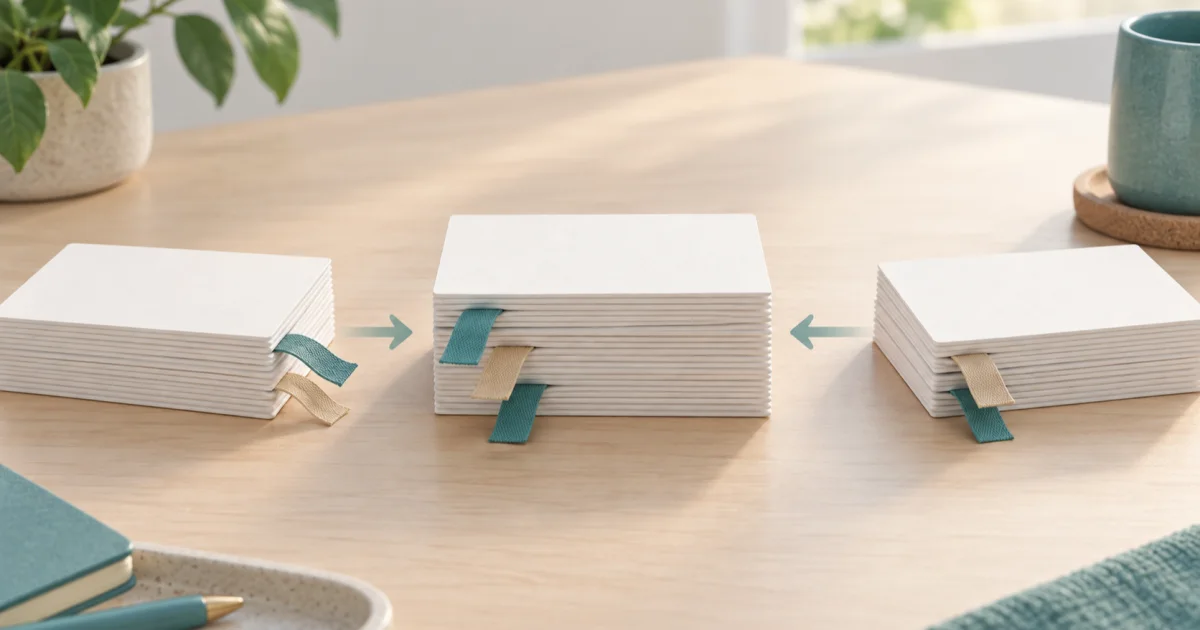
To merge bookmarks from several browsers or computers, export each collection as bookmarks.html, combine the files, and import the result once. FindUtils Merge Bookmarks combines two to twenty exports in your browser, keeps every folder, and can drop duplicate links on the way. The files are not uploaded and no link is opened.
This guide covers exporting from each browser, how the folders are arranged in the merged file, when to remove duplicates, and how to import the result without doubling what is already there.
Why Merge Exports Instead of Importing Each One?
Importing one export after another works, but each import lands in its own place and nothing is combined:
- Every import adds, never replaces. Three imports leave three copies of anything the collections share.
- Sync merges only what is signed in. An old laptop, a second browser or a backup file is not part of the synced profile.
- Repeated imports scatter folders. The same "Work" folder can end up three times, under three different parents.
Merging first gives you one file to check and one import to do.
How to Export Bookmarks From Each Browser
| Browser | Steps |
|---|---|
| Chrome | Bookmark manager, then the three-dot menu, then Export bookmarks |
| Firefox | Library window, then Import and Backup, then Export Bookmarks to HTML |
| Edge | Favorites, then the three-dot menu, then Export favorites |
| Safari on a Mac | File, then Export, then Bookmarks, or File, then Export Browsing Data to File in newer versions |
All four write the same Netscape bookmark file format, so exports from different browsers merge into one file. If all you have is Chrome's profile folder and no export, convert its Bookmarks file first with Bookmarks JSON to HTML.
How to Merge the Files
Step 1: Add the exports
Open FindUtils Merge Bookmarks and drop two or more bookmarks.html files, or choose them. Each file is listed with the number of links found in it. A file with no bookmarks in it is marked and left out, and the rest still merge.
Step 2: Put the files in order
The order of the list is the order of the merged file. Move a file up or down to change it. With duplicates removed, order also decides which copy stays: the first file's copy wins.
Step 3: Choose how folders are arranged
Put each file in its own folder is on by default. Each file's bookmarks go under a top-level folder named after the file, so work-laptop.html becomes a folder called work-laptop. Turn it off to merge folders that share a name.
Step 4: Download the merged file
Read the summary line (files, links in, links out, duplicates removed, folders) and download bookmarks-merged.html.
One Folder per File, or Merged Folders?
| Put each file in its own folder | Result |
|---|---|
| On (default) | work-laptop / Bookmarks bar / Clients and home / Bookmarks bar / News: every collection stays separate and easy to tell apart |
| Off | Both "Bookmarks bar" folders become one, and folders with the same name at the same level are combined |
On is the safe choice for a first merge: nothing is mixed, and you can move folders around in the browser afterwards. Off is the tidier choice when the exports come from the same person's machines and share a folder layout.
Should You Remove Duplicates?
Remove duplicate links is off by default, so every copy is kept. Turn it on to keep only the first copy of each address. Two links count as the same address when they match after folding host case, the default port and a trailing slash. Ignore tracking parameters (utm_*, fbclid, gclid) and Ignore #fragments are on while dedupe is on, the same rules Dedupe Bookmarks uses.
When a duplicate sat in a different folder from its first copy, the first copy and its folder are kept, and the notes say how many links that affected. Titles never matter: two bookmarks named differently for the same page are still duplicates.
What Is Carried Over, and What Is Not
| Carried over | Not carried over |
|---|---|
| Titles | Descriptions and Firefox tags |
| Addresses, exactly as saved | Favicons stored in the export |
| Folders and their nesting | Empty folders |
| The date each bookmark was added | Separators |
Bookmarks with no address are skipped and counted in the notes.
How to Import the Merged File
Use your browser's bookmark import and choose bookmarks-merged.html. Importing adds the bookmarks next to the ones already in the browser; it does not replace them, and browsers often place them in a separate imported folder. To end up with one clean set, remove or archive the existing bookmarks first, and keep the original exports until the result looks right.
Practical Examples
Work and home laptops. Export both, merge with folders per file, import on the new machine. The two collections sit side by side under work and home.
Switching from Firefox to Chrome, with an old Chrome export too. Merge the Firefox export and the old Chrome export with Remove duplicate links on. Links saved in both keep the Firefox copy if the Firefox file is first in the list.
Checking what a merge changed. Compare an original export with the merged file in Bookmarks Diff to see exactly which links came in from the other files.
Common Mistakes
Importing the merged file on top of the same bookmarks. The browser keeps what it has and adds the merged set, which doubles everything the collections share. Clear or archive first.
Expecting dead links to be removed. No link is opened or checked. A bookmark to a page that no longer exists is merged like any other.
Expecting a live sync. The merged file is a snapshot. Bookmarks added in either browser afterwards are not in it.
Dropping the browser's profile folder instead of an export. Merge Bookmarks reads bookmarks.html exports. For Chrome's Bookmarks JSON file, convert it with Bookmarks JSON to HTML first.
Tools Used in This Guide
| Tool | Use |
|---|---|
| Merge Bookmarks | Combine two or more bookmarks.html exports into one |
| Dedupe Bookmarks | Remove duplicates from a single export, with a CSV of what went |
| Bookmarks Diff | See which links differ between two exports |
| Bookmarks JSON to HTML | Turn Chrome's Bookmarks file into an importable export |
| Bookmarks HTML to CSV | Review every link in a spreadsheet |
FAQ
Can I merge Chrome and Firefox bookmarks?
Yes. Chrome, Firefox, Edge and Safari all export the same Netscape bookmarks.html format, so exports from different browsers merge into one file. Export from each browser, drop the files together, and import the merged file where you want the collection.
How many files can I merge at once?
Up to twenty bookmarks.html files, and at least two of them must contain bookmarks.
Are my bookmarks uploaded?
No. The exports are read and merged in the browser tab, and no request carries the files. No link in them is opened.
What happens to two folders with the same name?
With Put each file in its own folder on, they stay apart, each under its own file's folder. With it off, folders with the same name at the same level are combined into one.
Does merging remove duplicate links?
Only when Remove duplicate links is on. Then the first copy of each address is kept, in the order the files are listed, and tracking parameters and #fragments are ignored when comparing.
Next Steps
Export your bookmarks from each browser and combine them with Merge Bookmarks. To clean a single export, use Dedupe Bookmarks.