Convert a CSV to a bookmarks file when the links are already in a spreadsheet and they need to be in a browser. FindUtils CSV to Bookmarks HTML builds the Netscape bookmarks.html file that Chrome, Firefox, Edge and Safari import, with real nested folders. The tool does not upload or store the sheet.
This guide explains which columns are needed, how a folder path becomes folders, the one splitting rule that matters, and how to import the result.
Why Build a Bookmarks File?
Cleaning a bookmark collection is easy in a spreadsheet and miserable in a browser. Sorting, de-duplicating, bulk renaming and deciding what to drop are all one action in Sheets and all manual work in a bookmark manager.
The problem has always been getting the result back in. Browsers import bookmarks.html and nothing else, and recreating forty folders by hand undoes the point of the cleanup. This is the other half of the round trip that starts with Bookmarks HTML to CSV.
It is also the fastest way to turn a research list, a course reading list or a shared set of team links into something a colleague installs in one step.
The Columns
Only one column is required.
| Field | Recognized names | Required |
|---|---|---|
| Address | url, href, link, address, website, uri | Yes |
| Title | title, name, label, text | No |
| Folder | folder_path, folder, path, category, parent, group | No |
| Date added | add_date, date, added, created | No |
Matching ignores case, spaces and punctuation, so folder_path and Folder Path are the same name. When no address column can be found, a column map appears and you pick the columns yourself.
A row with no title uses its address as the title, which is what a browser shows for an untitled bookmark anyway.
How to Convert and Import
Step 1Load the Sheet
Open FindUtils CSV to Bookmarks HTML and upload the .csv or paste the rows. The separator is detected from the header: comma, semicolon or tab.
Step 2Check the Detected Columns
Under the output the tool lists which header it used for each field. Click "Adjust columns" to change any of them.
Step 3Set the Root Folder
Everything goes under one folder, Imported by default. That keeps an import in one place, which makes it easy to review and easy to delete if you want to start again. Clear the field to place the links at the top level.
Step 4Read the Counts
The line under the output says how many links and folders were written, and names any row that was skipped by its row number.
Step 5Import
| Browser | Steps |
|---|---|
| Chrome, Edge, Brave | Bookmark manager, then the three-dot menu, then Import bookmarks |
| Firefox | Manage bookmarks, then Import and Backup, then Import Bookmarks from HTML |
| Safari | File, then Import From, then Bookmarks HTML File |
How Folder Paths Become Folders
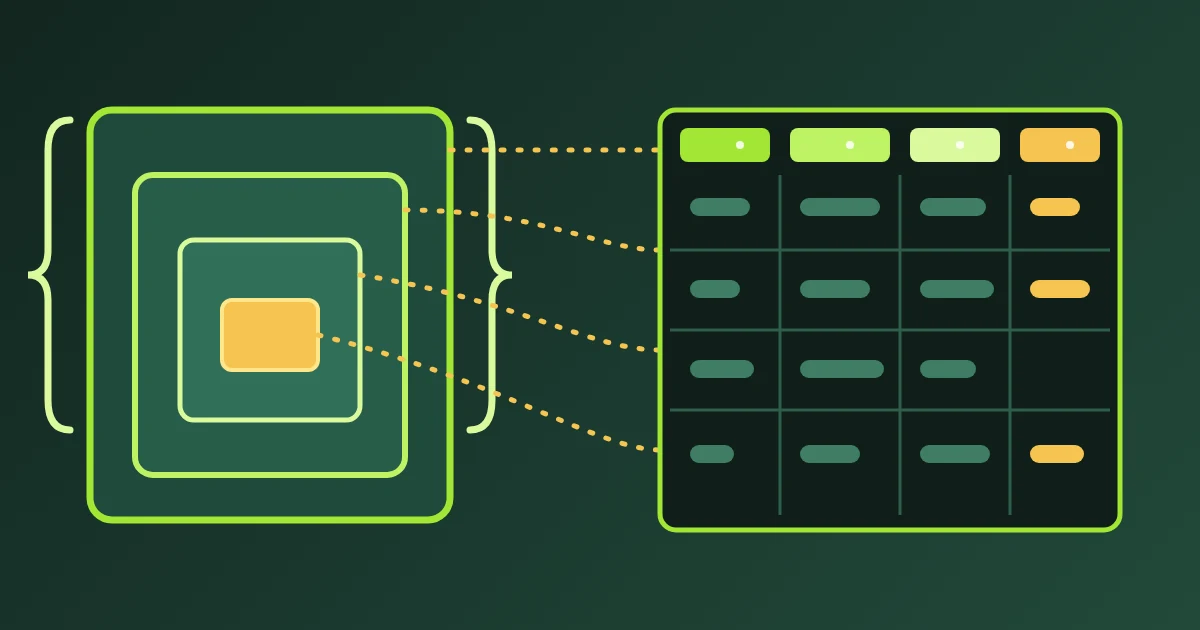
Write the path in one cell with a slash between levels: Work / Clients / Acme builds three levels. Rows that share a path are merged, so a hundred rows in one folder produce one folder and a hundred links.
The One Splitting Rule Worth Knowing
A folder can legitimately be called AI/ML. If every slash split a path, that folder would silently become two, and the round trip back to CSV would no longer match.
So the rule is: if the value contains a slash with spaces around it, split only on that. Otherwise split on a bare slash.
| Value | Folders |
|---|---|
Work / Clients | Work, then Clients |
Work/Clients | Work, then Clients |
AI/ML | one folder called AI/ML |
AI/ML / Papers | AI/ML, then Papers |
The CSV that Bookmarks HTML to CSV writes always uses the spaced form, so the two tools round-trip exactly.
Addresses
Anything with a scheme is kept exactly as written. That includes javascript: bookmarklets, file:// links to local documents, intranet hostnames and Firefox place: URIs, because all of them are real bookmarks somebody saved on purpose.
A bare domain such as example.com/page gains https:// so the browser treats it as a link rather than a search. A value that is neither, such as a sentence, is skipped and named by its row number.
Nothing is fetched. No link is opened, and no link is checked.
Practical Examples
Example 1: The Round Trip
Export bookmarks, convert to CSV, delete half the rows in Sheets, convert back, import. The folder structure survives both directions.
Example 2: A Course Reading List
A sheet with title, url and a week column. Map week to the folder field and each week becomes a folder.
Example 3: Team Links
A shared sheet of internal tools. Set the root folder to the team name so everyone's import lands in one place.
Example 4: A Sheet With Odd Headers
The columns are Resource, Where and Bucket. Nothing matches automatically, the column map appears, you pick the three, and the file builds.
Common Mistakes
Mistake 1: No Header Row
A sheet that starts with data has nothing to match. Add a header row.
Mistake 2: Expecting a Merge on Import
Browsers add, they do not merge. Importing the same file twice gives two copies of every folder. A root folder makes the mistake one deletion to undo.
Mistake 3: Ignoring the Skipped Rows
A skipped row is not in the file. The notes name each one by row number, counting the header as row 1.
Mistake 4: Splitting AI/ML by Hand First
Let the tool handle it. Writing AI / ML to be safe creates two folders, which is the opposite of what you wanted.
Mistake 5: Expecting It to Sync
The file is created in your browser and you import it yourself. Whether the result then syncs is your browser account's business, not the file's.
Tools Used in This Guide
- CSV to Bookmarks HTMLRows into an importable bookmarks file.
- Bookmarks HTML to CSVThe reverse, and the other half of the round trip.
- CSV ViewerCheck the sheet before converting it.
- VCF to CSVThe same idea for a contacts export.
FAQ
Q1: Is FindUtils CSV to Bookmarks HTML free to use? A: Yes. The tool is free and needs no account. It converts one sheet at a time in the browser.
Q2: Which columns do I need? A: One: the address. A title and a folder path are optional but usually worth having.
Q3: How do I make nested folders?
A: Write the path in one cell, such as Work / Clients.
Q4: What happens to a folder called AI/ML? A: It stays one folder. A path is split on a spaced slash when it has one, and on a bare slash otherwise.
Q5: Will importing twice create duplicates? A: Yes, because browsers add rather than merge. Use the root folder so a second import is easy to remove.
Q6: Is my spreadsheet uploaded? A: No. The file is built in the browser and no request carries the rows.
Next Steps
Build a small file first, import it into a test folder, and check one nested folder before you convert the whole collection.
- Build a file with CSV to Bookmarks HTML.
- Go the other way with Bookmarks HTML to CSV.
- Read the Bookmarks HTML to CSV guide for the export side.