Convert DOCX to HTML by reading the Word document's styles and writing the matching semantic tags: headings, paragraphs, lists, links, tables, and emphasis. FindUtils DOCX to HTML does this in your browser, and the document never leaves the tab. The page is in beta.
This guide explains what a .docx holds, which tags the converter writes, when to take the body fragment instead of a complete HTML file, and how images are handled. The conversion carries structure. A print layout is not reproduced, and no CSS layout is invented to imitate one.
What Does the Converter Read Inside a .docx?
A .docx is a zip archive of XML parts, and the converter reads the document body together with the style name attached to every paragraph. Style names are the whole story: a paragraph styled Heading 2 becomes an <h2>, and a paragraph that is merely bold and large stays a <p>.
FindUtils reads the package with mammoth.js, an open-source library under the BSD licence, running inside the browser tab. Nothing is uploaded and nothing is fetched from the network, which you can confirm in the browser's network panel while a document converts.
The same reading rule applies to lists. A list built with Word's list buttons becomes <ul> or <ol>, while a line that starts with a typed hyphen or a typed "1." stays ordinary paragraph text.
What Does the HTML Contain?
The output is semantic markup with no classes, no inline styles, and no vendor markup. mammoth's default style map covers the structures most documents use.
- Headings: Word's Heading 1 to Heading 6 styles become
<h1>to<h6>. - Paragraphs: body paragraphs become
<p>. - Lists: real bulleted and numbered lists become
<ul>and<ol>with<li>items. - Links: hyperlinks become
<a href>. - Tables: tables become
<table>with<tr>and<td>, and each cell holds a<p>. - Emphasis: bold becomes
<strong>and italic becomes<em>. - More character formatting: underline, strikethrough, superscript, and subscript are mapped as well.
In fragment form the converter puts one block element on each line, so the source reads cleanly in an editor and in a diff. The line breaks change nothing for a browser.
How to Convert DOCX to HTML Online
Drop one file, pick an output mode, decide about images, then copy or download the result. Six short steps cover the whole page.
Step 1Open the Converter
Open FindUtils DOCX to HTML in a browser. The whole conversion runs on the page, so there is nothing to install.
Step 2Drop the Word File
Drop a .docx file onto the page, or click to pick one. The converter checks the first bytes before anything heavy runs: a legacy binary .doc and a password-protected .docx both start as an OLE compound file and are refused with the instruction to save as an unprotected .docx first, and a file that is not a zip at all is refused as "not a .docx".
Step 3Choose a Full Document or a Fragment
Full HTML document is on by default and wraps the body in a complete HTML5 file. Turn the option off when you want the body fragment alone. The next section explains which mode fits which destination.
Step 4Decide About Images
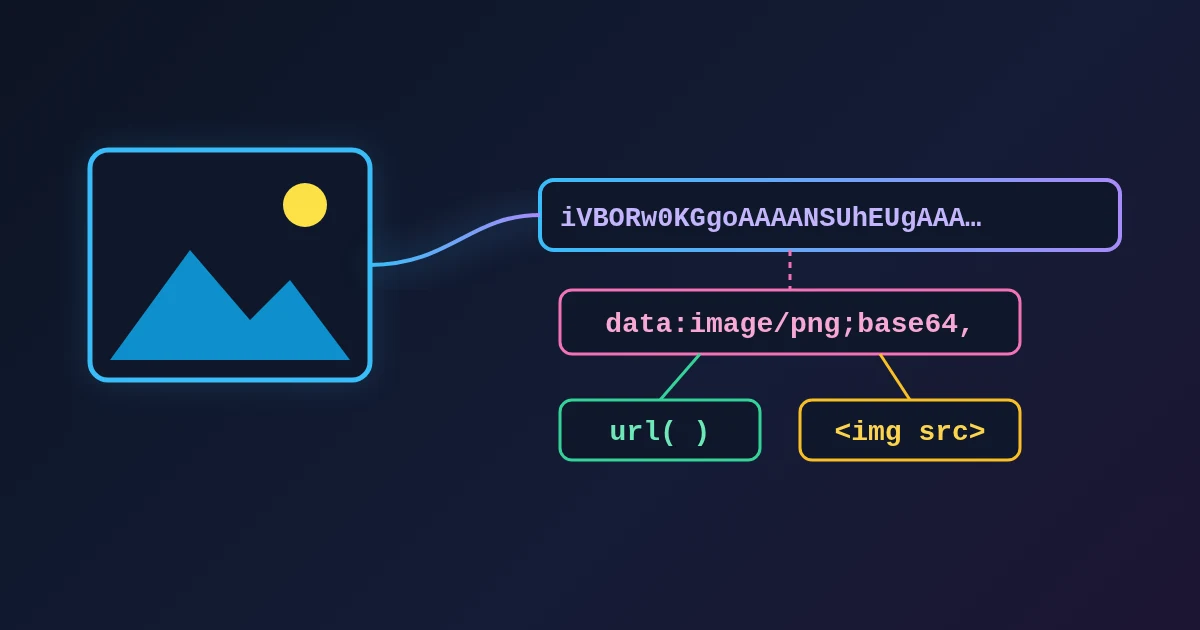
Images are left out by default, and the page reports how many were left out. Turn on Include images as data URLs when the HTML has to stand alone with its pictures inside it.
Step 5Check the Preview and the Source
The Preview tab renders the converted document in a sandboxed frame, which is the fastest way to spot a heading that stayed a paragraph. The Source tab shows the HTML as text, and the text is editable before you copy or download.
Step 6Copy the Fragment or Download the File
Copy fragment copies the body only, even while full-document mode is on, so a paste into a CMS never carries a doctype with it. Download writes the document's stem plus .html, so Brief.docx arrives as Brief.html.
What Survives and What Is Dropped
| Word content | HTML result |
|---|---|
| Heading 1 to Heading 6 styles | <h1> to <h6> |
| Body paragraphs | <p> |
| Bold, italic | <strong>, <em> |
| Underline, strikethrough, superscript, subscript | Mapped by the default style map |
| Hyperlinks | <a href> |
| Real bulleted and numbered lists | <ul>, <ol>, <li> |
| Tables | <table>, <tr>, <td>, one <p> per cell |
| Images | Left out and counted, or embedded as data URLs on request |
| Fonts, colours, sizes | Dropped |
| Columns, page breaks, page layout | Dropped |
| Headers and footers | Dropped |
| Custom paragraph styles | Text kept as paragraphs, with a note |
A conversion notes panel lists the Word features mammoth met and had no HTML for, such as a custom paragraph style or an unusual list format. The text of those parts is still in the output as plain paragraphs, so the notes tell you where to look rather than what was lost.
Dropping fonts and page layout is deliberate. Semantic HTML carries meaning, and the destination site or email template supplies the appearance.
Full Document or Fragment: Which One Should You Take?
Pick the fragment when the HTML will sit inside a page that already exists, and pick the full document when the HTML is the page. Both modes come from the same conversion, so switching costs nothing.
Use the Fragment for a CMS, a Blog, or an Email
A CMS post body, a blog editor, and an email editor all provide their own doctype, head, and styling. Pasting a full HTML file into one of them either gets stripped or leaves stray markup, so the fragment is the clean input. Copy fragment gives you exactly that, with one block element per line.
Use the Full Document for a Standalone .html File
The full document mode produces a complete HTML5 file: a doctype, lang="en", a UTF-8 charset declaration, a viewport meta tag, a <title>, and one small stylesheet. The <title> is taken from the document's first top-level heading, and falls back to the file name when the document has no heading.
The bundled stylesheet keeps the line length readable, sets a system font stack, gives tables visible borders, and caps images at the content width. Saving that file and opening it in a browser gives a page that reads properly with no further work.
What Happens to Images?
Images are left out by default and counted, so a converted brief tells you plainly that images were dropped rather than quietly losing them. Text-only HTML is the right default for a CMS paste, where pictures are normally uploaded to the media library instead.
Turning on Include images as data URLs embeds every picture in the HTML as a base64 data: URL. The result is genuinely self-contained, which suits an archive copy or a single file you email to someone. The result is also large, because base64 inflates binary data and a single photograph can outweigh all the text in the document.
Why Not Use Word's Save as Web Page?
Word's own "Save as Web Page" export is built to round-trip back into Word, not to feed a website. The saved markup carries MSO-specific elements and attributes, inline styles on nearly every run, and conditional comments, which is why pasting it into a CMS tends to bring visual noise along with the words.
The FindUtils converter writes semantic tags only. A heading is an <h2>, not a styled <p> inside a wrapper, so the destination's own stylesheet controls how the result looks.
How Should You Prepare the Document in Word?
The converter reads style names rather than appearance, so a document that uses Word's styles converts cleanly and a document that imitates them converts flat. Five habits cover almost every case.
- Apply Heading styles. An 18-point bold line is a paragraph to the converter. Use Heading 1, Heading 2, and so on, which also gives you a navigable outline in Word.
- Use real lists. Typed hyphens and typed numbers stay plain text. Use Word's bullet and numbering buttons.
- Keep table cells simple. Each cell becomes a
<td>holding a<p>, so a cell packed with several paragraphs is easier to review after conversion if it stays short. - Remove protection before converting. A password-protected file cannot be unpacked in the browser. Remove the password in Word and save again.
- Export from Google Docs as .docx. Choose File, Download, Microsoft Word (.docx), then drop the downloaded file onto the converter.
Tools Used in This Guide
- DOCX to HTML Convert a Word document to semantic HTML in the browser.
- HTML to DOCX Build a Word file from HTML, the reverse trip.
- DOCX to Markdown Convert the same Word file to Markdown instead.
- HTML Formatter Re-indent the HTML before you commit it.
FAQ
Is my document uploaded anywhere?
No. The DOCX to HTML page unpacks and converts the file inside the browser tab, and nothing is uploaded or fetched. Open the browser's network panel during a conversion and you will see the file stay put.
Can the tool open an old .doc file?
No. A legacy binary .doc is recognised from its first bytes and refused with the instruction to save as an unprotected .docx first. Word, LibreOffice, and Google Docs all produce a usable .docx.
Why is a password-protected file refused?
A password-protected .docx is an encrypted OLE compound file rather than a readable zip, and the page does not ask for passwords. Remove the protection in Word, save, and drop the unprotected copy.
Do tables convert?
Yes. A Word table becomes a <table> with <tr> and <td> elements, and every cell holds a <p>. In full-document mode the bundled stylesheet gives the table visible borders so the preview is easy to read.
What are the conversion notes?
Conversion notes are the messages mammoth produces when Word used something it had no HTML for, such as a custom paragraph style. The text from those parts is still in the output as plain paragraphs.
Can I go from HTML back to Word?
Yes. HTML to DOCX builds a real .docx from pasted HTML or a dropped .html file, with Word Heading styles, lists, and tables.
Next Steps
Convert one document, read its notes, and check the preview before you convert a batch. Neighbouring converters cover the other directions between Word, HTML, and Markdown.
- Convert a Word file with DOCX to HTML.
- Take the same file to Markdown with DOCX to Markdown.
- Go back the other way with HTML to DOCX.
- Turn a web fragment into Markdown with HTML to Markdown.
- Build a Word file from Markdown with Markdown to Word.
- Tidy the markup with the HTML Formatter.