Split an ICS file when a calendar import works on a small export and fails on the big one. FindUtils Split ICS reads one .ics file in your browser, cuts its entries into parts of a size you choose, and gives you a ZIP of complete calendars to import one at a time. The file is never uploaded.
This guide explains why a large import can fail with nothing to read afterwards, how to choose a chunk size, what each part carries, why a recurring series is never cut in half, and how the parts are named.
Why Does a Large ICS Import Fail Without Telling You?
Calendar apps and web importers differ in how much they accept in one request, and most do not publish the limit. That is why a failed import rarely names a number: the import times out, is rejected, or stops partway and leaves you with a fraction of the calendar and no message.
Because no limit is published, no limit can be assumed here either. Split ICS claims none. The practical approach is empirical: make the files smaller, import one, and see whether the app takes it.
Doing the same cut by hand in a text editor is slow and easy to get wrong. Every part needs the calendar header, the time zone definitions its own events reference, and unbroken folded lines, and a recurring series cut across two files imports as two broken ones.
How to Split an ICS File and Import the Parts
Export the calendar, load the file, choose how many entries each part may hold, then import the parts in order.
- Export the calendar. Google Calendar gives a zip with one .ics per calendar under Settings > Import & export. Apple Calendar exports the selected calendar with File > Export. Outlook desktop uses File > Save Calendar.
- Open Split ICS and upload the .ics file or paste its text. The page counts the entries and the time zone definitions the calendar holds.
- Choose entries per part. The presets are 50, 100, 250, 500 and 1000, with 250 as the default, and you can type any whole number from 1 to 5000 instead.
- Type a calendar name prefix if you want the parts titled. It is optional, and without one the source calendar's own name is copied into every part.
- Read the parts table before you download. It lists each part, the events it holds and its size in KB, so you can see the split before you commit to it.
- Download the ZIP and import the parts one at a time, starting with
part-001.ics. Check the app after each part so a failure points at a known file.
What Chunk Size Should I Choose?
Start at 250 entries per part, which is the default, and adjust from what the importer does. Halve the size when an import still fails, and double it when every part imports easily and you are tired of repeating the step.
The chunk size counts entries of every kind: events, to-dos and journal entries alike. A calendar exported from a task-aware app can therefore reach the limit sooner than its event count suggests, which is why the parts table reports events separately.
A part can also come out slightly smaller than the size you asked for. Entries that share a UID move together, and a group that would overflow the part being filled starts the next one instead.
What Does a Split Look Like?
A 600-event calendar at 250 entries per part comes out as three parts holding 250, 250 and 100 events, and the parts table shows the size of each one in KB next to its event count. A 40-event calendar at a custom size of 5 comes out as eight parts. The number you type is the only thing deciding the shape, so try one size, read the table, and change it before downloading anything.
Above the table the page reports the totals it read: entries, events, parts and time zones. Compare the entry total with what your calendar app claims to hold before you split, because a mismatch there is a sign that the export is not the calendar you meant to export.
What Does Each Part Contain?
Every part is a complete calendar: it starts with BEGIN:VCALENDAR, ends with END:VCALENDAR, and can be imported on its own and in any order. These four pieces make it up.
| Piece | Rule |
|---|---|
| Header properties | The source header is copied into every part, including VERSION, PRODID, CALSCALE, METHOD and the X-WR- hints. VERSION and PRODID are added when the source lacks them |
| VTIMEZONE blocks | Only the definitions this part's own entries reference through a TZID parameter. A part whose events are all in UTC carries none |
| Entries | The part's share of the events, to-dos and journal entries, in file order, written exactly as they were read |
| Calendar name | With a prefix, X-WR-CALNAME becomes <prefix> (part N of M). Without one, the source calendar's name is copied unchanged |
Nothing in a part is rewritten on the way through. Properties keep their parameters and their escaping, recurrence rules are copied as text and never expanded into occurrences, and the times are copied as stated, with their TZID or their trailing Z, and are never converted between zones.
Are Entries Sorted Before the Split?
No. Entries are cut in file order and keep that order inside each part, and nothing is sorted by date. The first part holds the entries that come first in the file, whatever their dates happen to be.
That matters when you expect the parts to line up with years or quarters. A calendar export is usually not in date order, so part-001.ics is not the oldest part of your year. If you need to see the dates in order first, convert a copy with ICS to CSV and sort the rows there.
Why Does a Recurring Series Stay Whole?
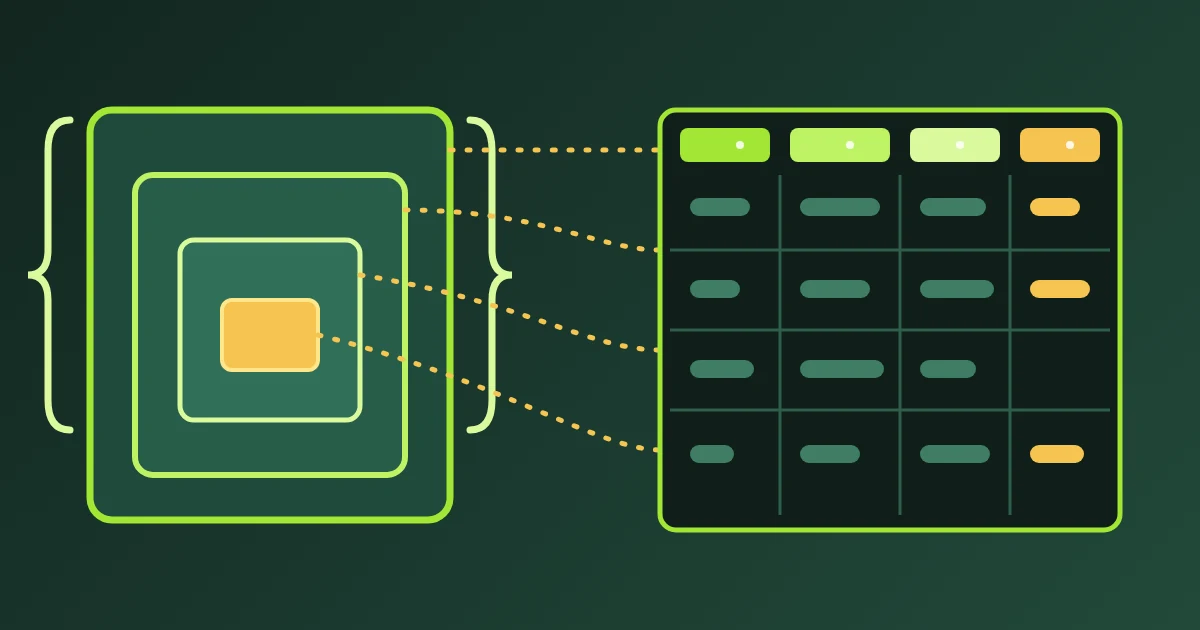
A recurring series stays in one part because the tool moves entries that share a UID as a single unit. A weekly meeting is stored as a master event with a recurrence rule, and each occurrence you moved or renamed is stored as a separate entry carrying the same UID with a RECURRENCE-ID.
Split those apart and each half imports as a broken series: a master with exceptions that are not there, or exceptions with no master to attach to. Keeping the UID group together avoids that, at the cost of parts that are sometimes a few entries short of the chunk size.
Entries with no UID at all are treated as units of one, so an odd component never blocks a part from filling up.
How Are Time Zones Handled per Part?
Each part carries only the VTIMEZONE definitions that its own entries reference through a TZID parameter, and it carries every one of them. A part whose events are all in UTC or floating time carries no definition; a part with events in Europe/Istanbul and America/New_York carries both.
This keeps the parts small without making any of them incomplete. An importer that reads a time with a TZID finds the matching definition in the same file, which is what the iCalendar format expects. For reading times across zones after the import, Timezone Converter works on the values themselves.
What Are the Parts Named?
Inside the ZIP the files are part-001.ics, part-002.ics and so on, in the order they were cut, and the ZIP itself is named after the file you loaded with -split added. A calendar exported as work.ics comes back as work-split.zip.
The calendar name inside each file is separate from the file name. Type a prefix such as Work and each part's X-WR-CALNAME becomes Work (part 2 of 5), which some calendar apps show as the calendar title when the part is imported. That is the fastest way to tell six freshly imported calendars apart.
Why Do I Get a Single .ics Instead of a ZIP?
Because the whole calendar fits in one part at the chunk size you chose, so there is nothing to split. The page says so and offers a single .ics download rather than a ZIP holding one file.
Pick a smaller chunk size if you want several parts anyway. A 40-entry calendar at 250 entries per part is one file; the same calendar at 10 is four.
Is My Calendar Uploaded?
No. The file is read, cut and packed into the ZIP inside the browser tab, and no request carries the calendar text. The ZIP library is fetched the first time you pack one, and your calendar is not part of that.
A calendar export is a record of who you met, where and when, so this is worth checking rather than trusting. Open the browser's network panel and split a file: no request carries the contents.
Can I Split a Calendar From a Script?
Yes. The same module runs on the FindUtils API and MCP server as split_ics. Send the calendar text as input with an optional chunk_size and name_prefix, and read back parts, an array holding one complete .ics text per part, alongside parts_count, items, events, per_part and timezones. The input is capped at ten million characters.
Common Mistakes
Mistake 1: Importing Every Part at Once
Import one part, wait for the app to finish, then import the next. Importing in parallel makes a failure hard to attribute and can hit the same limit that broke the single large file.
Mistake 2: Treating the Chunk Size as an Event Count
The size counts entries, and to-dos and journal entries are entries. Read the events column in the parts table when you need the event figure.
Mistake 3: Expecting Parts to Match Date Ranges
Parts follow file order, not the calendar. Nothing here produces a file per year or per month.
Mistake 4: Feeding It Something That Is Not a Calendar
A text with no BEGIN: line is refused with "Not an iCalendar file". Google's export is a zip of calendars, so unpack it and split one .ics at a time.
FAQ
Q1: Can I import the parts in any order? A: Yes. Each part is a self-contained calendar with its own header and time zone definitions, so no part depends on another. Order only helps you keep track of what you have imported.
Q2: Does splitting change my events? A: No. Entries are written exactly as they were read, with their properties, parameters and escaping intact. The only thing that can differ from the source is the calendar name, and only when you type a prefix.
Q3: Can I put the parts back together? A: Yes. Merge ICS takes up to 20 files and writes one calendar, with an option to remove entries that appear twice.
Q4: What if I want to filter the calendar instead of cutting it by count? A: Convert it with ICS to JSON or ICS to CSV, keep the entries you want, and build a calendar from the result with CSV to ICS.
Next Steps
Split one export, import the first part, and confirm the count in the calendar app before you import the rest.
- Cut a calendar with Split ICS.
- Join calendars back into one with Merge ICS.
- Read the events as objects with ICS to JSON.
- Turn a calendar into rows with ICS to CSV, or read the ICS to CSV guide.
- Build a calendar from a spreadsheet with CSV to ICS.