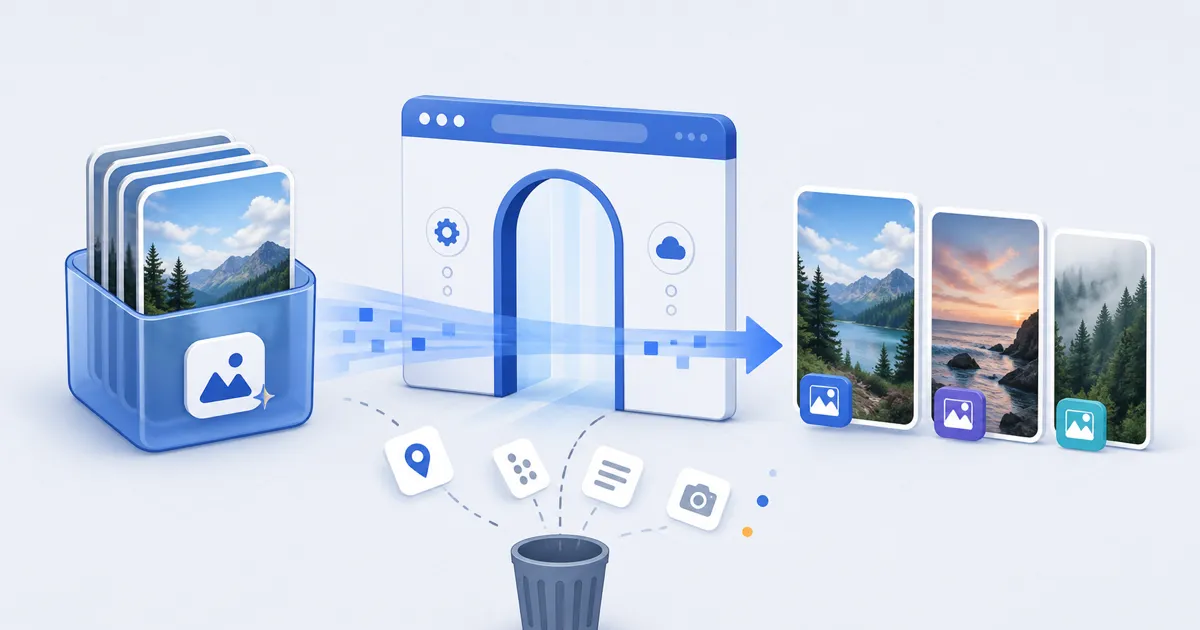
Convert a HEIC photo with the FindUtils HEIC to JPG tool when a receiving application requires JPEG. Select the photo, keep JPG as the output, and download a separate copy. Retain the original HEIC for later use.
Tool: HEIC to JPG
FindUtils.com is a web tools site, not the GNU findutils package.
Why this is slow today
A photo from an iPhone is often IMG_1234.HEIC. That file is smaller on disk. It is also the reason:
- Windows shows a blank thumbnail
- LinkedIn, X, or a job portal rejects the upload
- A Windows colleague says "I can't open it"
- You AirDrop to a Mac, export JPEG, and send again
Conversion produces a compatible copy for the receiving application. It does not require changing the original photo.
Do this instead
- Open HEIC to JPG
- Drop one photo or a handful
- Download the JPG, or a zip if you dropped several
That is the whole tool. Quality defaults to 90. Inspect the output because the visible change depends on the image. If you want PNG or WebP instead, open Options and pick one.
The decode runs in your browser as WebAssembly. The image is not posted to FindUtils, and you can confirm that in your browser's network panel.
What happens to the location data
An iPhone photo can contain GPS coordinates when the settings and capture conditions provide them. Conversion here paints the decoded image onto a canvas, and the export does not copy the original EXIF fields — so the coordinates, the camera model, and the timestamp are all dropped from the file you download.
That is usually what you want before sending a photo to someone you do not know. It also means you cannot keep that data through this tool. Your original .heic on the phone is untouched and still has all of it.
When to use the other converter
Image Format Converter handles JPEG, PNG, WebP, GIF, BMP, and ICO. It does not take HEIC, because a browser cannot decode HEIC without the extra WebAssembly this page loads. If you already have a JPG and want WebP, use that page.
What will fail, on purpose, with an error
- Live Photo pairs (a HEIC still plus a MOV video): this converts the still, not the video
- Some HDR and 10-bit HEIC from newer iPhones: if decode fails, export a JPEG from Photos on the phone once
- A
.HEICthat is actually already a JPEG or PNG: the tool says so rather than pretending
One file failing does not stop the batch. The rest still convert and download, and the failures are listed by name.
Which format should you pick
- JPG is the default, because it is what upload forms and Windows expect.
- PNG is lossless and much larger. It preserves the pixels supplied to its encoder, not the entire original HEIC file.
- WebP is another output option. Compare its size and appearance, then confirm that the receiving application supports it.
If a portal rejects your JPG for being too large, run it through the Image Compressor afterwards.
Keep doing this on the phone if you want zero conversion
Settings, then Camera, then Formats, then Most Compatible. New photos are then JPEG. Your existing camera roll stays HEIC, which is why the converter still exists.
FAQ
Does this upload my photos? No. Open your browser's network panel before you drop a file; you will not see the image bytes leave.
Is HEIC better quality? Often yes, at a smaller file size. JPG is the compatible copy, not the archival original. Keep the HEIC if you still have it.
Batch? Yes. Drop many, download a zip. If one file fails, the rest still download.
Can I convert to PNG or WebP? Yes, both. JPG is the default because that is what forms ask for.
Next
- Convert: HEIC to JPG
- Other formats: Image Format Converter
- Shrink the JPG if a portal has a size cap: Image Compressor