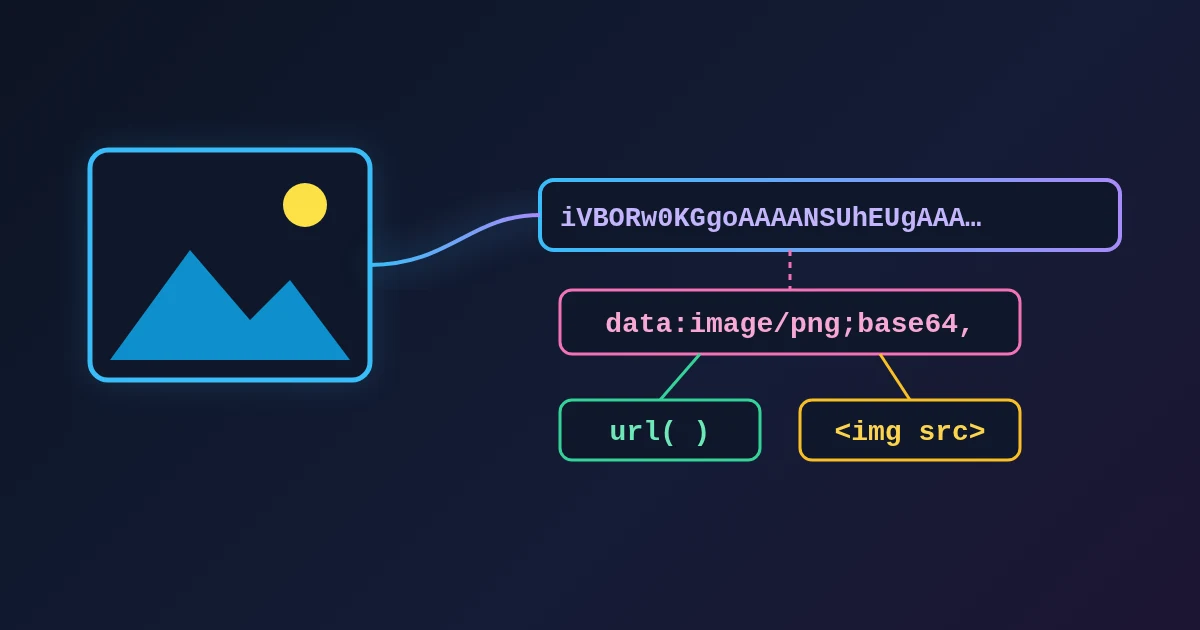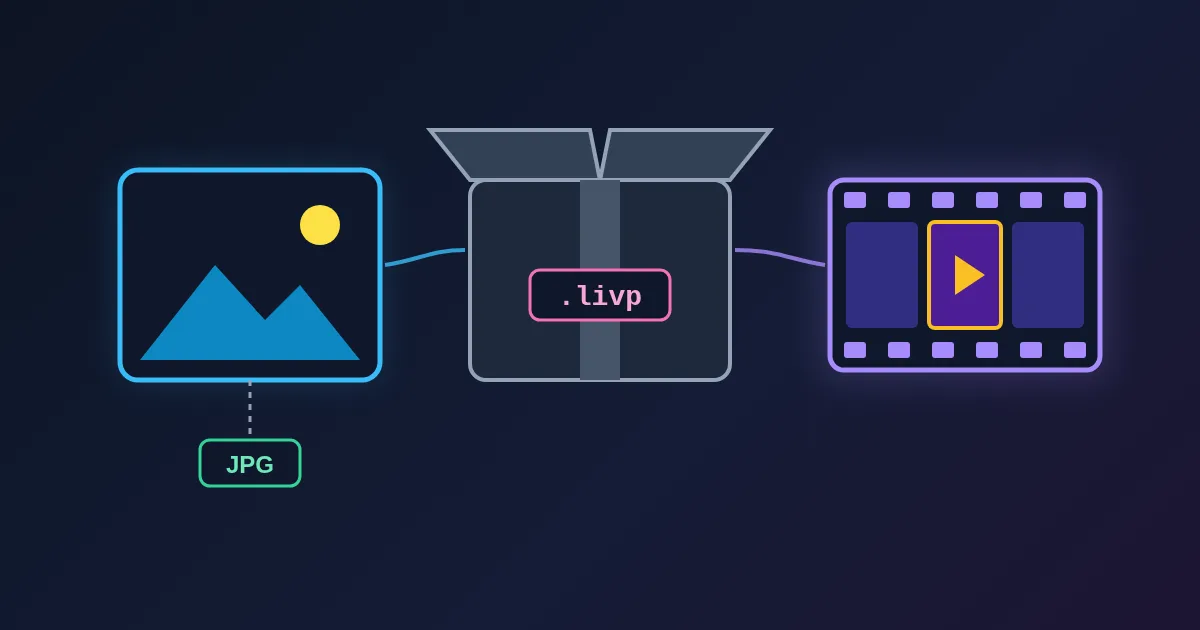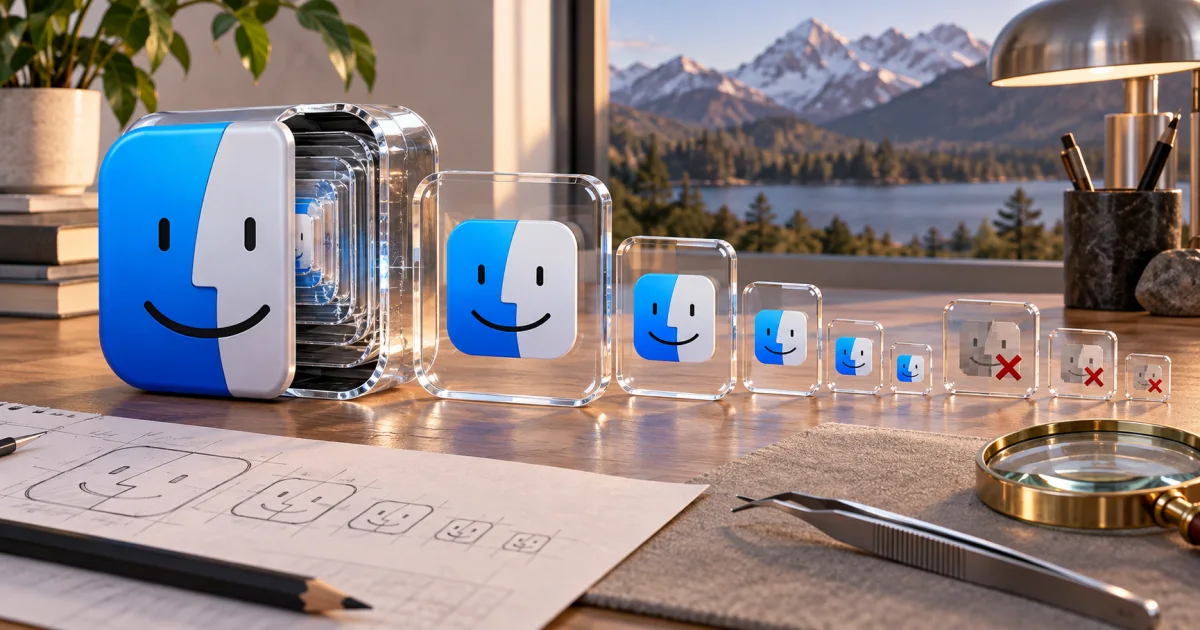
An .icns file is Apple's icon container: one file that holds the same icon at several sizes, from 16 by 16 up to 1024 by 1024 pixels, with the modern sizes stored as PNG. macOS displays it everywhere and offers no export. ICNS to PNG reads the container inside your browser and hands you the largest PNG, or every size as a zip, and nothing is uploaded.
You want the icon of a Mac app as a PNG. macOS shows it to you in the Dock, in Finder, and in Spotlight, and offers no way to save it. Conversion time depends on the file, decoder, and available memory.
Tool: ICNS to PNG
When conversion helps
An app bundle can contain an ICNS file under Contents/Resources. In Finder, use Show Package Contents to inspect the bundle. Some applications organize their icons differently.
Use this converter when you need extracted PNG files in the browser. macOS also provides image export through Preview. Apple documents iconutil for iconset conversion.
Check the icon's license before using it in a public website, press kit, or another application.
How to convert the file
- Right-click the app, Show Package Contents, open
Contents/Resources - Drag the
.icnsonto ICNS to PNG - Download the PNG, or a zip if you asked for every size
Extraction starts the moment you drop the file. Drop several and they are processed one after another. If one fails it is listed by name and the rest carry on.
The parser reads the selected file in the browser. The page still loads its application resources, and ZIP export can load its required library. This local parsing path does not upload the icon file.
What is actually inside an ICNS
One .icns file holds the same icon many times over, at different sizes and scales, so macOS can pick the right one for the Dock, a Finder list, or a large preview. The parser handles these kinds of entry:
- Modern PNG entries — 16 to 1024 pixels, at 1x and 2x, the types Apple names
icp4throughic14. These already store PNG data, and it is copied out byte for byte. Nothing is re-encoded and nothing is lost. - Classic 24-bit icons with a separate 8-bit mask —
is32,il32,ih32,it32. These are decoded and written as new PNGs, with the mask applied as transparency. - 1-bit icons —
ICN#,ics#,ich#. Also decoded and written as new PNGs with transparency.
The file names follow Apple's iconset convention. [email protected] is the 512-point icon at 2x scale, which means the picture is 1024 by 1024 pixels. The page prints that pixel size next to each image so you do not have to work it out.
Largest only versus all sizes
Under Options there is one switch, Sizes.
- Largest only is the default. You get the largest icon that this browser and parser can decode. It downloads directly. This is what you want for a README, a website, a press kit, or a store listing.
- All sizes exports each supported decoded icon with its pixel dimensions. Several outputs download together as
icns-png.zip. Unsupported entries are excluded.
Pick All sizes when the small entries matter. A small icon can contain size-specific details that a resized large icon does not reproduce.
What will fail, on purpose
- JPEG 2000 entries. Some icons from around OS X 10.7 store JPEG 2000 instead of PNG. Those are handed to the browser's own decoder. Support depends on the browser decoder. An entry that fails to decode is skipped. Check the output list before assuming you received every size.
- Old palette entries. 4-bit and 8-bit palette icons —
icl8,ics8,icl4,ics4— are skipped. - Dark-mode variants. A dark-mode icon embedded inside a newer
.icnsis not extracted. What you get is the standard icon. - A file that is not an
.icns. An app bundle is a folder, and an.iconsetis a folder. Neither is the file you want; openContents/Resourcesand take the.icnsfrom there.
One file failing does not stop the batch. The rest still extract and download, and the failures are listed by name.
Making an ICO afterwards
Porting a Mac app to Windows, or building a favicon, both start from the PNG you just extracted.
- For a single Windows
.ico, use the Image Format Converter with ICO output. - For a complete favicon set, use the Favicon Generator.
- If you need a size that is not in the file, the Image Resizer takes the 1024-pixel entry down to whatever you need.
Going the other way — building an .icns from a PNG — is not offered here.
FAQ
Does this upload my files? The extraction reads the selected file locally. The page can still request application resources. Use a sample file if you inspect network activity.
Is the image quality changed? Not for the modern entries. They already hold PNG data, and it is copied out unchanged. The classic 24-bit and 1-bit icons are decoded and written as new PNGs.
Batch?
Yes. Drop many, they are processed one after another. All sizes gives you a single icns-png.zip.
Is there a size limit, or a cost? The browser tool does not require signup. File dimensions, decoding support, and memory still limit what it can process.
Can I make an .icns from a PNG here?
No. This page only reads .icns files.
Sources
- Apple Preview image export: export formats in Preview.
- Apple high-resolution guidance: iconset naming and
iconutil.
The entry support described here follows the current FindUtils ICNS parser. A browser decoder determines whether an embedded JPEG 2000 entry converts.
Next
- Extract: ICNS to PNG
- Turn the PNG into an ICO: Image Format Converter
- Build a full favicon set: Favicon Generator
- Resize the 1024-pixel entry: Image Resizer