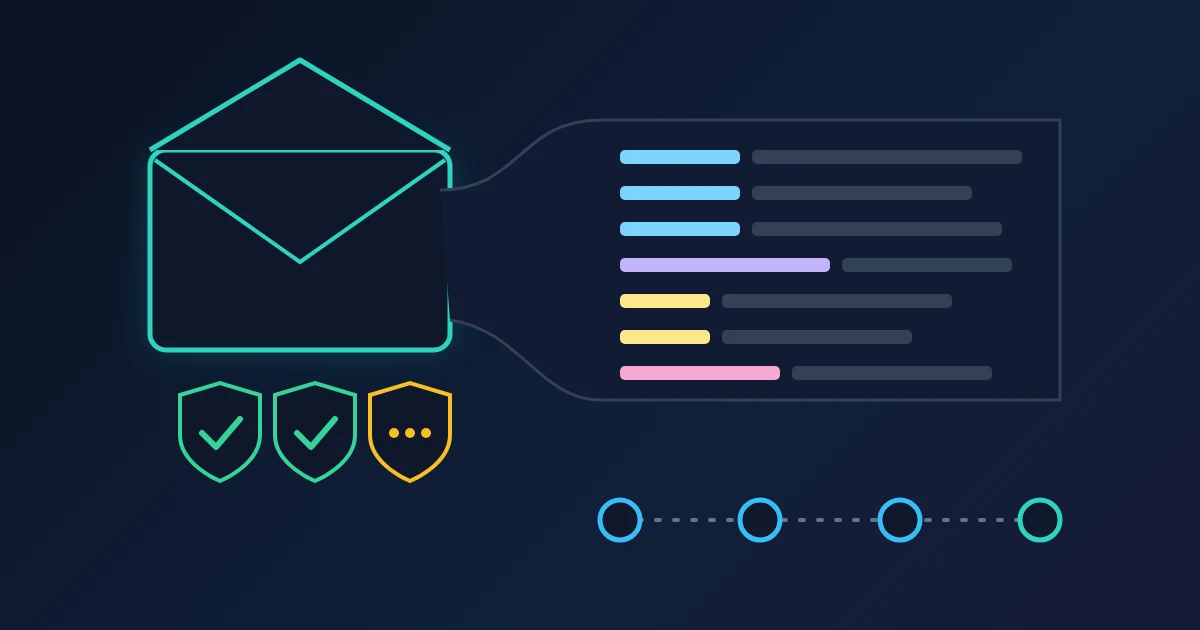
To analyze an email's headers, copy the full headers (Gmail calls them Show original, new Outlook View message details, Apple Mail Raw Source), paste them into the FindUtils Email Header Analyzer and click Analyze Headers. The tool shows the sender details, the SPF, DKIM and DMARC results, the routing path with the time between each server, and the public IP addresses found in the text. The headers are read in your browser, and the page makes no lookups.
This guide shows how to copy headers from each mail app, what each result panel means, and the few cases where you should check the raw text yourself. For a line-by-line walk through the trace lines, read How to read email Received headers.
How to Use Email Header Analyzer, Step by Step
- Copy the full headers of the message from your mail app (the next section has the exact menu for each one).
- Open Email Header Analyzer and paste everything into the Paste Email Headers box. Pasting the whole message, body included, is fine.
- Click Analyze Headers.
- Read the panels from the top: a red Suspicious patterns detected box (only when something failed), Email Information, Authentication Results, Routing Path and IP Addresses Found.
- Click Copy JSON if you want to keep the result or attach it to a support ticket.
How to Copy the Full Headers in Each Mail App
The short header you see in the inbox (From, To, Subject, Date) is not enough. You need the raw text with every Received: and Authentication-Results: line.
| Mail app | Where to find the full headers |
|---|---|
| Gmail (web) | Open the message, click More (⋮) next to Reply, choose Show original, then Copy to clipboard |
| New Outlook and Outlook on the web | More actions at the top of the message, then View > View message details |
| Classic Outlook for Windows | Open the message in its own window, then File > Properties. Copy the Internet headers box |
| Apple Mail on Mac | View > Message > Raw Source (Option-Command-U), then copy |
| Yahoo Mail | More > View Raw Message |
In Apple Mail, View > Message > All Headers also exists, but it shows the fields reformatted for reading. Raw Source gives you the lines exactly as they arrived, which is what the analyzer expects.
What Each Panel Means
Suspicious patterns detected
This red box appears only when there is something to flag: an SPF, DKIM or DMARC result of fail, or a route with more than eight hops. It is a summary of the panels below, not a separate check. A softfail does not raise it, so read the badges too.
Email Information
The From, To, Subject and Date fields as the headers state them. Keep in mind that these are written by the sender. The Date is set by the sender's mail program when the message was sent, not when it arrived, so it tells you nothing about delivery delay on its own.
Authentication Results
Three badges, SPF, DKIM and DMARC, each showing pass, fail, softfail, neutral, none or unknown. The tool takes them from the Authentication-Results header (and from ARC-Authentication-Results if needed), which the receiving mail server adds after it checks the message.
passmeans that check succeeded.failmeans it was tried and failed. A DMARCfailon a message that claims to come from a bank or a well-known brand is a strong warning sign.softfailandneutralare SPF results where the domain's record does not give a clear yes or no.nonemeans the domain publishes no record for that check.unknownmeans the tool did not find a result in the text you pasted. See the limits below before you conclude anything from it.
To see what each check does and how to fix your own domain, read SPF, DKIM and DMARC explained. To check a domain's published records without a message, use the Email Security Checker or the DNS Security Scanner.
Routing Path
Every server that accepts a message adds a Received: line at the top of the headers, so the raw text lists the route newest first. The tool turns that around and numbers the hops oldest first, so hop 1 is the earliest server and the last hop is your own provider.
For each hop you see:
- the receiving server (the name after
byin that line), - a +time badge: the time between the previous hop's timestamp and this one,
- the protocol after
with, such asESMTP,ESMTPS(with TLS) orESMTPSA(with TLS and a logged-in sender), - an IP address: the address of the machine that handed the message over to this server, taken from the first address in square brackets in the line (see the limits below for one case where that is the wrong one).
The tool converts each timestamp's time-zone offset before it subtracts, so a hop stamped -0700 and one stamped +0000 still give the right gap. Gaps are shown as <1s, whole seconds, or whole minutes (a 2 minute 37 second gap shows as +3m, and a gap of an hour and a half shows as +90m).
IP Addresses Found
Every public IPv4 address that appears anywhere in the pasted text, with private ranges (such as 10.x, 192.168.x and 127.x) left out. The page does not look them up. To see the network or owner of an address, paste it into IP Address Lookup, check its name with Reverse DNS Lookup, or see whether it is listed in IP Blacklist Checker.
Which Lines You Can Trust
Only the lines added by your own provider are reliable. Those are the top Received: lines and the Authentication-Results line your provider wrote. Everything below the point where the message entered your provider was supplied by the sending side, and a sender can put any text there, including made-up Received: lines. So when you trace a suspicious message, find the first hop your provider recorded and read the IP address it saw. That is the last machine you can be sure about.
Limits to Know
We tested the tool with sample headers in the style of Gmail and Postfix, including a copy with Windows line endings. A few cases need a second look at the raw text:
- Folded lines. Long header fields are allowed to wrap onto several lines that start with a space or tab. Large providers such as Gmail often wrap
Authentication-Resultsthis way. When the SPF, DKIM or DMARC results sit on the continuation lines, the badges showunknowneven though the results are in the text. If you seeunknown, find theAuthentication-Results:line in the raw headers and read it, or join it into one line before pasting. A wrapped Subject likewise shows only its first line. - A self-reported address can be shown instead of the real one. When the sending machine introduces itself with an address in square brackets, as in
from [192.168.1.23] (unknown [203.0.113.77]), the hop shows that first, self-reported address. The address the server actually saw is the one inside the parentheses, so read that part of the line for the first hop. - IPv6 addresses are not shown, either in the hop list or in IP Addresses Found. A hop that arrived over IPv6 has no address next to it.
- The direction of a gap is not shown. If a server's clock is wrong, a later hop can carry an earlier timestamp. The tool shows the size of the gap only, so when a gap looks odd, compare the two timestamps yourself.
X-Receivedlines are not counted as hops.- The tool reads the headers; it does not re-check them. The badges repeat what the receiving server recorded. The tool does not verify DKIM signatures or look up DNS records itself.
FAQ
How do I see the full headers of an email in Gmail?
Open the message, click More (⋮) next to Reply and choose Show original. Click Copy to clipboard and paste the result into the analyzer.
Why do the SPF, DKIM and DMARC badges say unknown?
Either the pasted text has no Authentication-Results header (it was copied from the short view, or the message never reached a server that checks), or the results are on wrapped continuation lines. Check the raw Authentication-Results: line directly.
How do I find where an email was delayed?
Look at the +time badges in the Routing Path. The biggest one marks the hop where the message waited. The blog post on Received headers explains the usual causes.
Can I find the sender's real IP address?
You can find the address of the machine that handed the message to your provider. It is in the first hop your provider recorded. Addresses further down the route were written by the sending side and may be false.
Are my headers uploaded?
No. The text is read in your browser and the page makes no lookups, so the addresses in your headers are not sent anywhere by the tool.
Related Reading
Sources
- Gmail Help: Trace an email with its full header
- Microsoft Support: View internet message headers in Outlook
- Apple Mail User Guide: Show detailed headers in Mail on Mac
- RFC 5321: Simple Mail Transfer Protocol, section 4.4 Trace Information
- RFC 5322: Internet Message Format, section 2.2.3 Long Header Fields
- RFC 8601: Message Header Field for Indicating Message Authentication Status
- RFC 3848: ESMTP and LMTP Transmission Types Registration