A DNS propagation checker asks DNS resolvers for the same record at the same moment and shows whether they already return your new value. The FindUtils DNS Propagation Checker asks two large public resolvers, Google Public DNS and Cloudflare, and puts their answers and TTLs side by side. If both show the new value, your change is live there. If one still shows the old value, its TTL tells you how many seconds that cached copy can last.
"Propagation" is a slightly misleading word. Nothing is pushed around the internet. Your DNS host serves the new record the moment you save it, and every resolver that cached the old answer keeps serving it until its time to live (TTL) runs out. This guide shows how to use the checker, how to read every result, how long each kind of change really takes, and a checklist for moving your DNS to a new provider without breaking your website or email.
What DNS Propagation Really Is
DNS propagation is the time it takes for cached copies of an old DNS answer to expire. Each record has a TTL in seconds, set by whoever runs the zone. A resolver that fetched the record may reuse it for that long without asking again. So a change is visible at once to a resolver with nothing cached, and up to one TTL later to a resolver that cached the old value just before you changed it.
RFC 1034, the original DNS specification, describes the TTL as "a time limit on how long an RR can be kept in a cache" and already gives the standard advice for planned changes: reduce the TTL before the change and raise it again afterwards.
Three things make the wait longer or shorter than a single TTL:
| Situation | What sets the wait |
|---|---|
| You edit an existing record (A, AAAA, MX, TXT, CNAME) | The old record's TTL, counted from when each resolver last fetched it |
| You create a name that someone looked up before it existed | The negative-caching time from the zone's SOA record (RFC 2308) |
| You change name servers at the registrar | The NS records' TTL in the parent zone (such as .com) plus the old NS TTL in your own zone |
Some resolvers also shorten long TTLs. Google says the TTLs it caches "are generally limited to six hours even if the actual TTL is longer". Other resolvers keep the full TTL.
How to Use the DNS Propagation Checker
Step 1Enter the Domain
Open the DNS Propagation Checker and type the name whose record you changed, such as example.com or mail.example.com. You can paste a full URL; only the hostname is used. IP addresses and local names are not looked up. Use the example chips under the field to try it first.
Step 2Pick the Record Type
Choose the type your change touched:
- A or AAAA for the address of a website (IPv4 or IPv6)
- CNAME for an alias, such as
wwwpointing at a hosting provider - MX for the servers that receive your email
- TXT for SPF, domain verification and other text values
- NS for the name servers of the domain
If you already have results, clicking another type checks it again straight away.
Step 3Run the Check
Click Check. On the tool page, your browser asks both resolvers over DNS-over-HTTPS at the same moment, and the domain goes to them directly, not through FindUtils. A resolver that does not answer within a few seconds is marked NO ANSWER, and the other one's result is still shown.
Step 4Read the Verdict and the TTLs
A banner above the two columns sums up the result. Each column shows one resolver's response code, every value it returned and the TTL it has left for each value. Copy results puts everything on the clipboard as tab-separated lines (resolver, type, value, TTL), ready to paste into a ticket or a spreadsheet.
How to Read the Results
The checker compares values in one spelling, so quotes around TXT data, upper-case letters in a name and a trailing dot on a name do not count as differences. What is left falls into one of these cases:
| What you see | What it means | What to do |
|---|---|---|
| Green: both resolvers return the same records | Your change is visible on both | Done for these two; other resolvers may still hold the old value up to the old TTL |
| Amber: the resolvers differ, one value highlighted | Only one resolver returns that value | Usually an old cached copy: wait for its TTL to run out, then check again |
| Same values, different TTLs | Each resolver fetched the record at a different time | Normal; nothing is wrong |
| NXDOMAIN | The resolver says the name does not exist | Check the spelling, then whether the record exists on your name servers; a cached "does not exist" can last as long as the SOA allows |
| No record of this type | The name exists but has no record of the type you picked | Pick another type, or add the record |
| SERVFAIL or another error code | The resolver could not get a valid answer | Often a broken delegation or a DNSSEC mismatch after a move; see the checklist below |
| A CNAME line under an A answer | The name is an alias and the resolver followed it | The addresses belong to the name at the end of the chain |
Not every difference is a delay. Large sites often hand out different addresses to different resolvers to spread load or send visitors to a nearby server. When we asked both resolvers for the A record of github.com on 20 October 2026, Google Public DNS returned 140.82.121.4 with 60 seconds left and Cloudflare returned 140.82.114.3 with 11 seconds left. Both answers were correct. If the addresses keep changing when you repeat the check, you are looking at load distribution, not a stale cache.
TTLs on matching values also differ. In the same check, both resolvers returned the MX record 0 . for example.com, Google with 210 seconds left and Cloudflare with 169. That record is a "null MX" (RFC 7505), the standard way for a domain to say it accepts no email.
How Long Does DNS Propagation Take?
DNS propagation takes as long as the old answer's TTL, counted from when each resolver last fetched it. For an ordinary record edit, that is the TTL you see in your DNS host's panel: 300 seconds means up to 5 minutes, 3600 means up to an hour, 86400 means up to a day. "Up to 48 hours" is a safe outer bound that mostly applies to name server changes.
The numbers behind that bound come from the parent zones. We checked them on 20 October 2026:
| Record | Where it lives | TTL seen | Longest a resolver may cache it |
|---|---|---|---|
NS for example.com | The .com servers (a.gtld-servers.net) | 172800 | 48 hours |
NS for wikipedia.org | The .org servers | 3600 | 1 hour |
NS for example.com | Its own name servers | 86400 | 24 hours |
Negative answer for a missing name under example.com | SOA minimum of the zone | 1800 | 30 minutes |
So moving a .com domain to new name servers can leave some resolvers on the old servers for up to two days, while the same move for a .org domain settles much sooner. Each top-level domain sets its own delegation TTL, so check yours rather than assuming.
Lowering a TTL only helps if you do it early. If a record has a TTL of 86400, set it to 300 at least 24 hours before the change, so every cached copy with the long TTL has expired by the time you switch.
Moving DNS to a New Provider: A Checklist
Moving your domain to a new DNS host or website builder usually means changing name servers, and that is where email breaks. The new provider often imports only the website records, and the MX and TXT records that deliver and authenticate your mail are left behind. This checklist keeps both working.
- Write down every record first. Export the zone from your current DNS host, or copy each record from its panel: A, AAAA, CNAME, MX, TXT (SPF and verification values), DKIM records under
selector._domainkey, SRV and CAA. DNS has no public "list all records" query, so a lookup tool cannot rebuild the zone for you. Use the DNS Lookup to save the current answers for the names you know, as a reference to compare against later. - Lower the TTLs a day ahead. Set the records you will change to a short TTL, such as 300, at least one old TTL before the move.
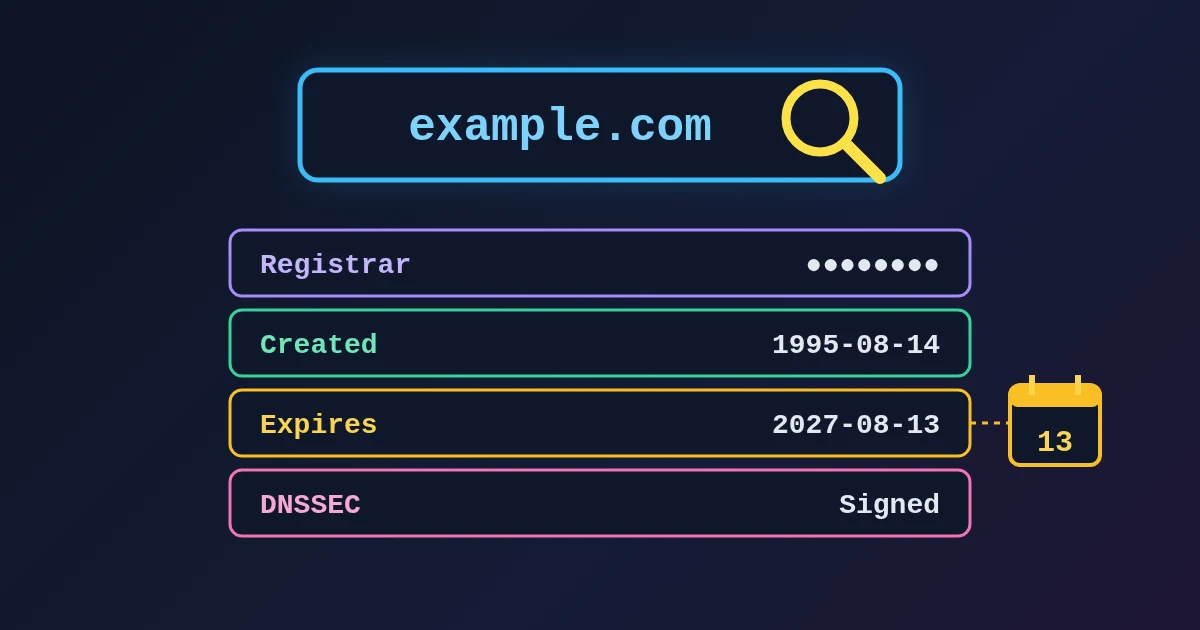
- Check DNSSEC. Run a WHOIS Lookup on the domain and look at the DNSSEC status. If the domain is signed, the DS record at the registrar must be removed, and its TTL allowed to expire, before you change name servers, unless both providers support a signed handover. Otherwise, validating resolvers return SERVFAIL, because the old DS record no longer matches the new provider's keys.
- Recreate every record at the new provider and compare it with your list, value by value. Pay attention to MX priorities and to long TXT values that were split or wrapped when you copied them.
- Change the name servers at the registrar.
- Check NS first, then the rest. In the checker, pick NS until both resolvers return the new name servers, then check MX, TXT, A and CNAME for each important name.
- Keep the old DNS host running. Resolvers that cached the old delegation keep asking the old servers until the parent NS TTL passes, which is up to 48 hours for .com. Do not delete the old zone until then.
- Refresh public caches if you are in a hurry. Google Public DNS and Cloudflare both offer free cache-purge pages. Google advises flushing the main domain first after a name server change, before subdomains such as
www, so they are not refreshed from your old servers. - Test email from outside. Send a message from an account at another provider to your domain, and one from your domain to an outside address. Check SPF, DKIM and DMARC with the Email Security Checker or the DNS Security Scanner, and read the authentication results in the received message with the Email Header Analyzer.
- Raise the TTLs again once everything has settled, so resolvers query your name servers less often.
What the Checker Can and Cannot Tell You
The checker answers one question well: do two of the most widely used public resolvers return your new value yet? It does not claim more than that.
- It is two resolvers, not a world map. Your internet provider's resolver, an office network or a resolver in another country can still hold an older copy until its TTL runs out.
- Your own device has caches too. Browsers and operating systems cache DNS answers, so your laptop can show the old site while both resolvers already return the new address.
- It reads public answers. It cannot see records that only exist on a provider's panel before the name servers point there.
- Six record types. A, AAAA, CNAME, MX, TXT and NS. For SOA, use the DNS Lookup, and to find the hostname behind an address in the answers, use the Reverse DNS Lookup.
If the site itself still shows old content after DNS has settled, the cause is often a redirect or a cache on the web server, not DNS. The Redirect Chain Checker shows where a URL actually lands.
Common Mistakes to Avoid
Mistake 1: Lowering the TTL at the Same Time as the Change
A shorter TTL only applies to copies fetched after you set it. Copies fetched before still carry the old, long TTL. Lower it at least one old TTL in advance.
Mistake 2: Deleting the Old DNS Zone Right After Switching
Until the parent zone's NS TTL passes, some resolvers still send queries to your old name servers. If the old zone is gone, those visitors get errors instead of your site.
Mistake 3: Moving Only the Website Records
Website builders and new hosts often set up A and CNAME records for you and nothing else. Without your MX and TXT records, email stops arriving and SPF and DKIM checks fail. Copy them over before you switch.
Mistake 4: Treating Different Addresses as a Failed Change
If you did not change an A record, two different addresses usually mean load distribution. Repeat the check: addresses that rotate on every check are normal.
Mistake 5: Leaving the TTL Low Forever
A 300-second TTL is useful during a change and wasteful afterwards. Raise it again once the change has settled.
FAQ
What does a DNS propagation checker do?
It asks DNS resolvers for the same record of a domain at the same moment and compares the answers. The FindUtils DNS Propagation Checker asks Google Public DNS and Cloudflare, shows each value with its remaining TTL, and highlights any value only one of them returns.
How long does DNS propagation take?
As long as the old record's TTL, counted from when each resolver last fetched it: 3600 seconds means up to an hour. Name server changes take longer because the parent zone's NS records have their own TTL, 172800 seconds (48 hours) for .com when we checked.
Why do I see my new website but my colleague still sees the old one?
Your resolvers fetched the record at different times, so their cached copies expire at different times. Your devices also cache DNS answers. Wait for the old TTL to pass, or check whether the colleague's network uses a resolver that still holds the old value.
Can I speed up DNS propagation?
Only before the change: lower the TTL at least one old TTL in advance. After the change, you can ask Google Public DNS and Cloudflare to refresh their caches with their free purge pages, but you cannot clear every resolver in the world.
Why does the checker show NXDOMAIN for a record I just created?
A resolver that looked up the name before it existed may keep that "does not exist" answer cached for as long as the zone's SOA record allows, often 30 minutes to a few hours. If NXDOMAIN persists after that, check that the record was saved on the name servers the domain actually uses.
Will changing name servers break my email?
Only if the MX and TXT records are missing at the new provider, or DNSSEC is left pointing at the old provider's keys. Copy every record first, handle the DS record before the switch, and send a test email afterwards.
Is the DNS Propagation Checker free?
Yes. It is free, needs no account, and on the tool page the domain goes from your browser straight to the two resolvers.
Next Steps
- Read the DNS Lookup guide to understand each record type in more detail.
- Learn how mail authentication works in SPF, DKIM and DMARC explained: why email lands in spam.
- Check the certificate on your new host with the SSL Certificate Checker guide.
- Find your own public IP address with the What Is My IP Address guide.
Sources
- RFC 1034: Domain Names, Concepts and Facilities (TTL, section 3.6)
- RFC 2308: Negative Caching of DNS Queries (DNS NCACHE)
- RFC 7505: A "Null MX" No Service Resource Record for Domains That Accept No Mail
- Google Public DNS: Frequently Asked Questions (Flush Cache, TTL limits)
- Google Public DNS: Flush Cache
- Cloudflare 1.1.1.1: Purge Cache
- Cloudflare DNS docs: DNSSEC (disable before changing name servers)