Convert ODT to Markdown by unpacking the OpenDocument package, reading the document body, and writing Markdown for the structure inside it. FindUtils ODT to Markdown does this in your browser. The file is not uploaded and nothing is fetched while the page converts, which you can confirm in the browser's network panel.
This guide explains what an .odt holds, what survives the conversion, which files the page refuses, and how to prepare a LibreOffice document for a clean result. The conversion keeps structure only. It does not clone a page layout. The page is in beta.
What Is Inside an ODT File?
An .odt file is a zip archive of XML parts, not a single binary blob. Rename a copy to .zip, open it, and the parts are readable text.
mimetypenames the kind of document, such asapplication/vnd.oasis.opendocument.textfor a text document.content.xmlholds the body of the document and the automatic styles it uses.styles.xmlholds the named styles, such as Heading 1 and Title.META-INF/manifest.xmllists every part, and it is where an encrypted package records that it is encrypted.
The converter reads all four. The mimetype decides whether the file is a text document at all, the manifest reveals encryption before anything heavy runs, content.xml supplies the text and its structure, and styles.xml supplies the named styles that decide which words are bold, italic, or struck through.
Which Files the Page Accepts
The page accepts a text document (.odt), a text template (.ott), and a master document. Those three mimetypes are the whole accepted set. A flat XML file saved as .fodt is not a zip, so it is refused like any other non-zip file.
How to Convert ODT to Markdown Online
Drop one file, read the notes, decide about tables, then copy or download the Markdown.
Step 1Open the Converter
Open FindUtils ODT to Markdown. The page runs the conversion in the tab, so there is nothing to install.
Step 2Drop the Document
Drop an .odt file onto the page, or click to select one. Only one document is converted at a time.
Step 3Check the File Kind
The page reads the first two bytes before anything else, because a zip starts with PK. A file that is not a zip is refused as "not an OpenDocument file". A spreadsheet or a presentation is refused with "text documents only", and an encrypted package is refused as "password-protected, unsupported".
Step 4Read the Conversion Notes
Notes name the parts that were left behind: comments, a table of contents or an index, and merged table cells that had to be flattened. Images are counted separately. The notes are the quickest way to learn where the Markdown differs from the document.
Step 5Decide About GFM Tables
The GFM tables option is on by default and writes pipe tables. Turn it off when the destination does not render pipe tables, and every table row becomes one bullet instead.
Step 6Edit, Copy, or Download
The Markdown is editable before you take it. Fix a heading, a link, or a table cell in place, then copy the text or download the .md, which keeps the document's basename. Draft notes.odt downloads as Draft notes.md.
What Survives the Trip to Markdown?
Structure survives, appearance does not. The table below is the full list of what the converter writes and what it leaves behind.
| ODT content | Markdown result |
|---|---|
| Headings with an outline level | # to ###### by level |
| A paragraph in the Title style | # heading |
| Paragraphs | Paragraphs |
| Bold, italic, strikethrough | **bold**, *italic*, ~~struck~~, read from the document's text styles |
| Underline | Dropped; Markdown has no underline |
| Hyperlinks | [text](url) |
| Bulleted lists | - items |
| Numbered lists | 1. items |
| Tables | Pipe tables with a header row |
| Line breaks | Kept |
| Repeated spaces, tabs | Collapsed to one space |
| Footnotes and endnotes | The note text in square brackets at the reference point |
| Images | Left out and counted |
| Comments | Dropped, and a note says how many |
| Tables of contents and indexes | Dropped, with a note |
| Tracked-change records, bookmarks, page breaks | Dropped silently |
| Fonts, colours, sizes, columns, page layout | Dropped |
Most of the dropped list is a property of Markdown rather than a limit of the converter. Markdown has no place to store a font name, a column count, or a page break.
Footnotes Come Through in Brackets
A footnote or an endnote is written inline as its text in square brackets, right where the reference sat in the sentence. The bracket keeps the note next to the sentence it belongs to, which reads well in a wiki or a README.
There Is No Include-Images Option Here
Images are counted and left out, and the ODT page offers no way to embed them. When a document must carry its pictures into the Markdown, save it from LibreOffice as .docx and use DOCX to Markdown, which can embed images as data URLs. Most projects are better served by saving the pictures once in an images folder and linking them.
Indexes Leave Their Headings Behind
A table of contents and an alphabetical index are both dropped, and a note says so. Nothing is lost by it: the headings the index pointed at are still in the converted text, and a docs site usually builds its own contents page from those headings.
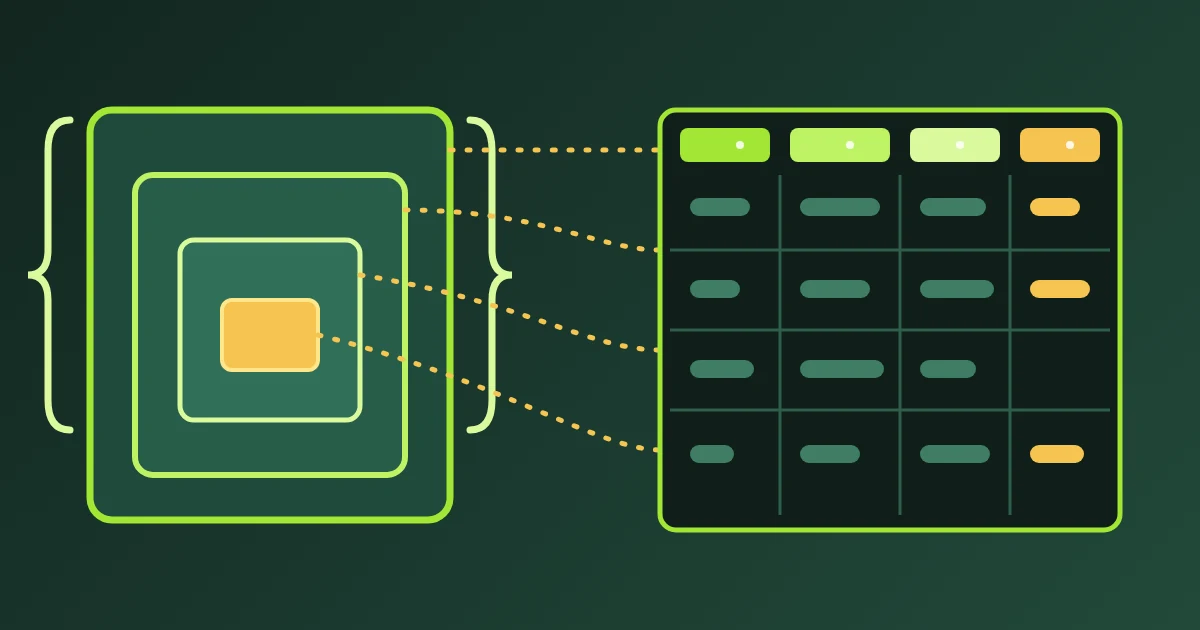
What Does the GFM Tables Option Change?
The option decides the shape of every table in the output, and it is on by default.
- On: a table becomes a GitHub-flavoured pipe table with a header row, one line per row. This is what GitHub, GitLab, and most docs sites render.
- Off: each row becomes a single bullet, with the cells of that row joined by a middle dot. A header row becomes the first bullet.
Turn the option off when the destination renders plain Markdown without the table extension, or when the table is really a short list that reads better as bullets. A merged cell cannot span columns in either shape, so merged cells are flattened and counted in the notes.
Which Files Are Refused, and What to Do
Three refusals exist, and each has a one-step fix in LibreOffice.
| Refusal | Cause | Fix |
|---|---|---|
| "not an OpenDocument file" | The file is not a zip, including a flat .fodt | Save As, ODF Text Document (.odt) |
| "text documents only" | The package is a spreadsheet (.ods), a presentation (.odp), or a drawing | Convert the right file, or copy the text into a text document |
| "password-protected, unsupported" | The package records encryption in its manifest | Open it with the password, then save a copy without the save-with-password option |
The flat format is the one that surprises people. LibreOffice can save the same document as a single XML file with the .fodt extension, and that file holds the same content but has no zip around it. Save it as a normal .odt and it converts.
Why Do Nested Lists Come Out Flat?
Nested list items arrive at one level, without indentation. The ODT page and the Word twin share a single HTML to Markdown writer, and that writer puts every list item at one level.
Two ways round it are both quick. Add the indentation by hand in the editor after the conversion, since the items are all present and in order. Or keep lists one level deep in the source document, which is often the better shape for a README in any case.
How to Prepare a LibreOffice Document
The converter reads styles, not appearance. A document that uses LibreOffice's styles converts cleanly, and a document that imitates them with formatting converts to plain paragraphs.
- Apply Heading styles. Heading 1 to Heading 6 carry an outline level, and that level becomes the number of
#characters. A large bold line with no heading style stays a paragraph. - Use the Title style. A paragraph in the Title style, or in a style derived from it, becomes a top-level heading. Many LibreOffice templates apply Title to the first line already.
- Use real lists. Only a real list becomes a Markdown list. A paragraph that begins with a typed hyphen or a typed "1." stays a paragraph.
- Let numbering be numbering. A list becomes a
1.list when its list style starts with a number format, and a-list otherwise. - Keep table cells simple. A cell's content is flattened to one line, so a cell holding several paragraphs loses the break between them.
- Remove protection first. An encrypted package cannot be unpacked, and the page does not ask for passwords.
Tools Used in This Guide
- ODT to MarkdownConvert a LibreOffice
.odtdocument to Markdown in the browser. - DOCX to MarkdownThe Word twin, for a
.docxfile. - Markdown to WordBuild a
.docxfrom Markdown, the reverse trip. - HTML to MarkdownConvert a pasted HTML fragment instead of a document.
- Markdown PreviewerCheck how the Markdown renders before publishing it.
FAQ
Is the ODT to Markdown converter free?
Yes. The page is free, needs no account, and converts one document at a time in the browser.
Is my document uploaded anywhere?
No. The package is unpacked and converted inside the tab, and the page fetches nothing during a conversion. Open the browser's network panel while converting to see that for yourself.
Why is my .ods or .odp file refused?
The page handles OpenDocument text documents only. A spreadsheet and a presentation have a different mimetype in the package, and the page checks that mimetype before it reads anything else.
Are footnotes really kept?
Yes. Each footnote and endnote becomes its text in square brackets at the point where the reference stood. The bracket text is ordinary Markdown, so you can turn it into a proper footnote reference by hand if your renderer supports one.
What happens to images in the document?
Images are left out of the Markdown and counted, so you always know how many the document held. Save the pictures from LibreOffice and link them from the Markdown, or take the .docx route described above.
Can I go from Markdown back to a LibreOffice document?
Yes. Markdown to Word builds a .docx from Markdown, and LibreOffice opens a .docx and saves it back as .odt. That makes the round trip in two steps.
Next Steps
Convert one document, read its notes, and check the tables before converting a whole folder. LibreOffice is open-source software and free to install, so preparing the source document with proper styles costs nothing.
- Convert a LibreOffice document with ODT to Markdown.
- Convert a Word document with DOCX to Markdown.
- Build a Word file from Markdown with Markdown to Word.
- Convert a web fragment with HTML to Markdown.
- Preview the result with the Markdown Previewer.