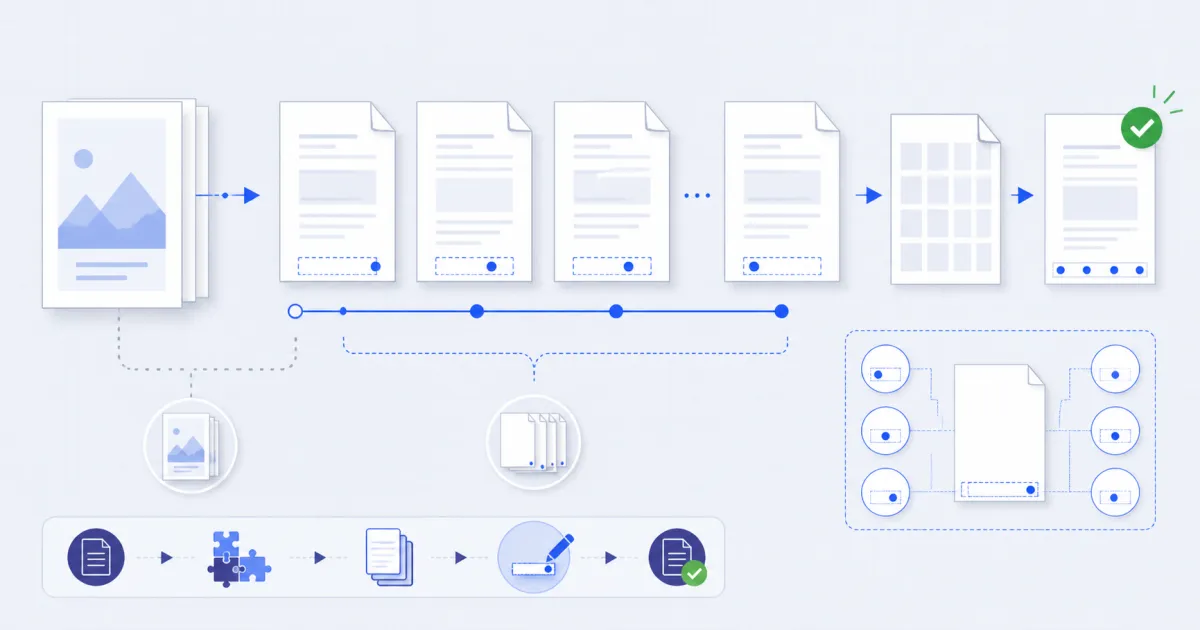
Add page numbers with FindUtils PDF Page Numbers by selecting a position, format, and starting number. If you skip a cover, the second sheet receives the starting number. The total counts numbered pages, not every sheet in the document.
The drawing is the easy part. This guide is mostly about the arithmetic, which is where these tools quietly go wrong.
Why a Merged PDF Has No Numbers
A word processor numbers pages as you write. A PDF assembled from several sources has no such author — PDF Merger joins page objects, and none of them knows it is now page 7 of 23. So the numbers have to be added afterwards, over whatever is already there.
How to Add Page Numbers
Step 1Open the Tool
Go to PDF Page Numbers.
Step 2Drop the PDF
Read locally, never uploaded.
Step 3Choose a Position
Six options. Bottom centre is the default because it collides with existing content less often than any other.
Step 4Choose a Format
{n} becomes the page number and {total} becomes the count. Presets cover the usual forms.
Step 5Decide About the First Page
If the document opens with a cover, turn on Skip the first page.
Step 6Apply and Download
The Two Pieces of Arithmetic
This is the part worth reading.
Skipping the cover changes where numbering starts, not what it starts at
Turn on Skip the first page and the cover stays bare. Numbering begins on the second sheet, and that sheet becomes number 1 — not 2.
That is almost always what people mean. The cover is not page 1 in the sense a reader uses when they say "see page 4".
{total} counts numbered pages, not sheets
A twelve-sheet document with a skipped cover has eleven numbered pages. So the last one reads 11 of 11.
A tool that printed 12 of 12 there would be claiming a total that includes a page carrying no number — a reader looking for page 12 would never find it.
| Sheets | Skip first | Numbers drawn | Last page reads |
|---|---|---|---|
| 12 | off | 1–12 | 12 of 12 |
| 12 | on | 1–11, on sheets 2–12 | 11 of 11 |
| 12 | on, start at 5 | 5–15, on sheets 2–12 | 15 of 11 |
That last row looks odd and is correct: {total} is how many pages are numbered, while Start at shifts the sequence. Use one or the other, rarely both.
Positions and Formats
| Position | Good for |
|---|---|
| Bottom centre | almost everything — the default |
| Bottom right | documents with a left-aligned footer |
| Bottom left | documents with a right-aligned footer |
| Top right / centre / left | when the bottom margin is already occupied |
| Format | Renders as |
|---|---|
{n} | 7 |
Page {n} | Page 7 |
Page {n} of {total} | Page 7 of 23 |
- {n} - | - 7 - |
A format without {n} is refused: it would draw the same text on every page and no number anywhere.
Start At, and When to Use It
Start at exists for a document that continues another one. Split a report into two files and the second should carry on where the first stopped rather than restarting at 1.
Set it to the number after the previous file's last, and the pair reads as one sequence.
Common Mistakes
Mistake 1: Numbering the Cover
The most common one, and it makes every later reference off by one.
Mistake 2: Numbering Before Merging
Number the finished document. Numbering the parts gives you three sequences that each start at 1.
Mistake 3: Colliding With an Existing Footer
The number is drawn on top and does not move what is already there. Check one page of a document that has its own footer before numbering all of it.
Mistake 4: Expecting Bates Numbering
The legal form — a fixed prefix with zero-padded width, ABC000123 — is not what this does. The format field handles a plain sequence with surrounding text.
Plan the Numbering Before You Apply It
Choose the settings from the document structure, not from the sheet count.
| Document structure | Skip first | Start at | Suggested format |
|---|---|---|---|
| A report with no cover | No | 1 | Page {n} of {total} |
| A report with one cover | Yes | 1 | Page {n} of {total} |
| The second file in a sequence | No | next number | Page {n} |
| A short handout | No | 1 | {n} |
Open the completed PDF and check the first and last numbered pages. This check finds most sequence and total errors quickly.
Tools Used in This Guide
- PDF Page Numbersthis tool.
- PDF Mergerwhat usually created the unnumbered file.
- PDF Watermarkthe other finishing step.
- PDF Organizefix the order before you number.
FAQ
Is my PDF uploaded? No. It is read and rewritten in your browser.
Can I skip the cover page? Yes, and numbering then starts at 1 on the second sheet.
What does {total} count? Only the numbered pages. A skipped cover is not included.
Can I start at a number other than 1? Yes — Start at takes any value.
Will it cover existing text? It is drawn on top, so it can sit over an existing footer. Check one page first.
Does it do Bates numbering? Not the padded legal form. A plain sequence with surrounding text, yes.
Next Steps
PDF Watermark marks the document before it goes out, and PDF Compress gets it under an email limit.