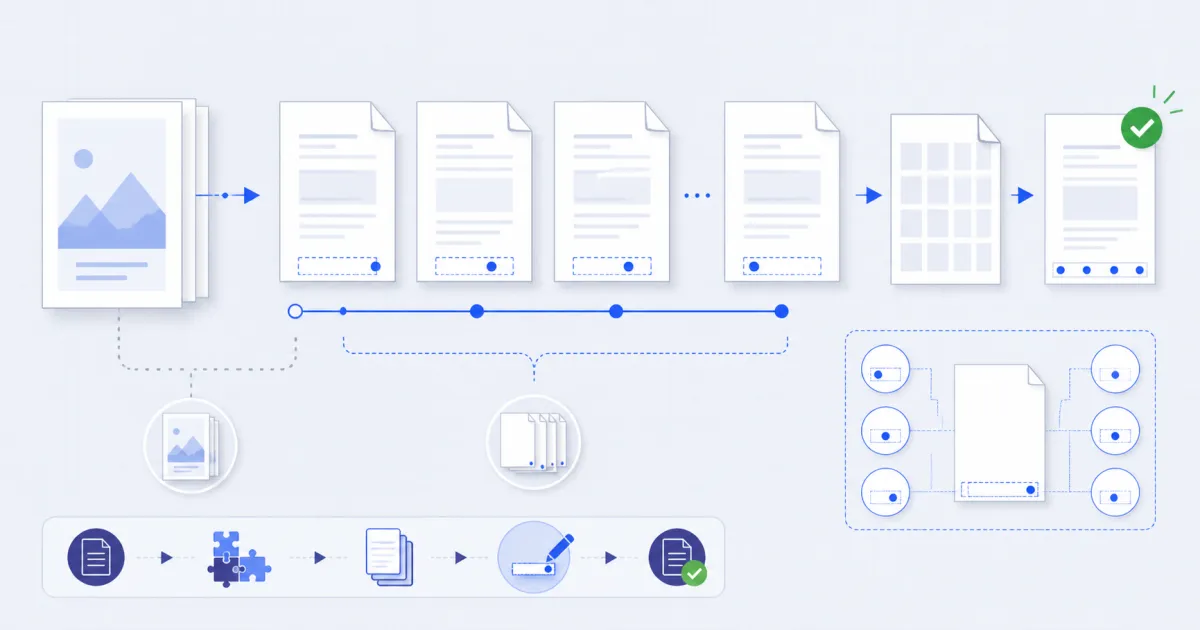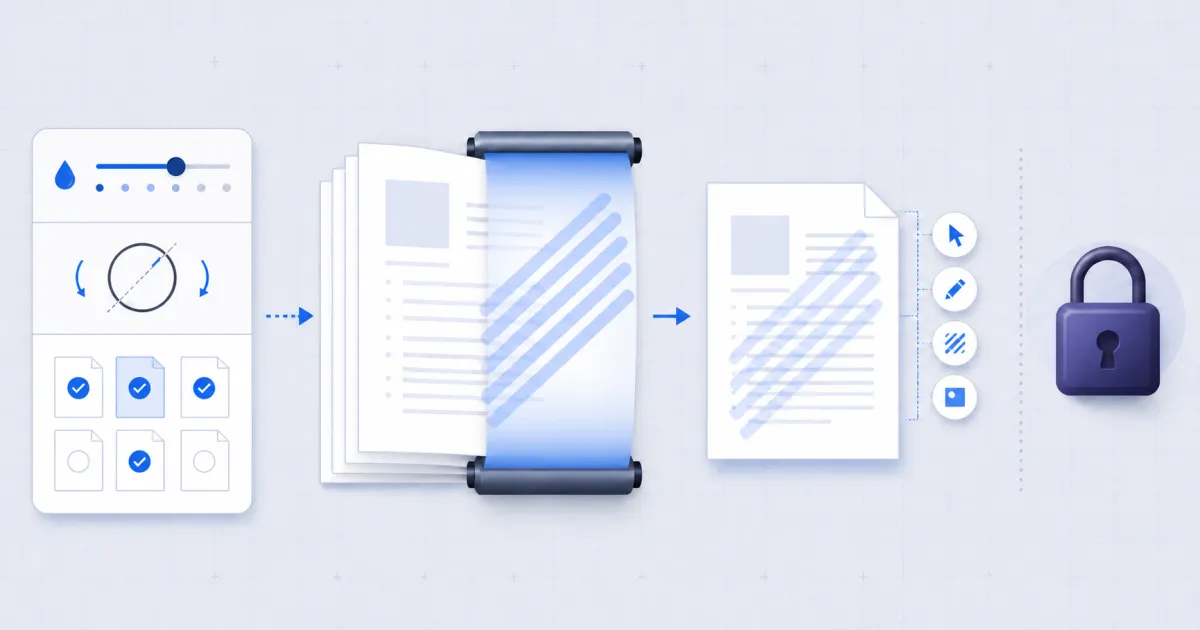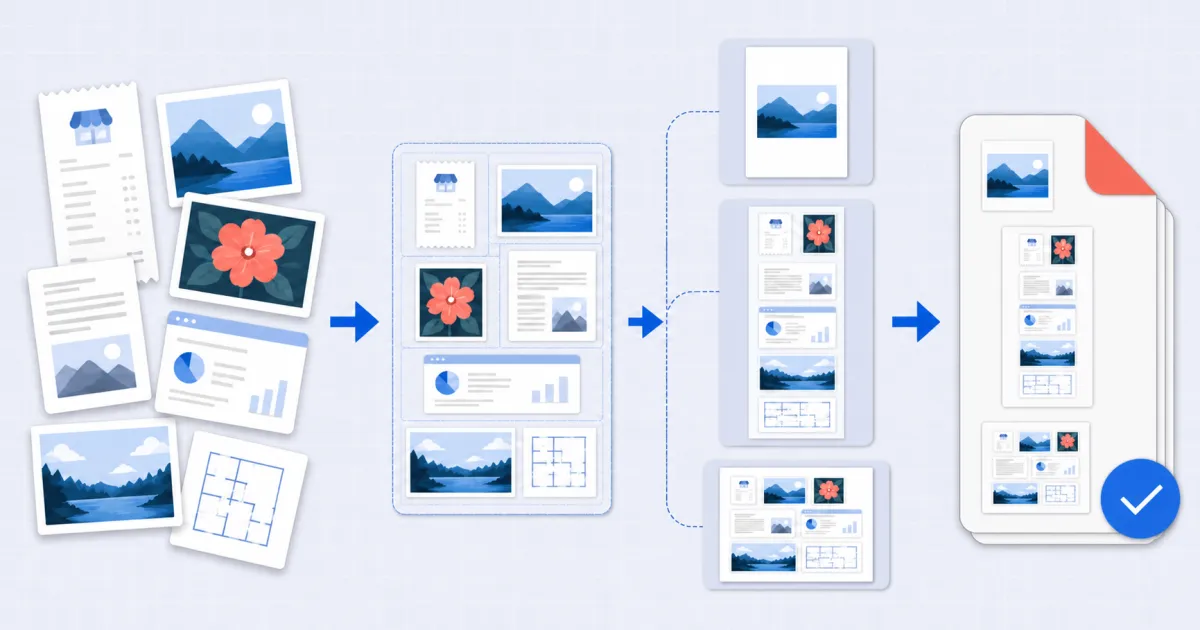
Convert images to PDF by embedding each one on its own page. FindUtils Images to PDF takes JPG and PNG files in the order you set and returns one document. It runs in your browser and does not upload the images.
This guide covers the three page-size choices, what embedding preserves, and the cases where it will refuse.
Why Combine Images into a PDF?
A folder of photographs is awkward to send. It arrives out of order, it opens one file at a time, and half the recipients will not scroll through it. The same content as a single PDF opens once, pages in sequence, and prints as a set.
The three situations that produce a folder of images are almost always the same three: a phone camera pointed at receipts, a scanner that writes one file per sheet, and a run of screenshots for a report.
How to Convert Images to PDF Online
Step 1Open the Tool
Go to Images to PDF. Everything happens locally.
Step 2Add the Images
Drop the files on the page or click to choose them. Add more at any time — they append to the list.
Step 3Fix the Order
The list is the page order. Use the arrows to move a file up or down.
Step 4Choose a Page Size
Three options, and the right one depends on where the file is going. The next section explains the difference.
Step 5Build and Download
One click builds the PDF, and a second downloads it.
Fit, A4 or Letter
| Choice | Page becomes | Use when |
|---|---|---|
| Fit | exactly the size of its image | the images already have the shape you want, and the file is for screen |
| A4 | 595 × 842 points, image centred inside the margins | the document is going to a printer outside the US |
| Letter | 612 × 792 points, image centred inside the margins | the document is going to a printer in the US |
Fit produces a document whose pages vary in size when the images do — fine on screen, awkward on paper. A4 and Letter give every page the same sheet, which is what a printer, a binder and a page-numbering pass all expect.
Scaling always contains, never crops. An image wider than the sheet is made smaller until the whole of it fits. It is never cut off to fill the page, because losing the edge of a receipt to make it fill an A4 sheet is not a trade anyone wants.
What image embedding preserves
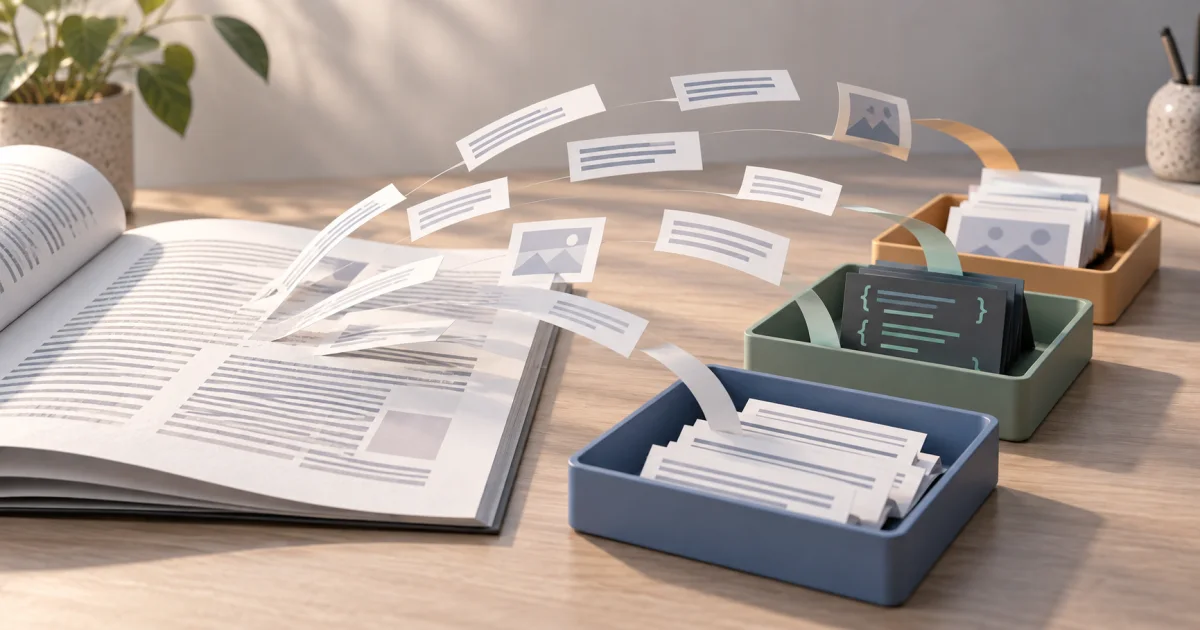
A PDF page is a canvas, and an image is one of the things it can carry. The JPEG bytes that go in are the JPEG bytes that come out, wrapped in a PDF container — there is no rendering step and no re-encode.
That has one consequence worth expecting: the PDF is roughly as large as the images were. Twenty phone photographs at 4 MB each make an 80 MB PDF. If that matters, compress the images before this step, or run the result through PDF Compress afterwards.
What It Refuses
- Anything that is not a JPG or a PNG. The format is read from the file's own first bytes, not its extension, so a
.jpgthat is really a PNG still works — and a.jpgthat is really a Word document is named in the skipped list rather than dropped silently. - HEIC photographs from an iPhone. Convert them with HEIC to JPG first.
- An empty list, and a list where nothing was usable — both say so rather than returning a blank PDF.
Common Mistakes
Mistake 1: Expecting the Order to Fix Itself
Files arrive in whatever order the file picker hands them over, which is often alphabetical and rarely what you meant. Check the list before building.
Mistake 2: Choosing Fit for a Document That Will Be Printed
Fit gives every page the size of its image. A printer given pages of six different sizes does something unpredictable with all of them.
Mistake 3: Being Surprised by the File Size
Nothing is re-encoded, so the PDF inherits the images' size. That is the point, but it does mean a folder of phone photographs makes a large file.
Mistake 4: Setting a Margin on Fit
Margins only apply to A4 and Letter — a fitted page has no room for one by definition. The field hides itself when Fit is selected.
Prepare Scans Before You Combine Them
A PDF keeps the order and condition of the source images. Prepare the files before you build the document:
- Rotate every image to its correct reading direction.
- Crop unwanted desk edges or camera shadows.
- Use clear file names when you have many pages.
- Put the files in the final reading order.
- Choose A4 or Letter when the result will go to a printer.
- Use Fit when the exact image dimensions matter more than uniform pages.
Do not enlarge a small scan and expect more detail. PDF wrapping keeps the existing pixels, but it cannot create missing detail.
Tools Used in This Guide
- Images to PDFthis tool.
- HEIC to JPGfor iPhone photographs first.
- PDF to Imagethe reverse trip.
- PDF Compressif the result is too large.
- PDF Page Numbersthe usual next step.
FAQ
Are my images uploaded? No. They are read and embedded in your browser.
Does it reduce quality? The tool embeds images without intentionally reducing their pixel dimensions. JPEG streams can be embedded directly. PNG embedding does not promise a byte-identical copy of the original PNG file.
Which formats work? JPG and PNG, detected from the file's own bytes.
Will a large image be cropped? Never. It is scaled down until it fits.
How many images can I add? There is no server-side limit. Your browser's memory is the ceiling.
What about HEIC? Convert to JPG first, then bring the JPGs here.
Next Steps
PDF Page Numbers and PDF Watermark are the usual finishing steps, and PDF Merger joins the result to other documents.