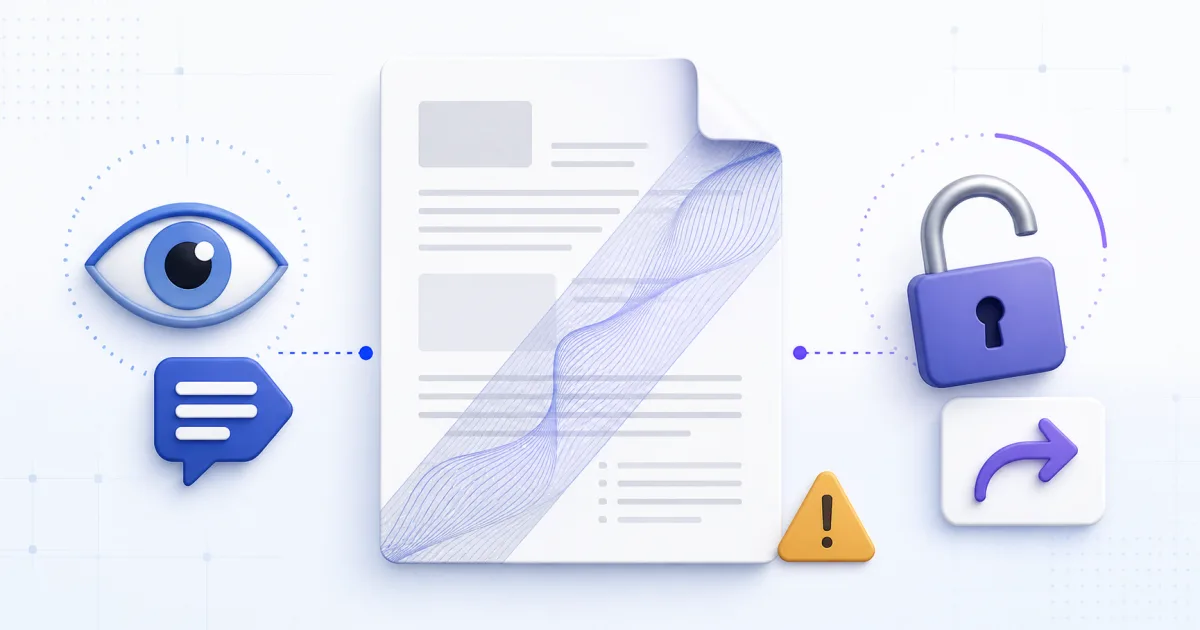
A large CONFIDENTIAL label changes how a PDF looks. It does not change who can open the file.
This distinction is important because watermarks and security controls solve different problems.
A watermark communicates. A security control prevents or limits an action.
What a PDF Watermark Does
A text watermark adds visible content to a PDF page. It usually has low opacity and a diagonal angle.
The mark can state a document condition:
DRAFTsays that the content is not final.CONFIDENTIALgives a handling instruction.COPYidentifies a duplicate.- A recipient name links one copy to its intended reader.
The mark can remain visible when someone prints or screenshots the page. That makes it more durable than a warning in an email message.
What It Does Not Do
A watermark does not encrypt the file. It does not check identity or require a password.
It also does not prevent these actions:
- Opening the PDF.
- Selecting text.
- Copying content.
- Printing pages.
- Taking screenshots.
- Removing or covering the mark.
The original content stays under the watermark. A PDF editor can often remove the added text object.
Even a flattened page does not solve the access problem. A reader can still view and capture the content.
Why the Word CONFIDENTIAL Can Mislead
The word describes the intended handling. It does not prove that the handling rule is enforced.
A document can carry a CONFIDENTIAL mark and remain available through a public link. The mark does not correct that access error.
Treat the text as a visible policy label. Use a separate system to enforce the policy.
Controls That Protect Access
Choose a control that matches the risk.
Limit who receives the file
Send the document only to approved recipients. Confirm the address before sending sensitive material.
Use authenticated access
Place the document behind an account or an access link that checks identity. Remove access when it is no longer needed.
Encrypt sensitive transfers
Use a system that encrypts the document during transfer and storage. If you use password encryption, share the password through a separate approved channel.
Remove data that recipients do not need
Redaction removes sensitive content from the shared copy. A black shape placed over text is not sufficient if the text remains underneath.
Keep an audit record
Use a document system that records access when the process requires accountability. A watermark alone does not create this record.
When a Watermark Is Still Useful
Watermarks remain useful when the communication goal is clear.
Use DRAFT during review so readers do not quote unfinished content as final. Use COPY to separate a duplicate from an original record.
A recipient name can discourage casual forwarding. It creates visible accountability, but it cannot identify who opened the file.
Use a status mark together with access controls for sensitive material. The two controls support different parts of the process.
Choose Effective Watermark Settings
The mark must be visible without making the page difficult to read.
The tool defaults to opacity 0.15 and a 45-degree angle. Use these as starting settings. Check legibility on each page; neither setting prevents removal.
Automatic text size adapts to pages with different dimensions. A fixed size can look too small on a landscape page.
Apply the mark after you merge the final document. This keeps the size and placement consistent.
Use PDF Watermark to add text to all pages or selected pages. The file stays in the browser during processing.
Keep the Unmarked Original
Save the stamped document as a new file. Keep the source under your normal document controls.
This lets you create a later status version without editing a marked copy. It also prevents a DRAFT mark from becoming part of the final source.
A Clear Decision Rule
Ask one question before you apply a watermark: do you need to communicate a status or prevent access?
Use a watermark for status. Use authentication, encryption and controlled distribution for access.
The PDF Watermark guide explains opacity, angle, page selection and useful label text.
Related Tools
- PDF Watermark adds a visible text label.
- PDF Editor adds image stamps, annotations, and visual cover shapes. Those shapes do not remove underlying data.
- PDF Merger creates the final file before stamping.